

Although, I have never talked to PolarGeek, pirch's creator, I assume this
category is named aliases because most of the things you will use here are
given a name (one short and fast to type) other than their real name. That may
sound a bit confusing now but you will understand it after this section.
Ok, now let's learn how to cut and paste all of those really cool pictures
that you see everyone else using!

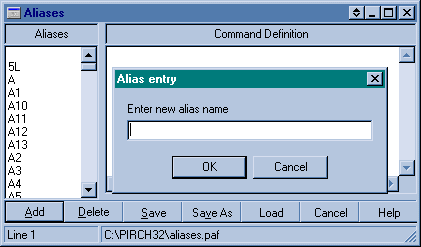
Cut & Paste
- Now you too can have lot's of pretty pictures:
- Just like the cut & paste in a word processor
- Position the mouse pointer in front of the text or picture you want
to copy.
- Click and hold down the left mouse button while dragging the mouse
acrossed and down until all of the object is hilited.
- Click on the Aliases button.
- Choose ADD.
- Give it a short name that you will remember with no spaces in the name
(bighug not big hug) .
- Click OK.
- Right click in the Command Definition side of the aliases window.
- From the drop down menu choose paste.
- Click Save.
OK, now that you've copied it you need to edit, just a little bit.
- Editing
- Or how do I get someone's nick out of my popup!
- Click on the Aliases button.
- Find the name you gave the text or object you copied in the aliases list on
the right.
- Click on the name, you will see the commands appear in the right side of
the window.
- Click in the Command Definition portion of the screen.
- You will probably see something like this, , at the
beginning of the lines; delete that.
- Next, look for the nick that was inside the picture, and delete
it.
- In it's place type $snick, make sure you have a space in front and after
the $snick or it will not work.
- Click Save.
How to use what you have copied.
- Playing an Aliases
- Getting the pictures onto the screen.
- Click on the nick of the person you want to play it to.
- Type /nameyougaveit
- Hit enter.
 Get your own
homepage today!
Get your own
homepage today!