This tutorial uses PSP6 and no other plugins.
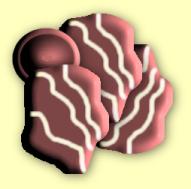
This will be the end result.
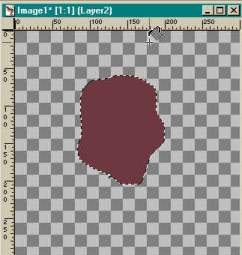
Open a new image, 300X300 background transparent. Add new layer. Now, using the freehand selection tool draw a shape, try not to make it too even. Now flood fill with a brown color, if you like semi-sweet, make it a dark brown.
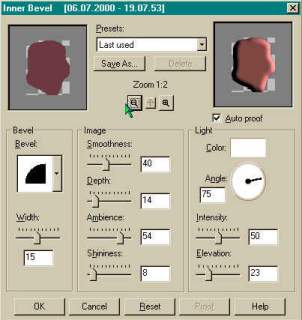
Go up to Image > Effects > Inner Bevel and either use your own settings or you can use the ones that I did.
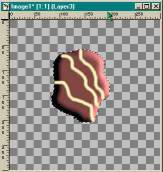
Now we are going to add some icing. So add a new layer. Pick a foreground color that looks the most to you like creme or icing, or really you can use any color you want. Paint a few stripes across the top. Now making sure you are still on the new layer where you added the icing, go up to Image>Effects>Inner Bevel and you can use the same settings as before.
At this point you can merge visible layers. But make sure that you have the background layer turned off.
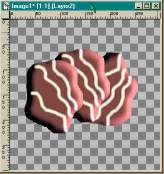
to make multiples of the chocolate, just do a copy and paste as new layer. You can then click on each layer and add a drop shadow if you want.
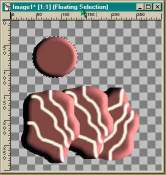
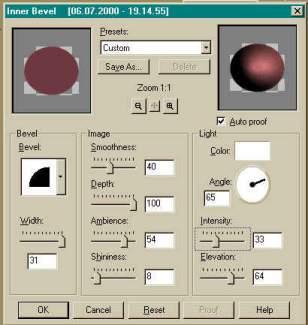
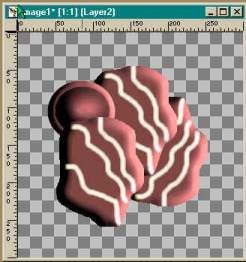
The above pictures show how I made the candy kiss. I did it in 2 parts, first add a new layer, do selection > circle and add the inner bevel. again add another layer do another circle a little smaller than the first and apply the inner bevel with the above settings.By doing the kiss on different layers you can line them up easier by just clicking on the proper layer and moving them into position.