
Helpful links
Exit early
without finishing
Return to
Tutorial Homepage
Return to
Netscape commands
More about
Web access at Lincoln
International Web Access- The Tutorial
Step Two - International Web Access at Lincoln
This step has four parts to read before you answer the questions.Click on each part or scroll down to get to the information.
- Why do I need to do this tutorial?
- Who pays for my web searching?
- What are the charges?
- What happens after I complete this tutorial?
- Why do you need to do this tutorial
- The university would like you to have access to the web if you need it for your study. The university does not charge for accessing New Zealand sites or for national and international email. But the cost of international web searching means that the university is unable to allow free access to all undergraduate students. By asking you to do this tutorial first, we are making sure all undergraduates with international access know how to use their web search time in the best possible, most efficient and most cost-effective way.
- Who pays for my web searching?
- Did the university put credit into your web account already? If this is the case then after you complete the tutorial you can immediately begin to surf to overseas web sites. If there is no funding from the University then you must visit the bookshop to pay into your web account so you start surfing with a credit. The system is a pay as you go system. As you surf your balance is being debited on a fairly regular basis. When you hit 0 you will not be able to surf any longer.
- What are the charges?
Internet Charging at Lincoln for 1998 (Student Rates) Time Band International FTP/Web 8 am to 6 pm $ 1.62 / MB 6 pm to Midnight 81 cents / MB Midnight to 8 am 32 cents / MB Notice you are charged by the amount (MB) of data you access, and the time of day you access it, not by the length of time you are online. You are charged for all data, ie all images, text or files.
- What happens after I complete this tutorial?
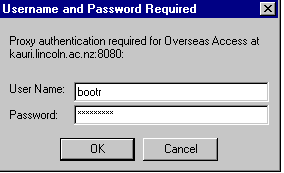 When you try to access an overseas site you will get the Username and Password Required screen for Overseas Access like this
You will enter your username with a hash ('#') at the end e.g. smithj# and your password into the dialog box. Then if your web balance is in credit you will be able to search international sites.
Questions to answer
- Where should students go to pay for their web searching?
- What is the cheapest time of day to search the web?
- How do I enter my username into the "Username and Password Required" box when it comes up?
| Return to the Home Page of the Tutorial | On to | Exit the Tutorial without finishing it |