An Introduction to the Restoration of Old Vinyl Records at Home
Sound Editing with the best software - Cool Edit Pro
Clicks & Pops Eliminating in a Batch - Final Processing
After the above tedious steps for making a .scp file containing the essential part of ClickFix plug-in, we are going to use it to do the repetitive job now.
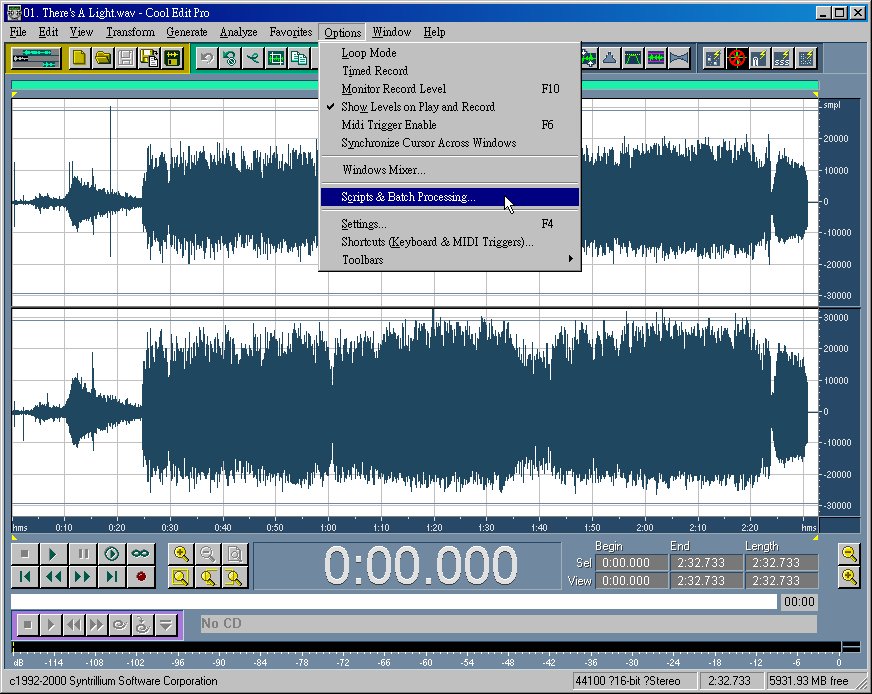
Starting anew, we choose the specific .scp file by invoking the Batch Processing Menu.
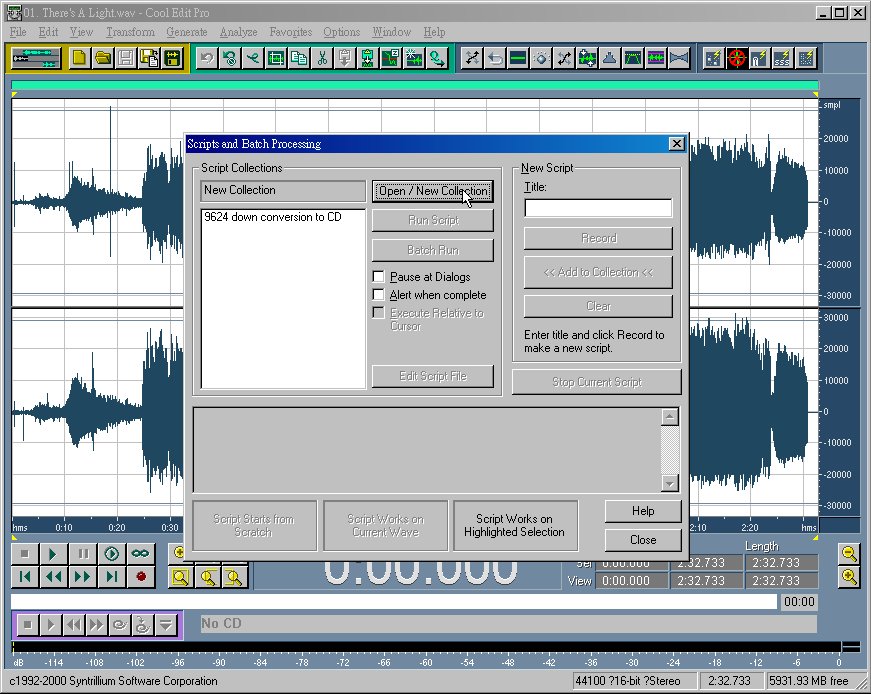
Click "Open/New Collection" to find the .scp file called ClicksPops.scp we've just made.
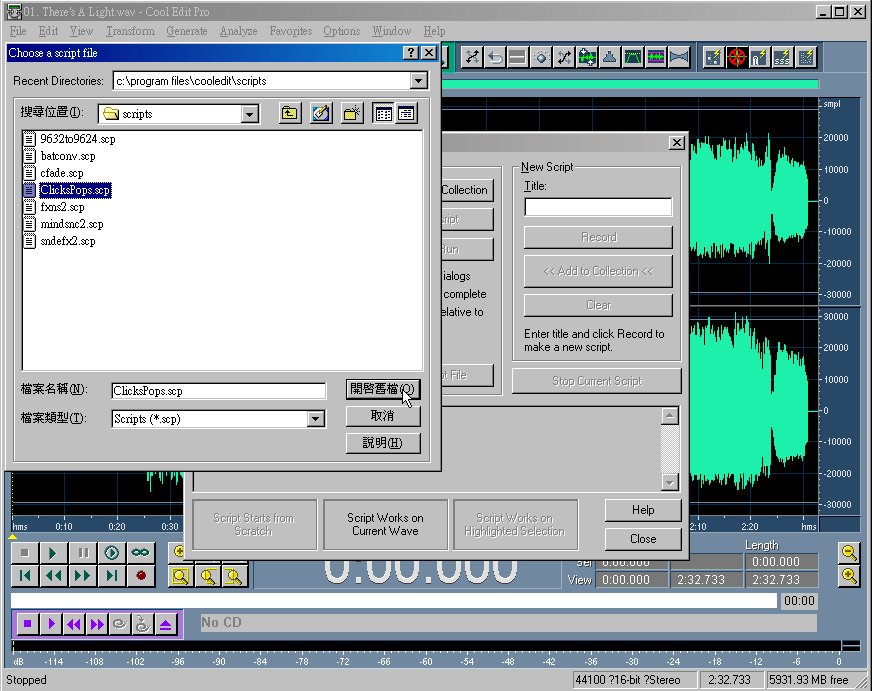
Open the "ClicksPops.scp".
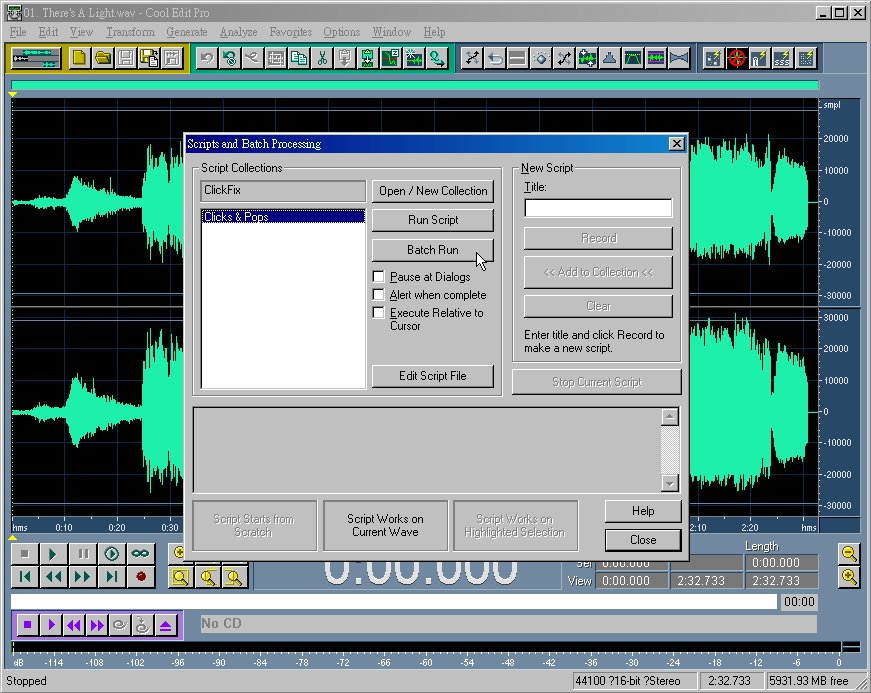
OK, it's run the batch by highlighting the "Clicks & Pops" procedure, press on "Batch Run".
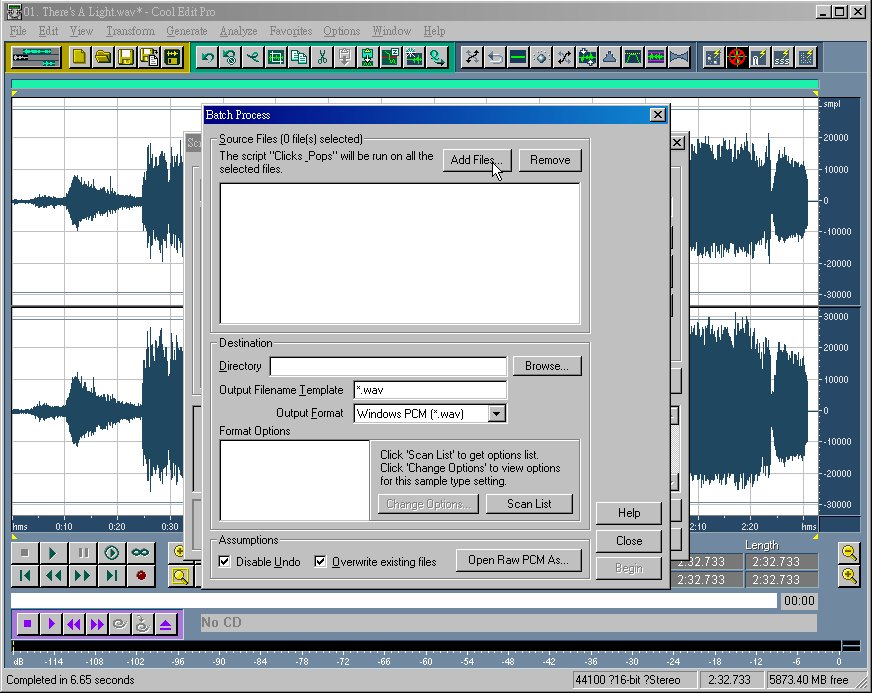
Now click the "Add Files" Button to choose the source files.
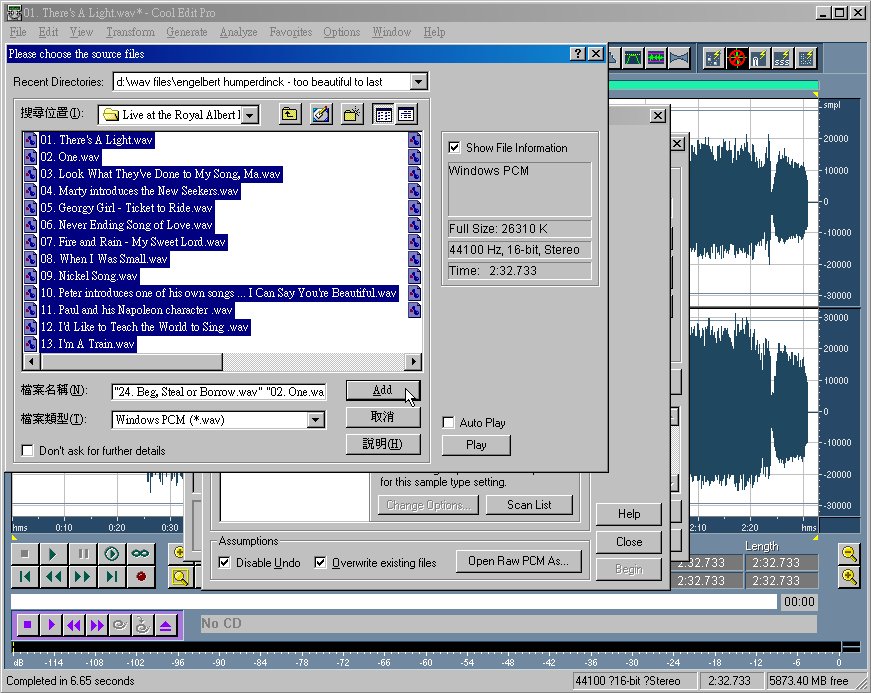
Select the sub-folder containing the to-be-processed .wav files. Select the entire group of files by highlighting the first file (01. There's A light.wav) and simultaneously holding down the "Shift" key while clicking on the last one. To choose individual files in a group, you may highlight the specific .wav files by holding down the "Ctrl" key while clicking on the individual files. Click the "Add" Button after selecting the whole group of .wav files.
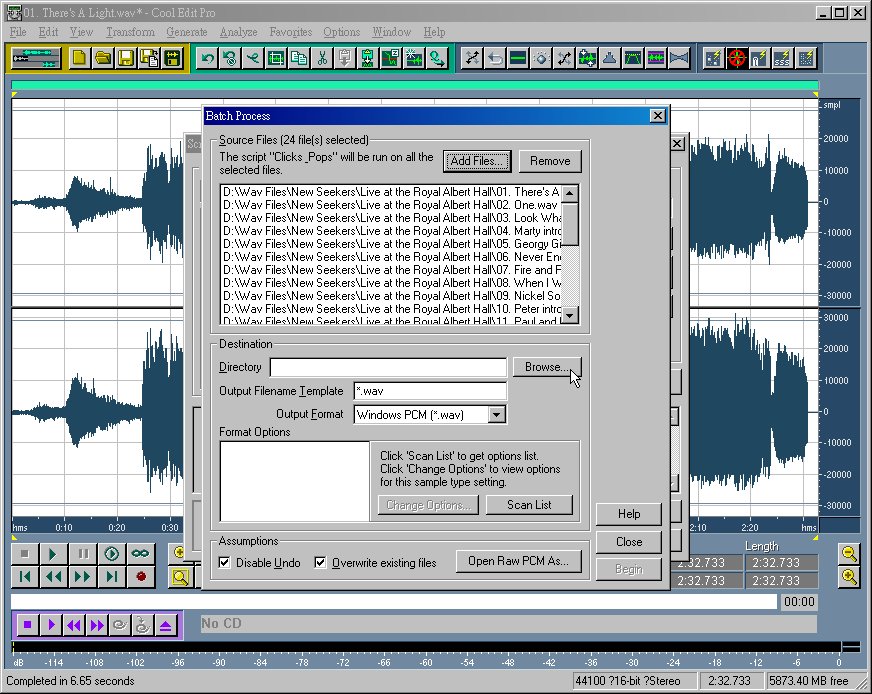
Now, choose a destination. Click on the "Browse" Button.
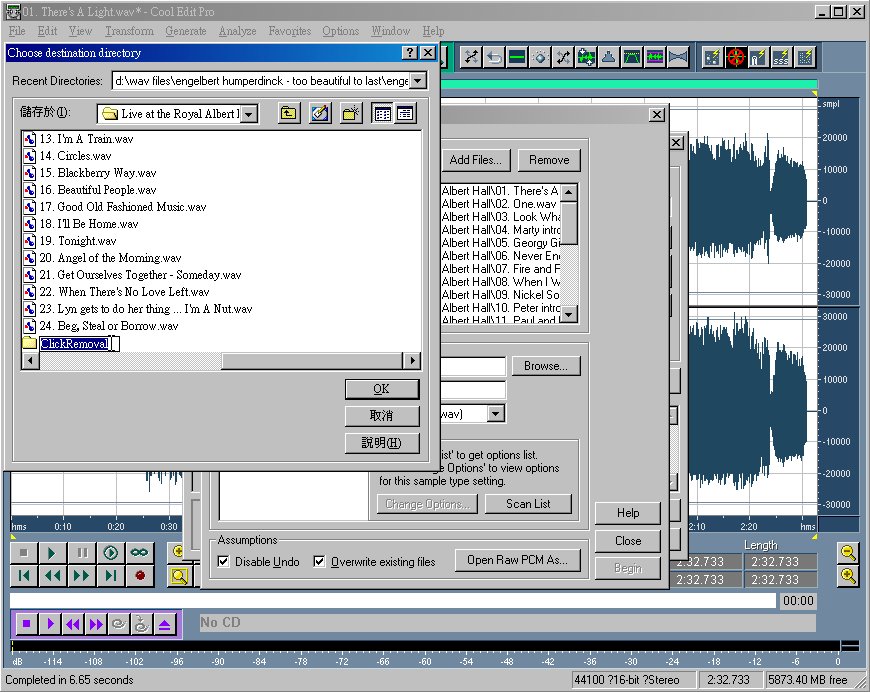
Creat a new sub-folder anywhere you want for saving the newly processed .wav files. Give it a name, say, "ClickRemoval".
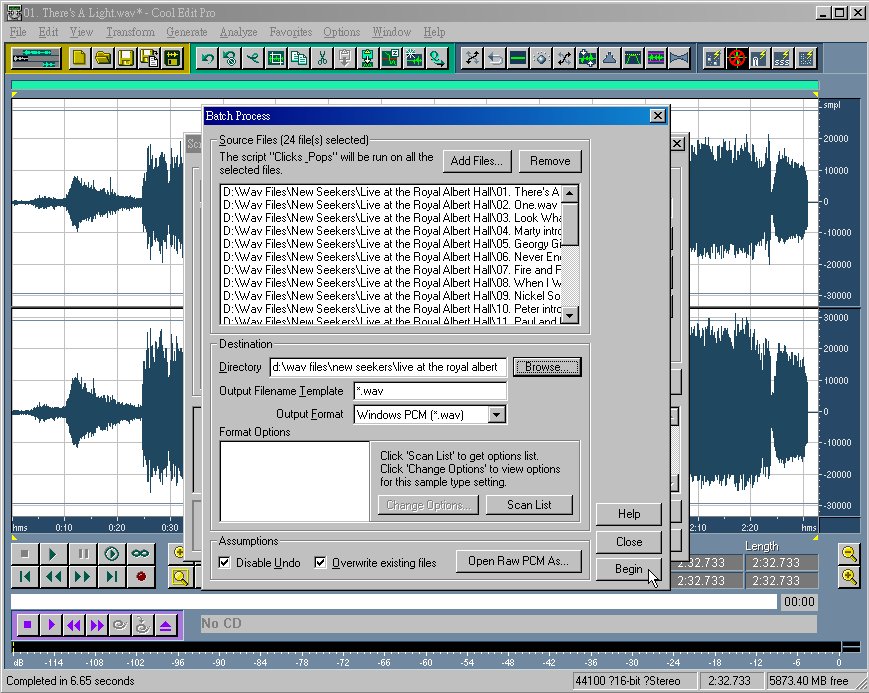
Press the "Begin" Button. The chosen .wav files will be processed one by one with the same de-clicking procedure and the processed .wav files will then be saved to the new sub-folder we've just made for the "Destination".
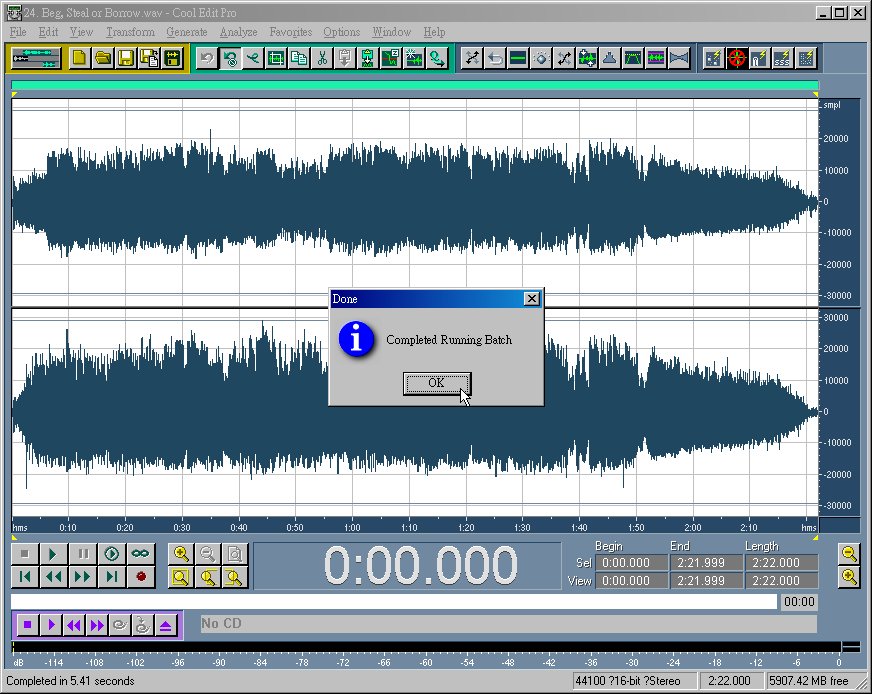
After some time, the whole batch job came to an end. Quit the job and go to the destination sub-folder examine what we've got...24 .wav files processed with de-clicking procedure grouping under the "ClickRemoval" sub-folder! We have been saved from repetitive de-clicking procedures by a single batch run! How nice!
Postscript: In order to avoid doing batch processing, we may record one side by one side of the vinyl in 2 large .wav files. After noise elimination and de-clicking, save the entire .wav file for later sub-dividing into individual files.
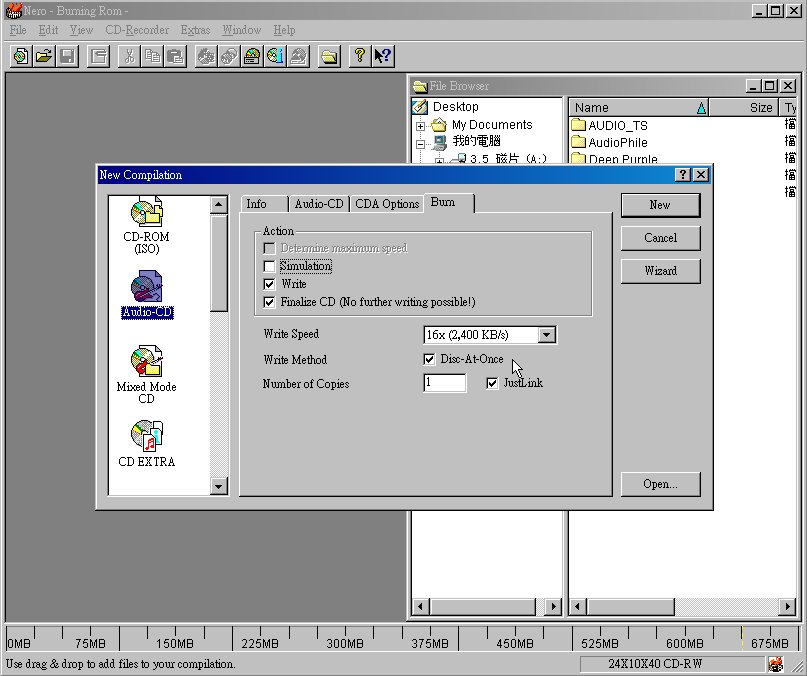
Live recording contains "continuous" tracks. If we don't want to have any gaps between tracks while playing, one should cut the tracks from the entire large .wav files one by one and save them to appropriate names preceded with 01, 02, 03...etc. The seamless continuous playing from track to track can be done by burning them with "Disc-At-Once" method.
THE END