
Skipp's Chat Client/Server
Help
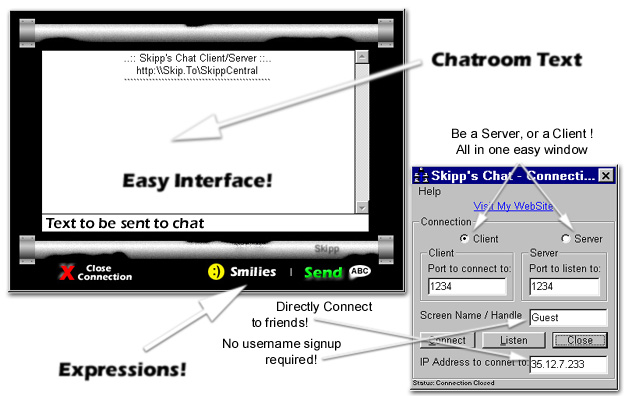
- Connection Help -
The only things you really
need to change is the Connection Type (a), the Screen Name (b),
and the IP adress (c). If you want to
have people connect to your
computer to chat, you leave (c) blank and just complete (a)
and (b). For (a), you would click
Server, and for (b),
you would put the name or handle you want to use for chatting. Afterwards,
click the Listen button.
If you want to be a client
and connect to a friend of yours (the server), you would fill out (a),(b),
and (c). For (a), you would click
Client, for (b) you
would enter the name or handle you want to go by in chat, and for (c),
you would put the IP Adress
of the friend (server) you
want to connect to. Once you have done that, click the Connect button.
Note:
If you are going to be a server, let the other users (clients) know what
your IP is so they can connect to you.
To find your IP, look at
the textbox on the bottom of the Connection form.
- Chat Help -
Once you have connected,
the Chat window pops up. The top textbox is where the incomming messages
will be seen.
The textbox below that is
where you type the text you want to be sent to the chatroom. You can eather
press the enter key
or click the send button
on the bottom of the window. To send a smilie face (expression), click
on the smilies button and
chose the one you want by
clicking it once. When the time comes that you want to "sign off", click
the close connection
button. The connection window
will pop back up in case you want to re-connect. If not, close the form.
(click the X)