

Click on top of the circle and holding the Shift key, make a vertical line untill the other end of the circle, like shown below:

| Color glass ball | |
| This tutorial shows how to create a "glass" ball from scratch in a few steps. It is so simple! | |
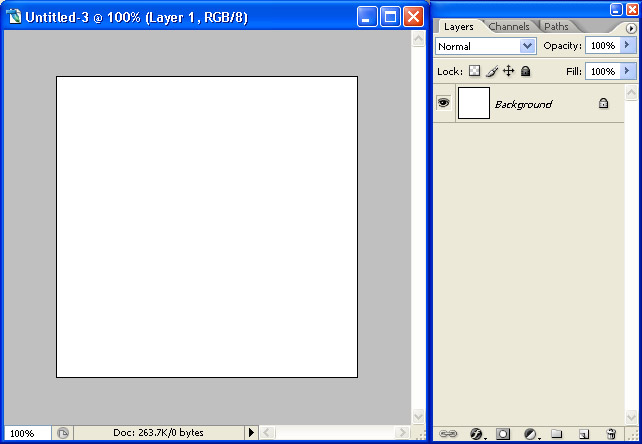
| First open a new document, eg. 300 x 300 pixels: | |
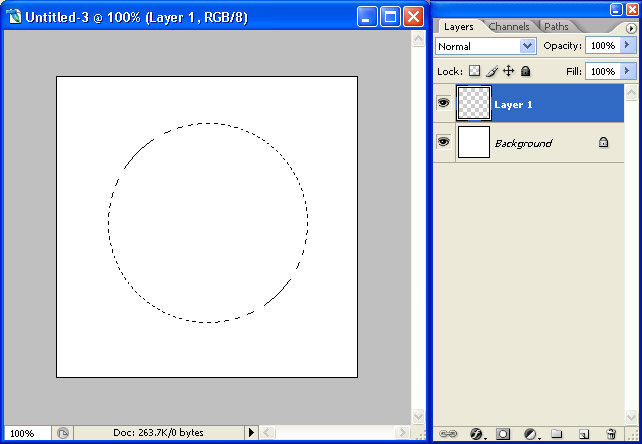
| Create a new layer and make a circle selection in the middle at eg. 200 pixels diameter: | |
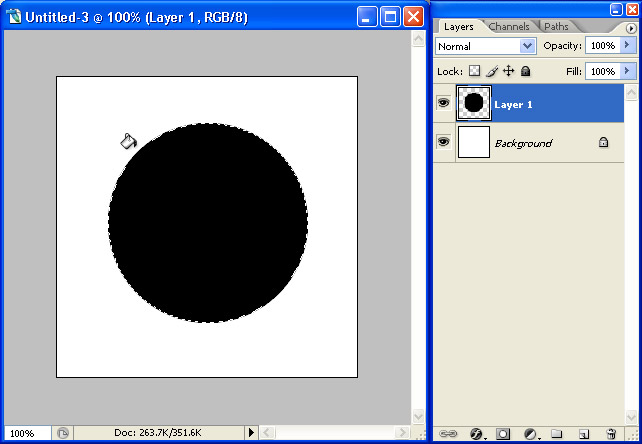
| Fill it with black color: | |
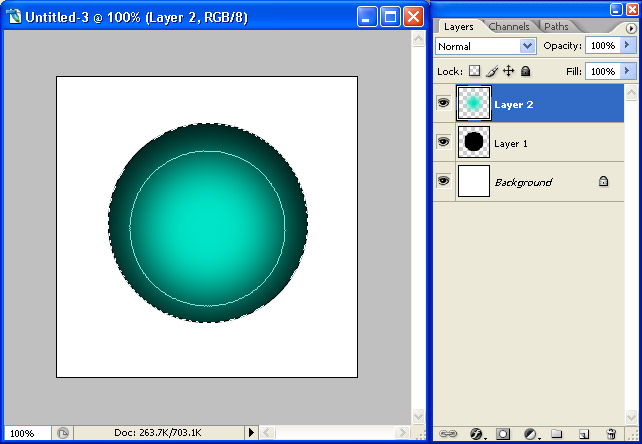
| Create a new layer, choose your favorite bright color and select Brush tool, brush size the same as the selection diameter (200 pixels) and 100% opacity & flow: | |
| Put the brush cursor in the middle of the circle and a little below, and click to flow color just 2 times: | |
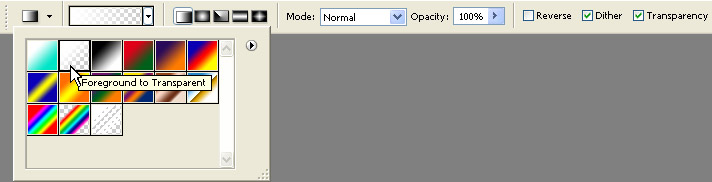
| Now create a new layer and select the Gradient Filling tool, choose white color and Foreground to Transparent mode: | |
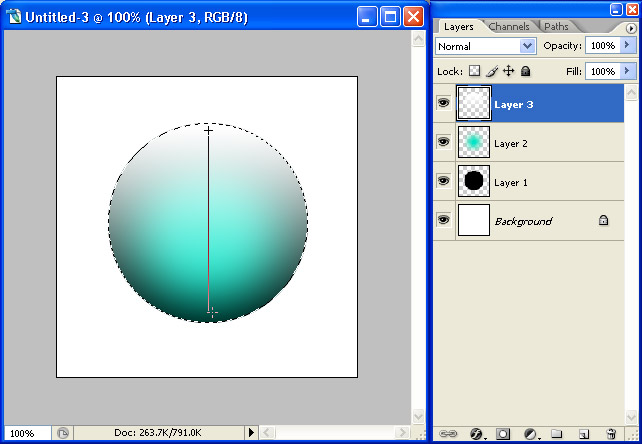
Click on top of the circle and holding the Shift key, make a vertical line untill the other end of the circle, like shown below: |
|
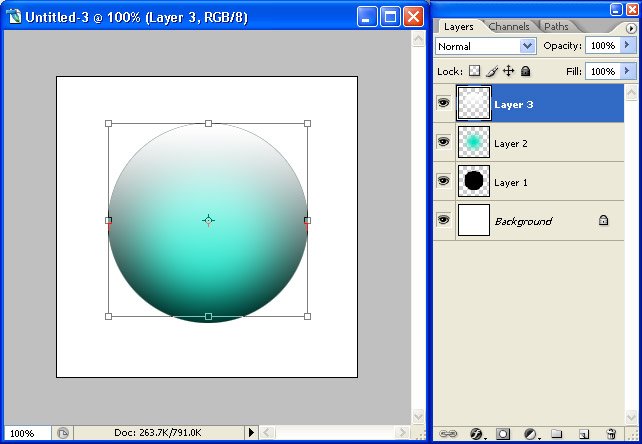
| De-select, and Free Transform the leyer with the white gradient. | |
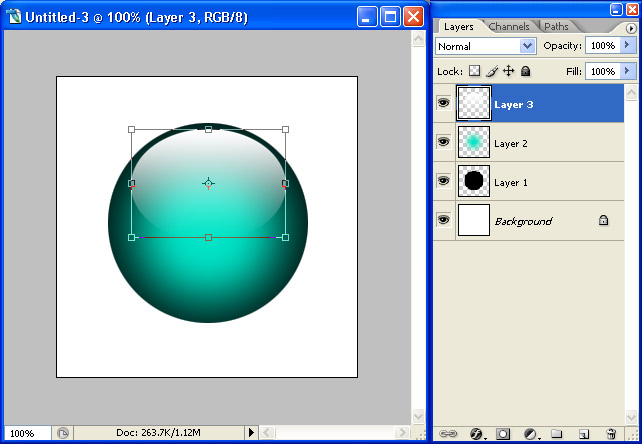
| Make it a bit smaller and squeeze it vertically. Put it on top of the circle like shown below, and change the opacity to 90%: | |
|
The "glass" ball is ready and you can use it in the way you like! |
|