Implementation Documentation
The Class diagram describes the organization and relationship of the program and its various modules and sub-modules. The following series of flowchart attempt to illustrate the internal logic of the various modules within the system. To simplify the diagrams and to improve readability, the flowcharts were modeled based on the event-driven nature of the program instead of the state-based approach commonly used in Object-Oriented systems. To better understand the program the class diagram should be viewed together with the flowcharts. (Click here to view the Class Diagram in a new window)
Advance Vehicle Security System (AVSS)
Maxattempts (Enter button) (B)
Advance Vehicle Security System (AVSS)

Function
Acts as a Main Menu for the system, in which user can choose keypad or thumbprint validation mode. Upon validation, the user can change current settings of the system by pressing the “Options” button.
Implementation
Initialization
1. “Options” button, “Keypad” button and “Thumbprint” button are created and added to the frame.[1]
2. Mode Panel is displayed with the “Options” button disabled.
During
Execution
3. When a user clicks a user clicks the “Keypad” button, the program control will be transferred to flowchart X.[2]
4. When a user clicks a user clicks the “Thumbprint” button, the program control will be transferred to flowchart Y.[3]
5. If the user does not validates the system within the specified time, program control will be transferred to flowchart Z.[4]
Alarm
Module
Function
Activates the Alarm System
Serves as an access point for MaxAttemptsPanel to check/change the number of maxattempts
Implementation
Initialization
1. The Vehicle Data Record, Address and Max. Attempts are loaded from the ConfigurationFile module.[1]
2. An instance of AlarmFrame warning window, Police Alerter System & Security Cam System are created,[1]
During
Execution
- When setMaxAttempts() is called the following steps are performed [2].
- An attempt to save the new value to file is made [3].
- A file I/O exception can be thrown in the process [5].
- If an exception is thrown and the value unchanged an error is printed and Unsuccessful change is returned.[8]
- Otherwise, a successful change is returned.[7]
- When validateMaxAttempts() is called the following is performed [4].
- A true or false is returned depending on whether the maxattempts specified is within the permitted range of values[6],[9],[10].
- When ActivateAlarmProcedure() is called the following is done [11].
- Thumbpad and Keypad are disabled[12]
- The AlarmFrame is shown[12]
- Shutdoors() in Doorcontroller module is called[13]
- The PoliceAlerter module is activated[14]
- The SecurityCam is activated[15]
- The GPS System is activated[16]
Alarm Deactivate Module

Function
It will be shown when the alarm is deactivated by user; to indicate to the user that alarm is deactivated.
Implementation
Initialization
1. A panel with title “Alarm is deactivated” is created.
During
Execution
2. When the alarm is deactivated, this frame will be displayed.[2],[3]
AlarmFrame
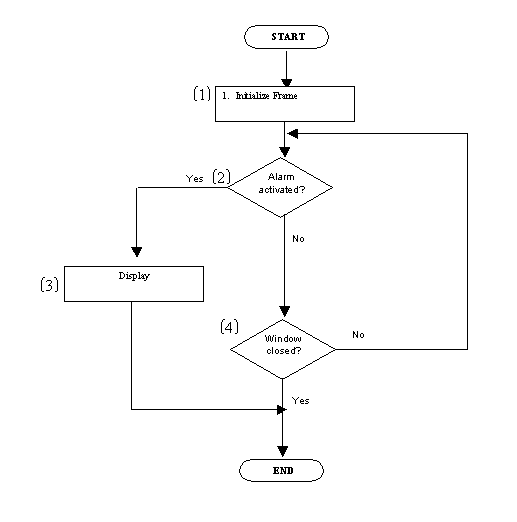
Function
It will be shown when the alarm is set; to indicate to the user that alarm is set.
Implementation
Initialization
1. A frame with title “Alarm is activated” is created.
During Execution
2. When the alarm is set, this frame will be displayed.[2],[3]
BlackBox
Function
Capture video data with a capture device and write to a file
Implementation
Initialisation
1. Initialise Vector object deviceList by calling getDeviceList method() [1]
2. Program exits if deviceList is empty
During execution
1. The first element in the deviceList is assigned to CaptureDeviceInfo object di [3]
2. a. Processor object p is created using di [4]
b. StateHelper object sh is created using P [4]
c. If Processor object p cannot be created, an exception will be thrown and the program will exit
3. a. StateHelper class object is used to configure Processor object p [5]
b. If configuring is unsuccessful, the program will exit
4. a. Output content type is set [6]
b. Processor is realised using sh [7]
c. If realising is unsuccessful, the program will exit
5. a. DataSource object source is created by p calling method getDataOutput() [8]
b. MediaLocator object dest is created by calling its’ constructor and passing in the location to which the file is to be written [8]
c. DataSink object filewriter is created using source [9]
d. A connection to the destination described by the MediaLocator is initialised by calling method open() [9]
e. An exception is thrown if DataSink object cannot be created and the program will exit
6. a. StreamWriterControl object swc is created [10]
b. If swc is null, proceed to [13], else set a limit on the file to be created [12]
7. a. Data transfer is initialised by filewriter calling method start() [13]
b. An exception is thrown if data transfer fails
8. a. StateHelper object sh calls method close() to close the Processor object p [14]
b. DataSink object filewriter calls method close() to close the connection to the destination described by the MediaLocator [14]
c. Program exits
Car
Module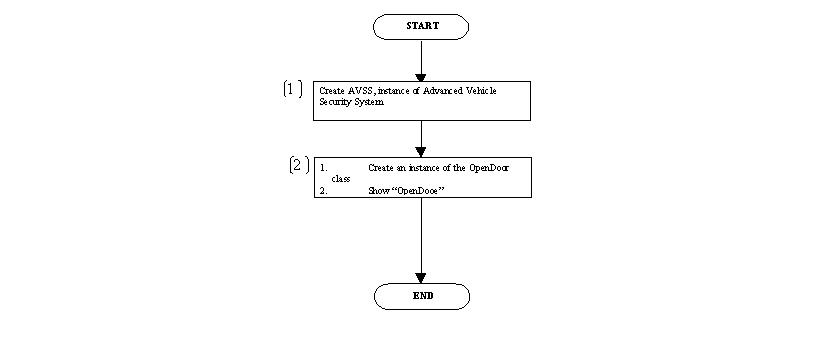
Function
The module serves as a frontend to load the Security System and display the OpenDoor dialog
- An instance of AVSS is created[1].
- The Opendoor module is initialized and loaded[2].
ConfigurationFile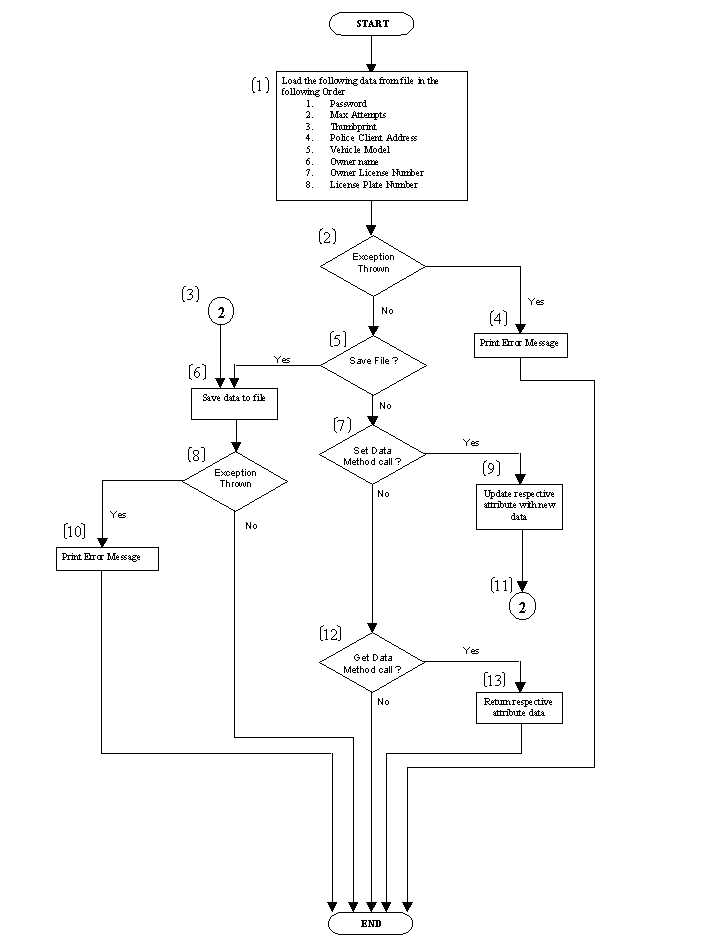
Function
Handles Read/Write of Data from/to file
Implementation
Initialization
1. Load the following data from file in the following Order[1]
a. Password
b. Max Attempts
c. Thumbprint
d. Police Client Address
e. Vehicle Model
f. Owner name
g. Owner License Number
h. License Plate Number
2. If an IO exception occurs an error message is printed [2],[4]
During
Execution
- When saveTofile() is called the all data items are written to file [5],[6].
- If file I/O exception can be thrown in the process an error message is printed requesting the user to contact tech. Support [8],[10].
- When one of the following methods is called [7]
- setPassword()
- setmaxattempts()
- setthumbprint()
- the respective data item is set and a call to saveTofile() is made to save the file. [9],[11],[3].
- When one of the following methods is called [12]
- getPassword()
- getmaxattempts()
- getthumbprint()
- getVehicleDataRec()
- getAddress()
- the respective data item is returned [13].
IdlePanel
Function
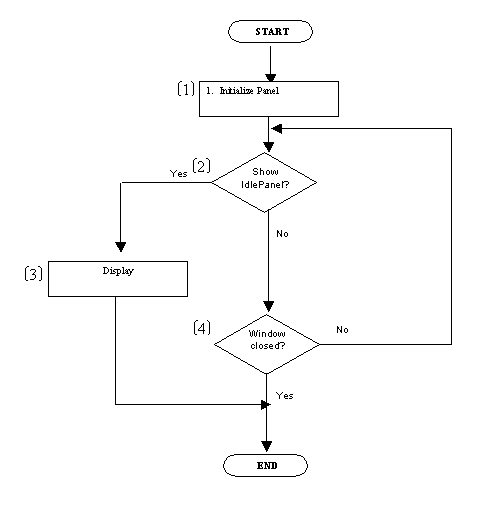
It will be shown after the “Options” button is pressed and nothing is done by the user.
Implementation
Initialization
1. A panel with title “To change current settings” is created.[1]
During
Execution
2. Panel is displayed when show method is invoked by the class calling this module.[2],[3]
ImagePanel
Function
Panel to store the Car.gif image.
Implementation
Initialization
- “Car.gif” is acquired and added to the panel.[1]
During
Execution
- In stand-by mode, panel will be displayed together with the stand-by mode frame.[2],[3]
Keypad
Module
Function
Captures user input through a GUI interface consisting of 12 buttons
The module acts as a frontend to the PasswordSystem module.
It invokes functions in the PasswordSystem module to authenticate User Access and allows user to change his access password.
Implementation
Initialization
1. When the module is first initialized the password and the number of trys the user is given to access the password is loaded form the file.[1]
2. The 12 buttons; 10 numeric; “ENTER” & “CANCEL” are created.[1]
3. The show method has to be invoked from the class calling this module before any user input can be captured.[2]
4. An attribute(“isChanging”) will store the mode of operation of the class; either password change mode or password validate mode.[3],[4],[5],[6]
During
Execution
5. When a user clicks a numeric button the respective numeral is appended to a string buffer that stores a sequence of numbers that have been captured via the numeric buttons. The final contents of this buffer will contain the user entered password.[8],[9]
6. When the “CANCEL” button is pressed the state of “isChanging” will determine the next course of events.[10]
a. If the module is in the password change mode the buffers will be cleared and the screen will be restored to the options menu.[14]
b. If the module is in the validate password mode the buffers will be cleared and the screen will be restored to the validation mode menu.[13]
7. When the “ENTER” button is clicked the password “validation/password change” will occur and program control will be transferred to flowchart A.[11],[15] (see next immediate flowchart below).
Keypad
Module
(Enter button) (A) 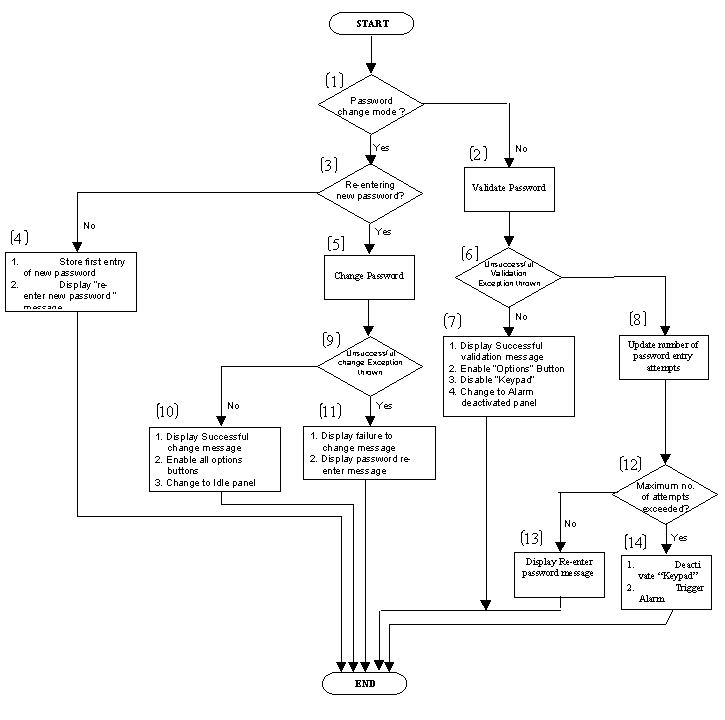
Function
The flowchart shown above shows the working of the password validation and change procedure.
The flowchart represents the program flow within the “OnClick” event handler of the “Enter” button.
Implementation
1. The attribute “isChangePin” will determine whether the Keypad module is in the Password Change or Password Validate mode. The mode will determine whether the entered password is validated or stored for password change purposes[1]
2. When in the Validate mode the password is validated.[2]
- A exception will be thrown if the password is invalid.[6]
- If the password is successfully validated a “Successful validation” message is printed and the Options Menu is enabled [7].
- If the password is invalid the number of tries the user has left to enter the valid password is decremented [8].
- A check for whether the user has exceeded the maximum number of tries is done [12].
- If the maximum number of attempts is not exceeded the user is prompted to re-enter the password [13].
- If the user has exceeded the number of attempts the Keypad is disabled and the Alarm activated[14].
3. When in the Change mode the password a check is done to determine if the user has just entered entered the new password or confirming the new password again [3].
- If it’s the user’s first entry, the password is stored and a “Re-enter password message is displayed” [4].
- If the user has entered the new password a second time an attempt to change the password is made. [5].
- An exception can be thrown when a change is requested.[9]
- If an exception is thrown, display an “Unsuccessful change because of mismatched passwords” message and prompt user to re-enter password. [11].
- Otherwise display a “Successful” change method and display the Options menu [10].
MaxAttempts
Module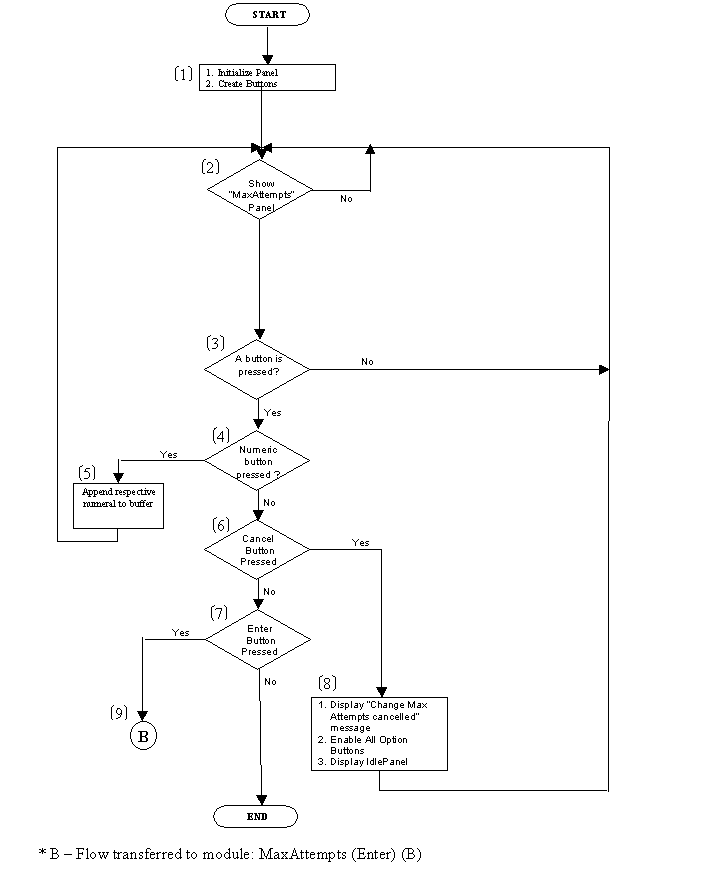
Function
Captures user input through a GUI interface consisting of 12 buttons
It invokes functions in the Alarm module to change the maximum number of attempts the user has to enter a password/thumbprint.
Implementation
Initialization
1. The 12 buttons; 10 numeric; “ENTER” & “CANCEL” are created.[1]
2. The show method has to be invoked from the class calling this module before any user input can be captured.[2]
During
Execution
3. When a user clicks a numeric button the respective numeral is appended to a string buffer that stores a sequence of numbers that have been captured via the numeric buttons. The final contents of this buffer will contain the user entered maxAttempts.[4],[5]
a. When the “CANCEL” button is pressed a cancel message is displayed and control is returned to the Options menu [6],[8].
4. When the “ENTER” button is clicked the password “maxAttempts change” will occur and program control will be transferred to flowchart B [7],[9] (see next immediate flowchart below).
MaxAttempts
Module (Enter Button) (B)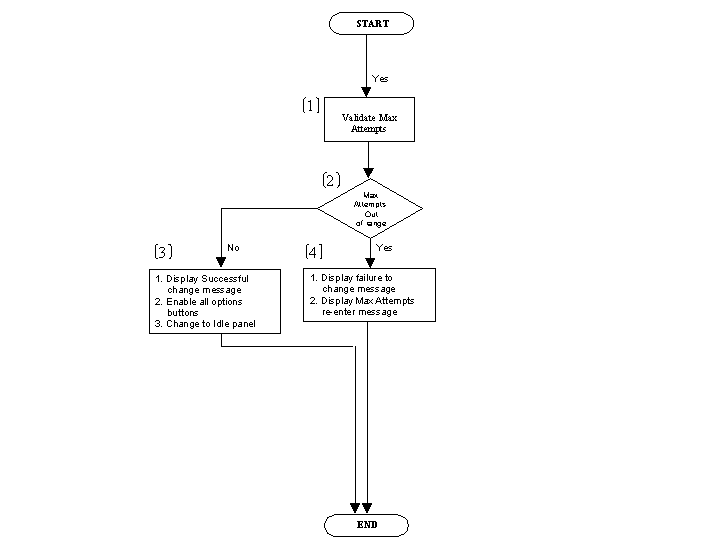
Function
The flowchart shown above shows the working of the maxAttempts change procedure.
The flowchart represents the program flow within the “OnClick” event handler of the “Enter” button.
Implementation
- The new value for maxAttempts is taken from the user and validated to check if it is within the range 1 – 5 [1].
- If it is out of range a failure message is displayed and the user is prompted to re-enter the maxAttempts value [2],[4].
- If it falls within range a successful the new value is saved, a successful change message is displayed and the Options Menu is displayed [2],[3].
OpenDoor

Function
A frame that simulates the opening of the car door by pressing the “Open Door” button. The “Open Door” button is also used to start the alarm timer.
Implementatio
n
Initialization
1.
The “Open Door” button and the Image Panel are created.[1]
2. Whether the Security System is in the stand-by mode. [2]
3. Display the Open Door Frame when the security system is at the stand-by mode.[3]
During
Execution
4. When user clicks on the “Open Door” button, it triggers the alarm system timer and program control will be transferred to flowchart .[4]
PasswordSystem
Function
Validates Password
Checks for a match in newly entered password pair
Changes existing password
Throws exception otherwise
Implementation
Initialization
1. The current Password is loaded from the ConfigurationFile module.[1]
During
Execution
- When matchPassword() is called the following steps are performed [3].
- Two new passwords are matched [4].
- If a match is not found a password mismatch exception is thrown[6],[8].
- When validatePassword() is called the following is performed [5].
- User entered password is matched with the current password [7].
- If a match is not found an invalid password exception is thrown[9],[11].
- When changePassword() is called the following is done [10].
- The password is checked for a match before making a change [12],[2]
- a call is made to saveTofile to save the new password[13]
Thumbprint
Function
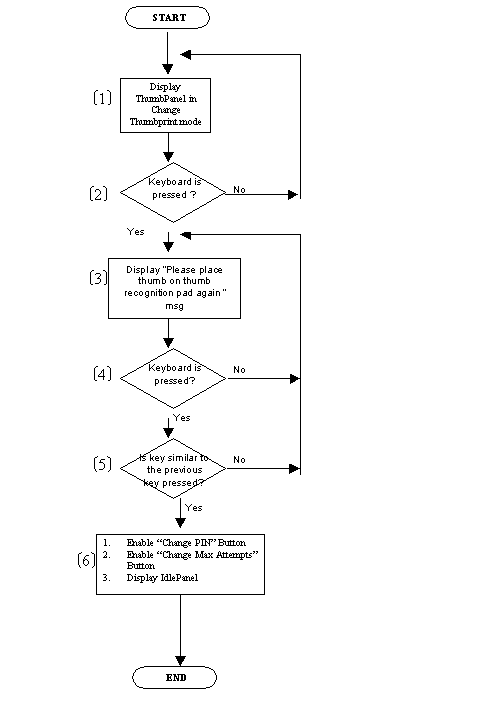
To handle the changing of Thumbprint.
Implementation
During
Execution
1. In the Thumbprint changing mode, ThumbPanel is displayed in Change Thumbprint mode.[1]
2. The first keyboard pressed by user is stored and a prompt “Please place thumb on the thumbprint recognition pad again” is displayed.[2][3]
3. After user has pressed the second keyboard, an attempt to change the thumbprint is made. If the two keyboard is not similar, a prompt “Please place thumb on the thumbprint recognition pad again” is displayed.[5]
4. If the second keyboard is same as the first keyboard, the thumbprint is changed and the “Change PIN” and the “Change Max. Attempts” buttons are enabled. IdlePanel is also displayed and “Thumbprint is successfully changed” message is displayed.[5][6]
ThumbprintSystem
Function
Validates Thumbprint
Checks for a match in newly entered thumbprint pair
Changes existing thumbprint
Throws exception otherwise
Implementation
Initialization
1. The current Thumbprint is loaded from the ConfigurationFile module.[1]
During
Execution
- When matchThumbprint() is called the following steps are performed [3].
- Two new thumbprints are matched [4].
- If a match is not found a thumbprint mismatch exception is thrown[6],[8].
- When validateThumbprint() is called the following is performed [5].
- User entered thumbprint is matched with the current thumbprint [7].
- If a match is not found an invalid thumbprint exception is thrown[9],[11].
- When changeThumbprint() is called the following is done [10].
- The thumbprint is checked for a match before making a change [12],[2]
- a call is made to saveTofile to save the new thumbprint[13]