

Using a Mask
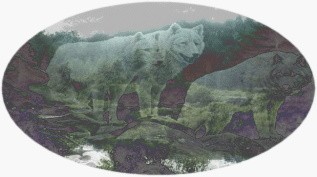
Wolf on Wilderness Background
Take a background pic....
I chose a wilderness one from our camping last summer..
and open it up in PSP7.
CTRL C to copy it
Open New Project
(don't worry about size)
Then Go to Edit and then Paste and then 'As new Image'
Your background will now be on a new project.
Close original background
Now in new image hit Layers - New Raster Layer
Then go to Masks -
Load From Disk -
Choose wolf mask
(or whatever mask you want to use on your background).
Then go to Mask again.
Choose View Mask
Then Mask again....
choose Invert.
Then on your Layers Pallette make sure you have the Mask layer highlighted.
Then choose Flood Fill....
choose a color from the right....
I made mine white.
Then I clicked the image and the wolves filled in white.
Then Go to Masks -
hit Delete Mask
When given the option to Merge click YES.
Now go back to layer pallette.
Highlight the layer with Mask. Then play around with option there by unlocking
the padlock.
I chose luminance for my picture.
Then using the slide bar
(which starts at 100)
slide it to the left till the filled part is the density you want it.
I chose 85%.
Go to Layers -
then Merge -
then Merge Visible.
Now go to the Selections Tool
on the left of the screen.
Choose a type.
I chose Ellipse.
Select the area of the picture and when the marching ants are where you want
them...
click CTRL C to copy.
(Undo and redo selection till it's just where you want it).
Then Open New file
(don't worry about size)
Then go to Edit -
Paste -
'As New Image'
Then go to File -
Save As and name it and make sure it's saved as
a gif, jpg, or jpeg.
Now go to your image storage site and upload it...
and then come to Delphi forums and show it off!!!
Here's my end result
Part of Graphics Galore Delphi Forum click the links below for PSP Index Page, Forum and Website
