|
PicDbObjWin |
|
|
|
|
|
|
|
|
| SEQUENCE |
BOOKMARK |
INTERFACE ELEMENT |
TYPE OF VIEW |
PICTURE |
DESCRIPTION |
RELATED ITEMS |
| 1 |
|
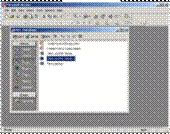
Database
Object Window |
When an Access file is first
viewed or created. (It's the
first thing you see.) |
|
Also called the Database
Window.
This is the main window in an Access database. If you close this window, the database
file is no longer loaded into Access.
|
|
| 2 |
|
|
|
|
|
|
| 3 |
|
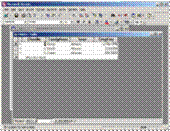
Table |
Standard view |
|
The
table is the basic object in a database for containing data.
The datasheet view offers little in the way of formatting, and it does
not permit calculations to be performed. (Use a form for calculations.)
|
|
|
| 2 |
|
|
|
|
|
|
| 5 |
|
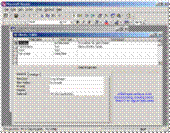
Table |
Design view |
|
The field list is in the top
portion of the window. The
properties for a selected field are in the lower left portion of the
window.
Notice the key symbol next to the first field, indicating that it is the
primary key.
|
|
| 2 |
|
|
|
|
|
|
| 7 |
|
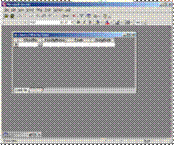
Form |
Standard view |
|
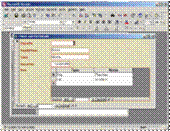
The
form is a structured interface for viewing or modifying tables.
Forms can have control elements that calculate or perform actions. The Form Wizard causes the form to
inherit properties from a table (such as combo boxes).
|
|
|
| 2 |
|
|
|
|
|
|
| 9 |
|
Form |
Design view |
|
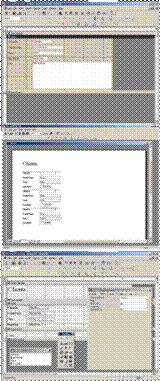
Design view for a form allows
you to modify the structure, appearance and properties of form
elements.
Use the Form Wizard to start with, then go into Design View to customize
the form.
|
|
| # |
|
Report |
Standard view |
|
Reports are printouts of tables
or queries. There are various
layouts and options (such as grouping to create sections).
Use the Report Wizard to start with, then go into Design View to customize
the form.
|
| 2 |
|
|
|
|
|
|
| # |
|
Report |
Design view |
|
Design view for a report allows
you to modify the structure, appearance and properties of form
elements.
This picture shows several tools activated. The Field List is on the left. The Toolbox is in the middle. The Properties window is on the
right.
Notice the similarity to design view for a form.
|
|
| 2 |
|
|
|
|
|
|
| # |
|
Table |
Filter-by-Form view |
|
Notice the differences from the
normal view of the table:
- one funnel icon
- window title says filter by
form
- the Look For/Or tabs at the
bottom, instead of the record navigation bar
|
|
| 2 |
|
|
|
|
|
|
| # |
|
Query |
Design view |
|
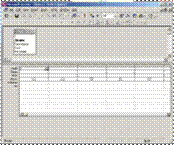
Design view for a query. Notice the table in the upper portion
of the window and the design grid in the lower portion.
|
|
| # |
PicImpTab |
Import Table |
|
|
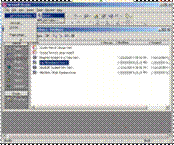
To import a table into a database from
a file use the Import Wizard.
The Import wizard is started using the menu sequence:
File > Get External
Data > Import
|
|
| 2 |
|
|
|
|
|
|
| # |
PicLkupWiz |
Lookup Wizard (Make a Combo Box) |
|
|
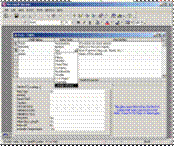
To make a drop-down list (combo
box) for a field in a table, go to the Data Type for that field in table
design view. Then click on the
field selector arrow, and follow it down to the Lookup Wizard. |
|
| 2 |
|
|
|
|
|
|
| # |
|
Relationship Window |
|
|
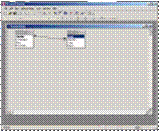
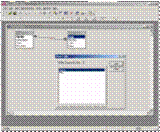
The Relationships window can
display relations between fields in two different tables.
Notice the Show Table tool.
This is used to add a table to the Relationships window.
|
|
| 2 |
|
|
|
|
|
|
| # |
PicRelWin |
Relationship Window |
After clicking the Show Table
tool |
|
|
|
| # |
IcoVwRelWin |
Icon:
View the Relationship Window |
Database object window |
|
To view or create relations
between fields in two different tables. |
|
| 2 |
|
|
|
|
|
|
| # |
|
Icon:
View form |
Form design view |
|
Lets you switch from design view
to "standard" view. |
|
| 2 |
|
|
|
|
|
|
| # |
IcoFldLst |
Icon:
Field list |
Form design view
Report design view |
|
Displays the list of fields in
the table that the form is based on.
An easy way to create text boxes that are bound to table fields. |
|
| 2 |
|
|
|
|
|
|
| # |
IcoToolBx |
Icon:
Toolbox |
Form design view
Report design view |
|
Displays the design
Toolbox. Also seen in report
design view. |
|
| 2 |
|
|
|
|
|
|
| # |
IcoProprty |
Icon:
Properties |
Form design view
Report design view |
|
Displays the properties
windows. Shows the properties of
the currently selected object or form section. Also seen in report design view.
|
|
| 2 |
|
|
|
|
|
|
| # |
|
Object:
Form selector box |
Form design view
Report design view |
|
This box is in the upper left
corner between the vertical and horizontal rulers.
Clicking it puts a dot in the box, thereby selecting the entire form
object. Permits inspection of the
form's properties.
Also seen in report design view.
|
|
| # |
IcoVwDes |
Icon:
View design |
"Standard" view
in
- Tables
- Queries
- Forms
- Reports |
|
Changes to the object's design
view window from it's "standard view". The datasheet is the standard view for
tables and queries.
Form view is the standard view for forms.
Print preview (report view) is the standard view for reports.
|
|
| 2 |
|
|
|
|
|
|
| # |
IcoFilSel |
Icon:
Filter by selection |
"Standard" view
in
- Tables
- Queries
- Forms |
|
Creates a simple filter
selection rule: Show all records
where the field value is the same as the currently selected
"cell".
Can be used in standard view:
datasheet view tables and queries, form view for forms.
|
|
| 2 |
|
|
|
|
|
|
| # |
IcoFilFrm |
Icon:
Filter by form |
"Standard" view
in
- Tables
- Queries
- Forms |
|
Changes from datasheet or form
view to a "backstage" area where filter rules may be constructed or
modified.
Unfortunately, the backstage area has the identical layout as the normal
view. Be careful! |
|
| 2 |
|
|
|
|
|
|
| # |
IcoSrtAsc |
Icon:
Sort ascending |
"Standard" view
in
- Tables
- Queries
- Forms |
|
Sorts records from lowest to
highest, based on the values in the "currently select field". |
|
| 2 |
|
|
|
|
|
|
| # |
|
Icon:
Sort descending |
"Standard" view
in
- Tables
- Queries
- Forms |
|
Sorts records from highest to
lowest, based on the values in the "currently select field". |
|
| # |
|
Icon:
Find record |
"Standard" view
in
- Tables
- Queries
- Forms |
|
Allows you to search through a
field for a value or part of a value (if you used wildcard characters).
Because of its quirks, it is best to select the field
in "standard" view first, then click on
this tool.
|
|
| 2 |
|
|
|
|
|
|
| # |
|
Icon:
New record |
"Standard" view
in
- Tables
- Queries
- Forms |
|
In a table or form, this symbol
takes you to the "last record" which is blank. It exists for the purpose of entering
a new record. |
|
| 2 |
|
|
|
|
|
|
| # |
IcoVwDat |
Icon:
View datasheet |
Design view in
- Tables
- Queries |
|
This takes you to the datasheet
display of a table or query. In
other words, you use it to go from design view to "standard" view. |
|
| 2 |
|
|
|
|
|
|
| # |
IcoShoTable |
Icon:
Show table |
Query design view.
Also in the Relationships window |
|
Displays a dialogue box that
permits you to add a table to a query's design or to the relationship
window.
This is usually done to construct or display a relationship between two
tables.
|
|
| 2 |
|
|
|
|
|
|
| # |
|
Icon:
View report (print preview) |
Report design view |
|
Switches from report design view
to the normal view of the report, in other words, to print preview. |
|
| 2 |
|
|
|
|
|
|
| # |
|
Icon:
Sorting & grouping |
Report design view |
|
Opens a dialogue box that
enables you to add or change the grouping characteristics of a report. |
|
| # |
IcoAppFil |
Icon:
Apply filter |
"Standard" view
in
- Tables
- Queries
- Forms
Also in Filter-by-form view ("backstage"). |
|
If a filter rule has been
constructed, this activates the rule in order to display the resulting
selection of records. |
|
| 2 |
|
|
|
|
|
|
| # |
IcoSavAsQry |
Icon:
Save filter as query |
Filter-by-form view
("backstage"). |
|
Permits you to save a filter
rule as a query. A query object
is a more permanent way to save selection rules than trying to store a single
filter as part of a table's design.
|
|
| 2 |
|
|
|
|
|
|
| # |
|
Icon:
Create OR criterion |
Filter-by-form view
("backstage"). |
|
The bottom of the filter by form
window has these tabs to enable you to create complex filter rules that are
based on "OR" logic (as opposed to "AND" logic).
|
|
| 2 |
|
|
|
|
|
|
| # |
|
Icon:
Draw (insert) label |
Toolbox - form or report design
view |
|
Permits you to add label
elements to the design of a report or form. |
|
| 2 |
|
|
|
|
|
|
| # |
|
Icon:
Draw (insert) text box (& its associated label) |
Toolbox - form or report design
view |
|
Permits you to add "text
box" elements to the design of a report or form.
When you add a text box, Access automatically adds a text label that is
connected to it.
|
|
|
|
|
|
|
|
|