|
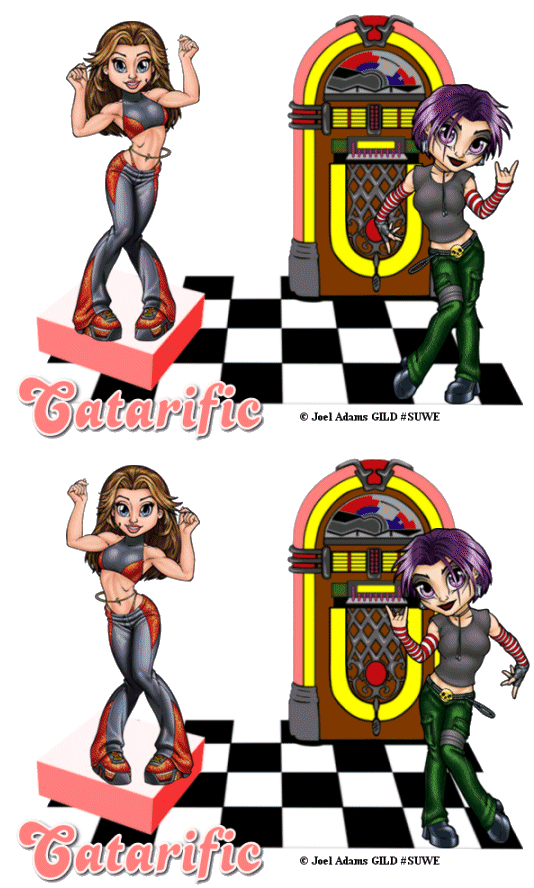
Jukebox Rhythm
Step 1 At Animation Shop, go to File/Open and locate the two tube graphic psp files and your tag file. The tube graphic files should each have two layers. On the bottom layer you have the original image and on the layer above, you have it duplicated and mirrored. Make your tag image active. With the mouse, right click on this file and go to Duplicate Selected and left click. Once you do, you should see F:2 which means you now have 2 frames. Go to View/Normal Viewing. Step 3 Make one of your tube graphic image files active and go to View/Normal Viewing. Go to Edit/Select All so that all the frames of of the tube graphic file are activated. Go to Edit/Copy.Make the tag file active and go to Edit/Paste into Current Frame. Making sure you are now at the FIRST frame of the tag file and holding down the left mouse button, place the tube graphic on top of the box stand and release the mouse button. You should now have the tube graphic in both frames of your tag. Step 4 Make the second tube graphic image file active and go to View/Normal Viewing. Go to Edit/Select All so that all the frames of of the tube graphic file are activated. Go to Animation/Mirror to reverse the frames and then go to Edit/Copy. Make the tag file active and go to Edit/Paste into Current Frame. Making sure you are now at the FIRST frame of the tag file and holding down the left mouse button, place the tube graphic on the right side of the tag on the floor area and release the mouse button. Step 5 Go to Edit/Select All and right click on one of the frames. Go to frame properties and left click. Type in 25. Step 6 Left click the crop tool from above and draw a rectangle around the area you wish to keep, eliminating any unused transparency. Double left click within that rectangle to crop your image. Step 7 Before we continue to save the animation, let's first click the Customize button to make sure you have all the correct settings for this animation. Click the Customize button and you will see three tabs: Colors, Optimizations and Partial Transparency. Here is what each setting should be under the separate tabs: Colors 255 Colors, Optimized Median Cut and Error Diffusion should be checked. Optimizations The middle three selections should be checked. The top and bottom selections - unchecked. Partial Transparency Convert pixels less than 40 should be checked. Yes blend with this color and make sure that the color in the color box is WHITE. After
customizing all the animation settings, click Ok and click Next and you will get
the following screens: Step 8 Make sure to save your image as a gif file. We hope you enjoyed this tutorial. Purrs, Nikki, Nichie and Sue
|