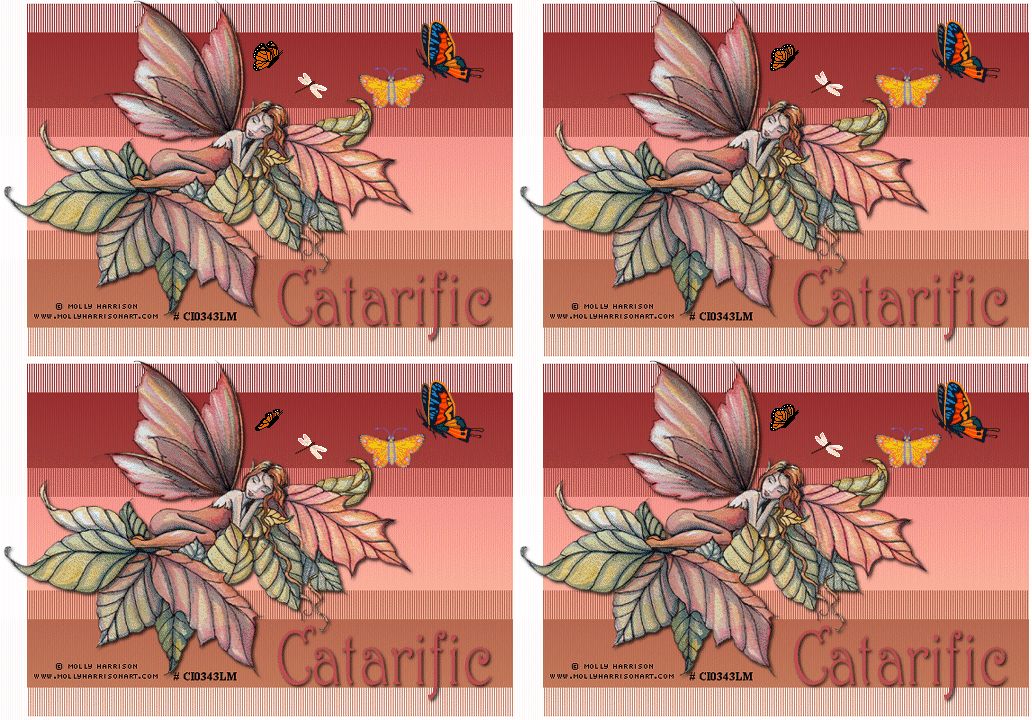
|
TWICE TRANSMISSION TAG
Step 1 At Animation Shop, go to File/Open and locate the jpg file.Step 2 Right click the file and go to duplicate selected. You will now have two frames. Left click the control and A Key to activate all the frames. Right click the file again and go to duplicate selected. You should now have 4 frames. Go to View/Normal Viewing. Step 3 Open up one of the animated bug files and you will it should also have four frames. Make one of your animations active. Holding down the control key, left click the A key to activate all the frames. Go to Edit/Copy. Make the tag image active. Go to the very first frame and go to Edit/Paste into selected frame. Holding down the left mouse button, place the bug animation where you would like it. Once the image is placed, release the left mouse button and your bug animation will now be in all the frames of your tag. Step 4 Make your second animation bug file active and repeat Step 3. Make sure all the frames of your tag are activated by clicking the Control and A keys. Step 5 Before we continue to save the animation, let's first click the Customize button to make sure you have all the correct settings for this animation. Click the Customize button and you will see two tabs: Colors and Optimizations. Here is what each setting should be under the two tabs. Colors (This is a bit different than usual) 255 Colors, Optimized Octree and Error Diffusion should be checked. Optimizations The middle three selections should be checked. The top and bottom selections - unchecked. After customizing these animation settings, click Ok and click Next and you will get the following screens: After customizing all the animation settings, click Ok and click Next and you will get the following screens: Screen 1 Animation versus output Size - just click next. Screen 2 Optimization process - just click next. Screen 3 Optimization preview - just click next. Screen 4 Optimization results - click finish. Step 6 Make sure to save your image as a gif file. We hope you enjoyed this tutorial. Purrs, Nikki, Nichie and Sue
|