Install Incredimail
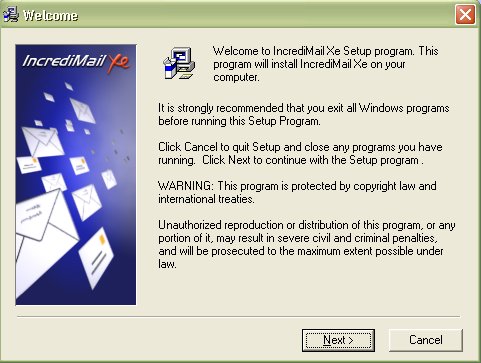
When this window appears, click NEXT
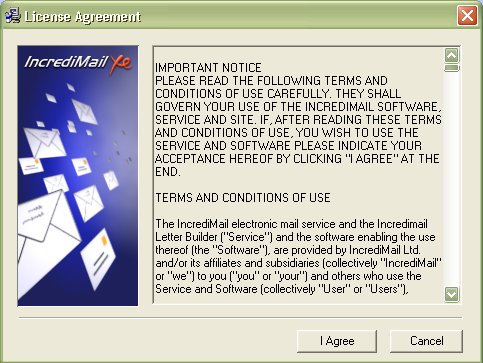
When this window appears, click I AGREE
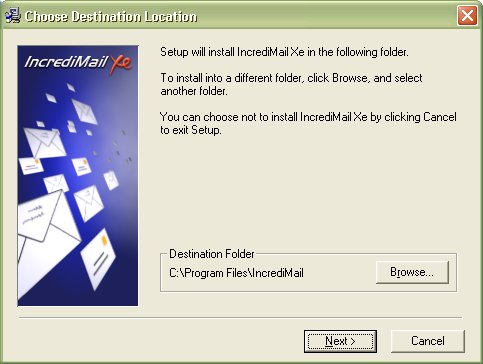
When this window appears, select where you want Incredimail to instal, then click NEXT
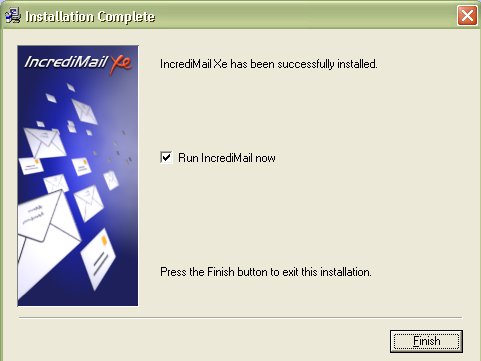
When this window appears, you can :
1. Check the box to have incredimail start now
2. Not check the box, and incredimail will not start atumaticly right now
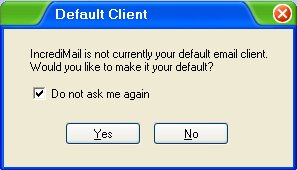
When this box appears, you have option to make incredimail your default mail program.
I suggest doing so.
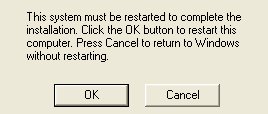
Now, you should allow your system to reboot (restart)
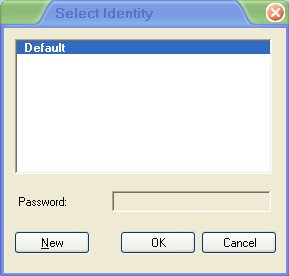
Click NEW
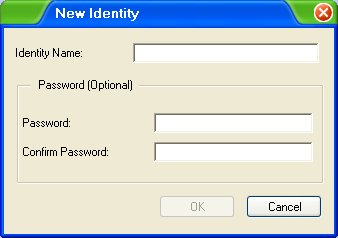
When this window appears, Enter the identity name.
let us keep it simple for now, pick which of your family to setup first, & enter that persons name. (I suggest whom ever is most patient)
The Password option here is for situations where you do not wish other people to get into your Incredimail (such as in case of small children, or nosy visitors), this is NOT you email password.
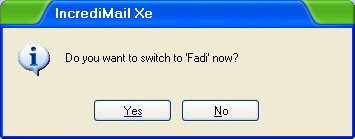
Here click YES
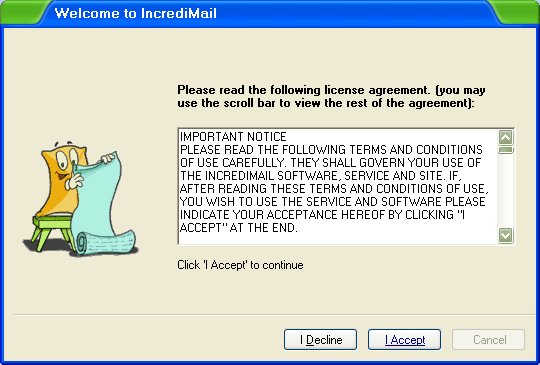
When this window appears, click I ACCEPT.
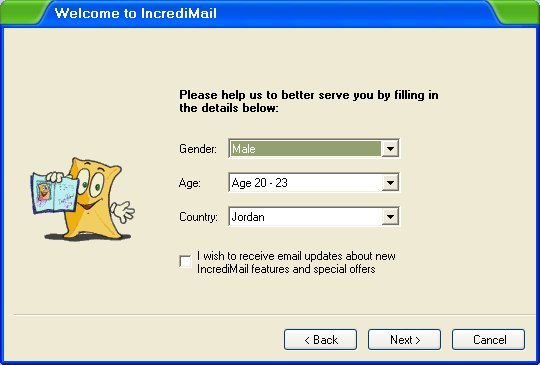
OK, now enter information for the person that we are setting the identity up for first.
you must do this, or we can not continue....
I suggest not having the box near the bottom of this window checked, or Incredimail will send you alot of useless email
But, the choice is yours...When done, click NEXT.
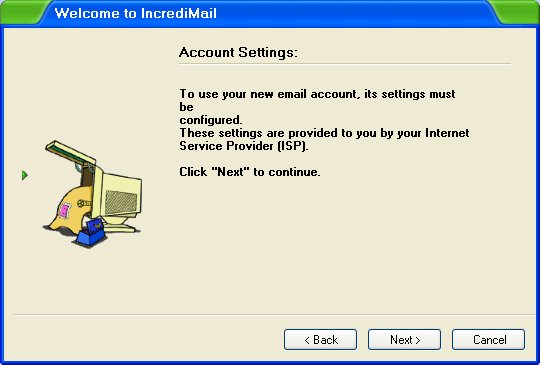
When this window appears, click NEXT.
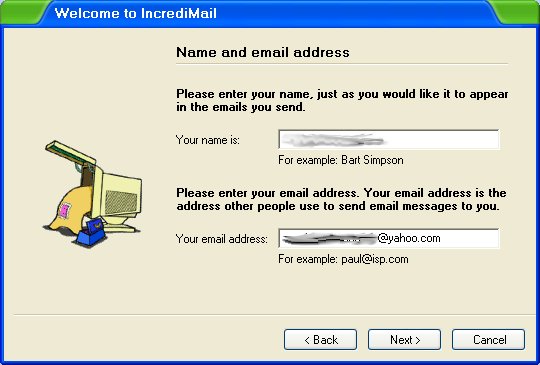
In this window
1. Enter the name you want people to see when they get email from you
2. Enter your email address...USERNAME@yahoo.com
Then click NEXT
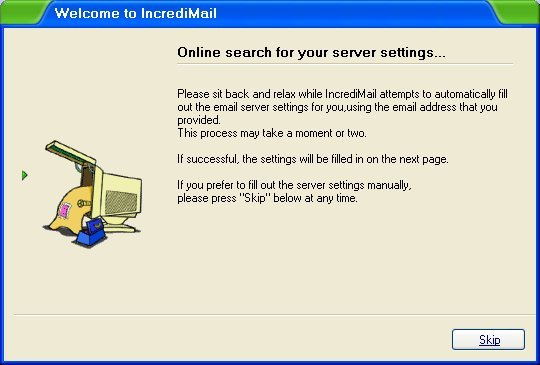
Here, you can wait, or skip...which ever you preferr.
Then click NEXT
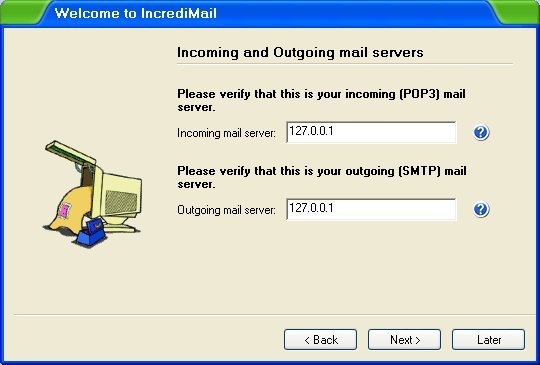
In the outgoing & incoming enter 127.0.0.1
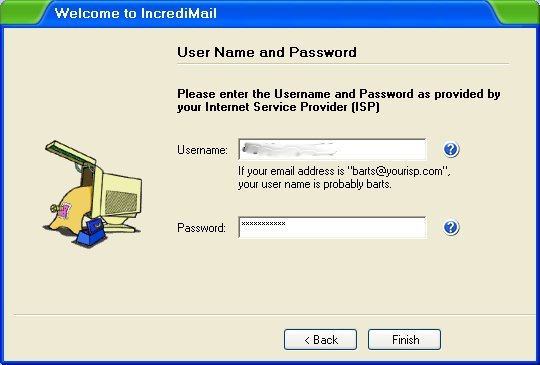
In this window enter your Yahoo username and password.
Then click FINISH
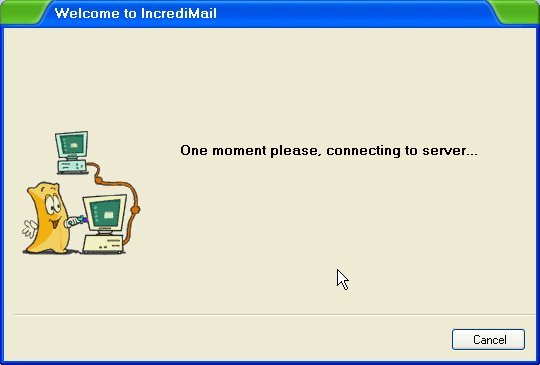
Here, you just wait... a few seconds, to a couple minutes.
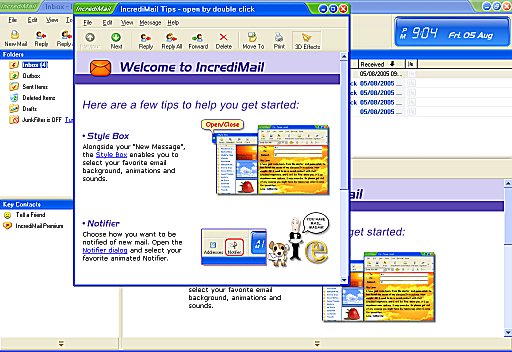
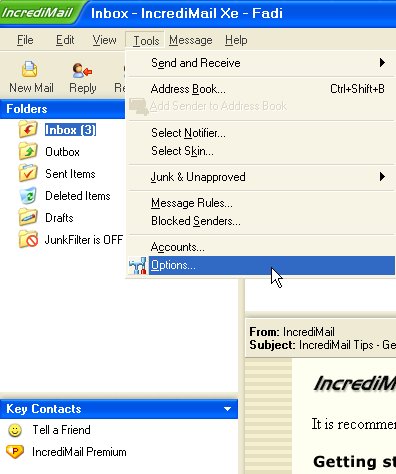
Click TOOLS, then go to and click OPTIONS
This is what comes up when you click OPTIONS.
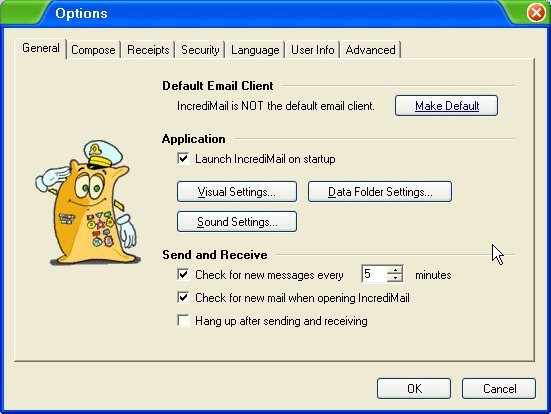
Uncheck the "launch Incredimail on startup", or everytime you restart windows, Incredimail will run.
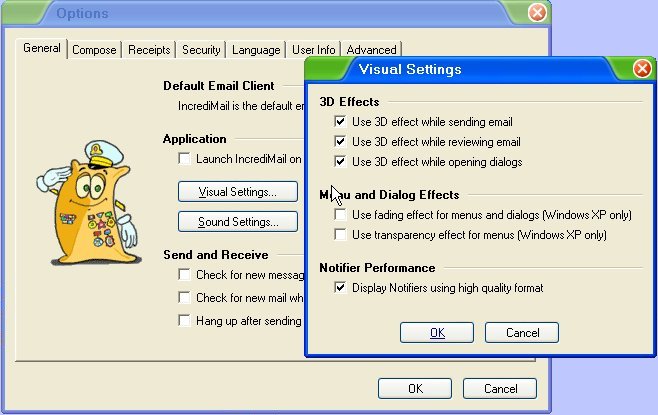
now, click on VISUAL SETTINGS....
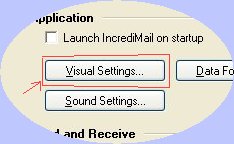
Check/uncheck options you want/don't want....
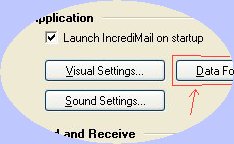
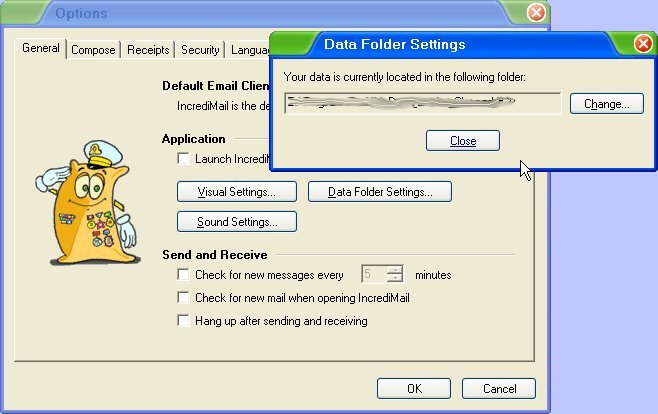
Now click on DATA FOLDER SETTINGS....
Here you can change the location of Incredimail files...Such as Letters, attachments, etc...
You do not have to change locations, unless you want to...
Now click SOUND SETTINGS...
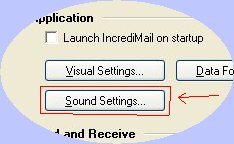
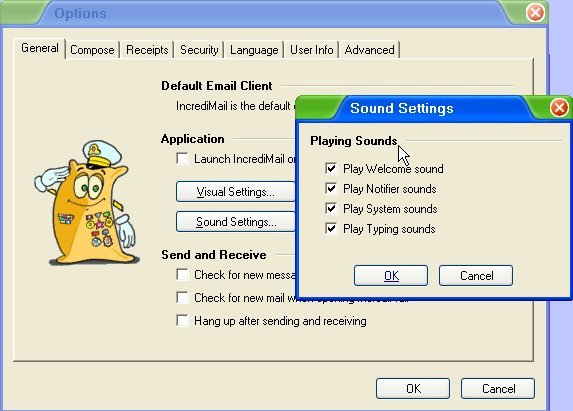
Here, you can select what sound syou do and not not want.....
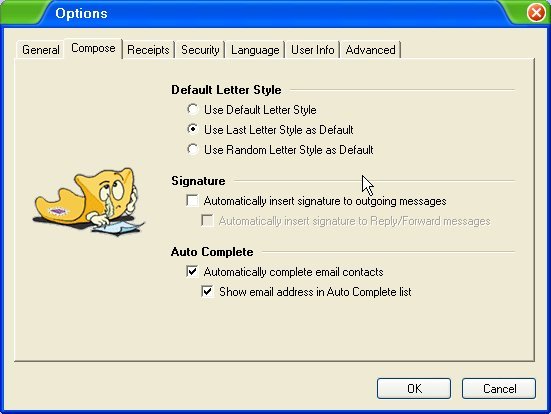
Now click on the COMPOSE tab..below is what you will see....
defaut letter style settings... is hwere you pick how you want letters to disply.
The SIGNATURE is well, you signature... lol. In Incredimail you canmake a text sugnature, image, or more.
We will get to that later...
ATUO COMPLETE...liek when you start typing an address, and tiny window will open showwing all addresses that match what you have typed so far...
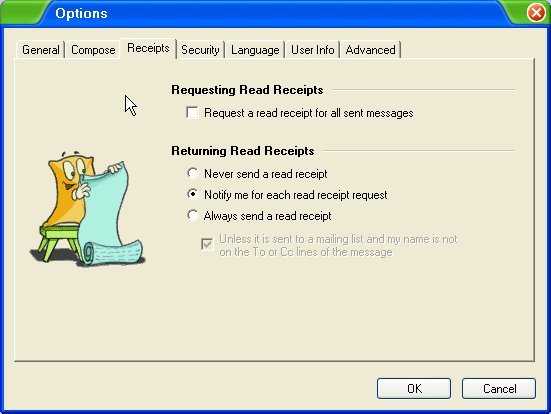
Click on RECEIPTS...i DO NOT SUGGEST checking teh options to do this for all messegs.
Receipt is a small email that is delivered to you, once the messege you send has been opened.
Doing this for all emails gets VERY annoying for the people you contact. it will tell you the date & time the email you sent was opened.
It is VERY usefull for very important emails. (like when I write to teh Embassy lol)
A returning receipt is well, when someone uses the opetion when the email you, it is the small email atuomaticly sent back to the sender that you read/opened the email.
Now, click the SECURITY tab....
I suggest checking both the OUTGOING MESSEGE & BOUNCE SETTINGS boxes...
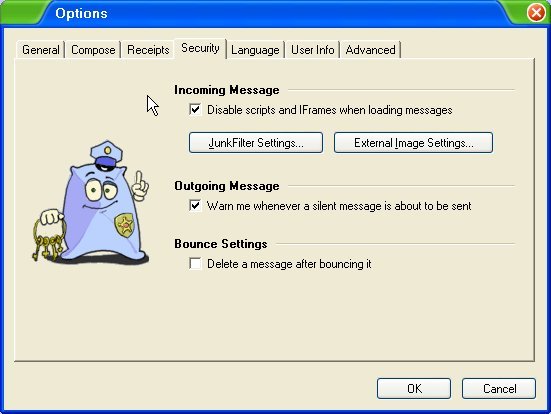
Ok, now click on the JUNK FILTER SETTINGS
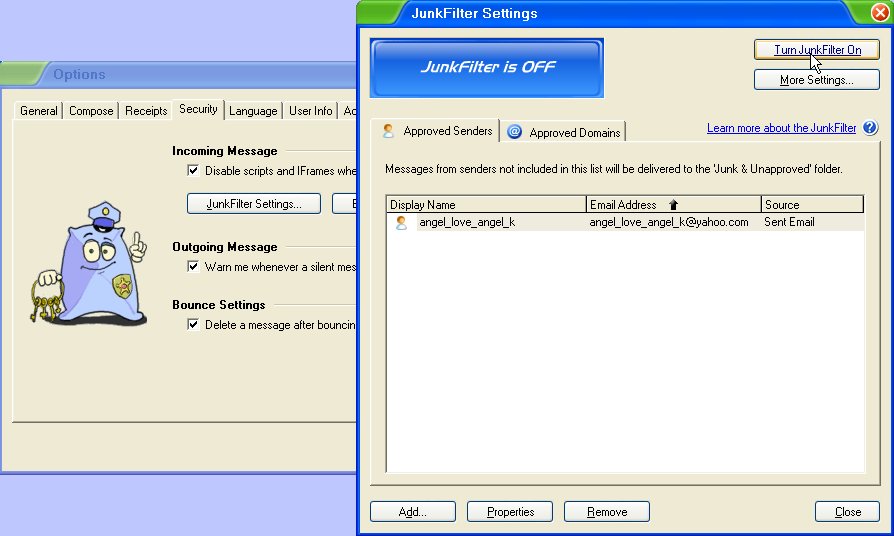
Below is what you will then see...
Click the TURN JUNK FILTER ON
OK, now click on MORE SETTINGS...
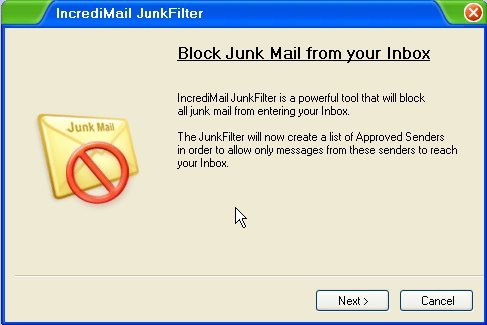
This is what you see when you click on MORE SETTINGS. Click NEXT
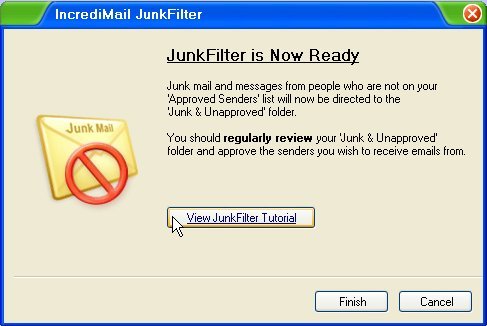
I suggest you click VIEW JUNKFILTER TUTORIAL and watch IT...
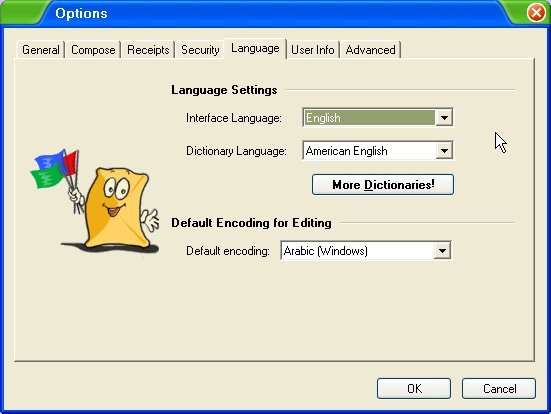
Click on the LANGUAGE tab...then select what is best for you
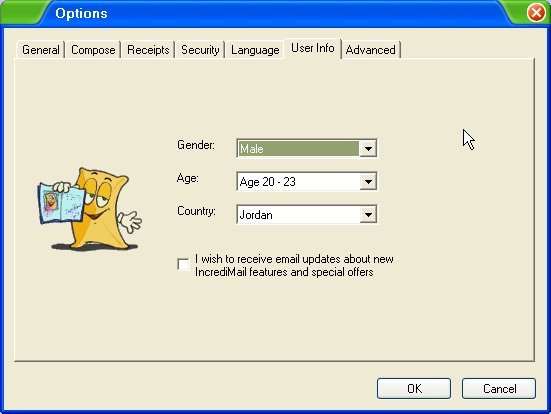
In the USER INFO tab.. you can change/update person info you entered when installing
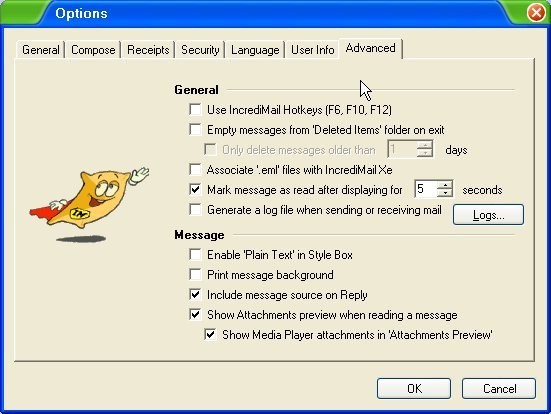
ADVANCED tab.. woohoo...
this is important. will help operation/use rn smoothly...
In the GENERAL section...
these are my suggestions....
check EMPTY MESSAGES FROM 'DELETED ITEMS' FOLDER ON EXIT.
Check the ASSOCIATE '.EML' FILES WITH INCREDIMAILXE
do not check the GENERATE LOG FILE (unless you want/need to keep track of things...)
In the MESSAGE section...
Check ENABLE 'PLAIN TEXT' IN STYLE BOX
Check INCLUDE MESSAGE SOURCE ON REPLY
As far as the Preview options.. that is up to you.
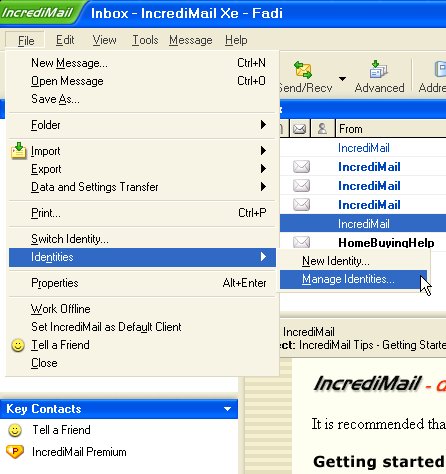
Click TOOLS, IDENTITIES, then MANAGE IDENTITIES....
(here you can go ahead and REMOVE the 'default' identity..NOT the one you already set up.)
Do this by clicking the DEFAULT, then REMOVE.
Now, click NEW...
is good idea to have the CHOOSE IDENTITY ON STARTUP checked... makes it easier.
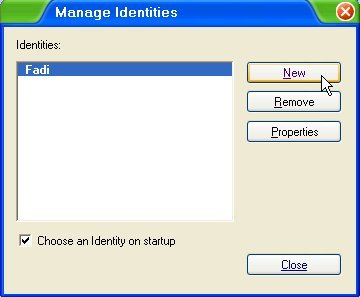
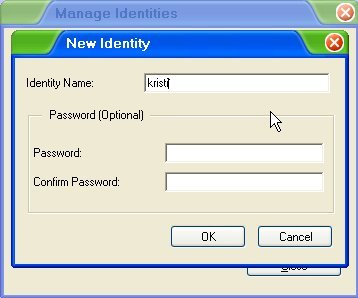
Type in the name of the other person we are setting the new identity up for..
The Password option here is for situations where you do not wish other people to get into your Incredimail (such as in case of small children, or nosy visitors), this is NOT you email password.
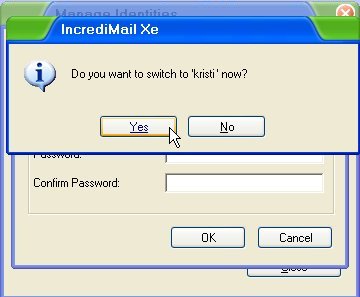
yes, you want to swith to the new identity now.. so we can get it set up as well...
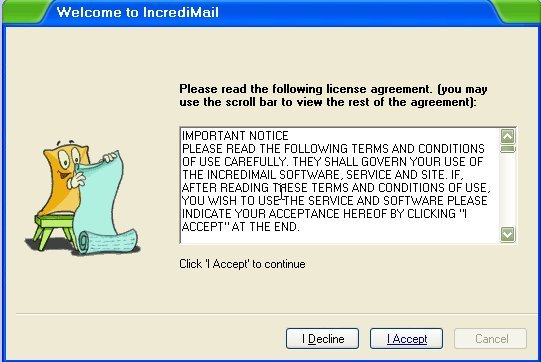
Click I ACCEPT....
OK, now enter information for the person that we are setting the identity up for now.
you must do this, or we can not continue....
I suggest not having the box near the bottom of this window checked, or Incredimail will send you alot of useless email
But, the choice is yours...When done, click NEXT.
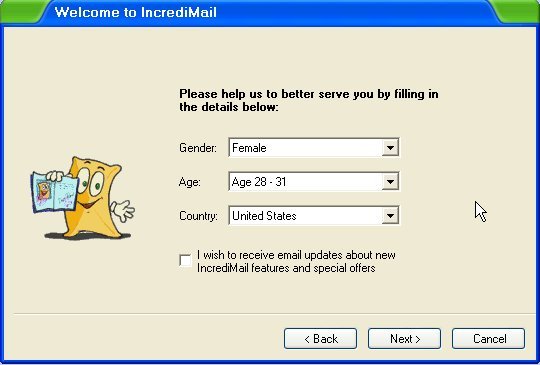
When this window appears, click NEXT.
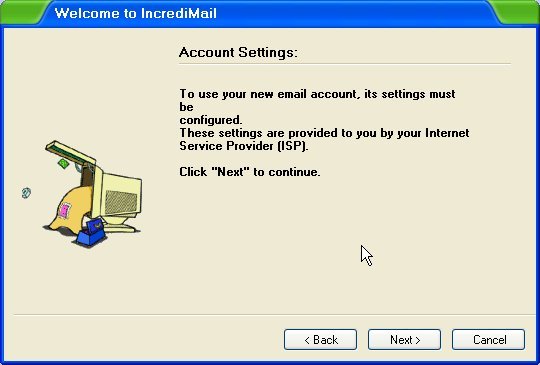
In this window
1. Enter the name you want people to see when they get email from you
2. Enter your email address...USERNAME@yahoo.com
Then click NEXT
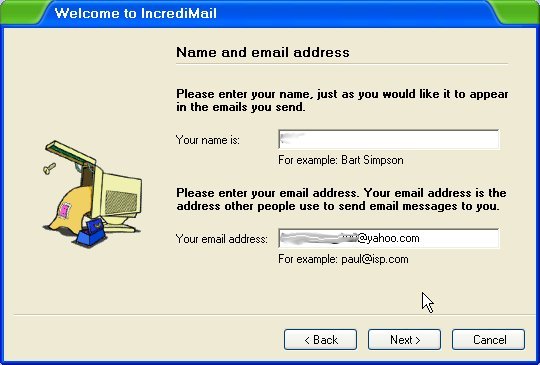
Here, you can wait, or skip...which ever you preferr.
Then click NEXT
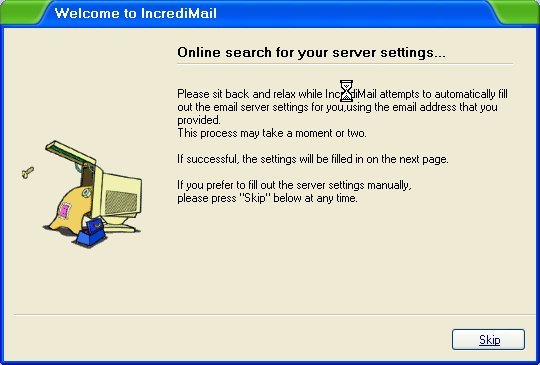
In the outgoing & incoming enter 127.0.0.1
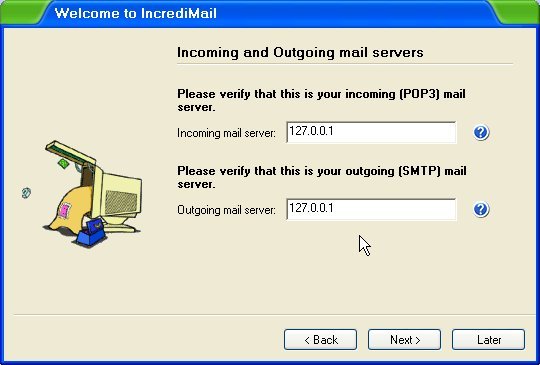
In this window enter your Yahoo username and password.
Then click FINISH
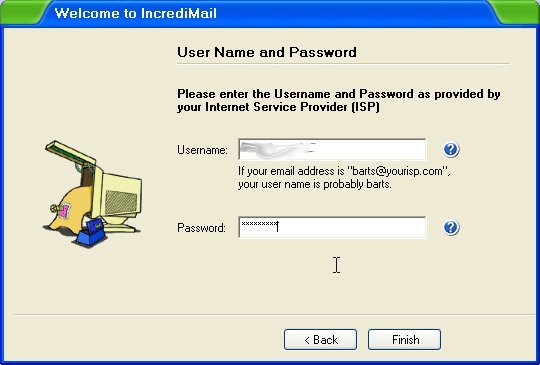
Here, you just wait... a few seconds, to a couple minutes.
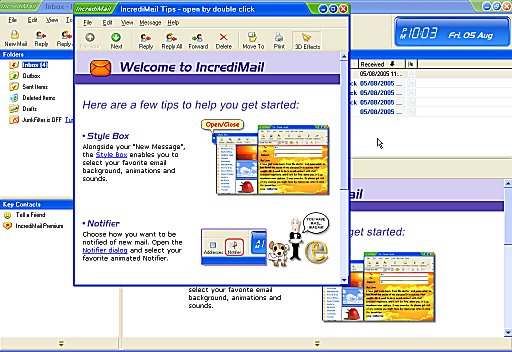
This is what will appear now that you are set up for sending/recieving email
Now, just repeat steps from earlier...


 )
)


 , & run.


