
Manuals for Macintosh FTP clients: "Fetch"
The most popular FTP client for the Macintosh is Fetch. It's newest version, 3.0.3, is not more than 1.1 MB big. Fetch is especially useful if you're still using an older version of Apple's operating system, like System 7. But Fetch runs perfectly on MacOS 8.6 as well. The best thing about Fetch is that it is very easy to use. If you can navigate through an Open File dialog, you won't have any problems using Fetch.
To get Fetch, just visit any of the many software sites that offer Macintosh software, like Download.com or MacUpdate. Fetch is freeware.
Once you have downloaded Fetch, you can use it to upload and download files to and from your Yahoo! GeoCities FTP directory, or to download files from other FTP servers. Here's our manual on how to use Fetch with GeoCities.
- Logging on to GeoCities FTP server
- Uploading a single file to your FTP directory
- Uploading multiple files to your FTP directory
- Deleting files from your FTP directory
- Downloading files from any FTP server
- Creating a new subdirectory
- Disconnecting from GeoCities FTP server
|
I. Logging on to GeoCities FTP server |
1. Open the Fetch application by double-clicking its icon in the Finder.

2. Normally the following window appears on your desktop after starting Fetch:
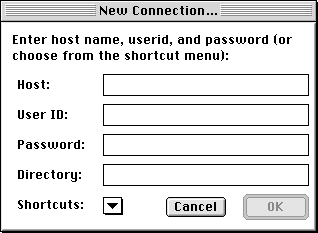
If the window doesn't appear, just choose "New Connection..." from the File menu.
3. To log in, type the address of the GeoCities FTP server into the address field and enter your Yahoo! ID and Yahoo! Password into the fields shown below. Leave the directory field blank.
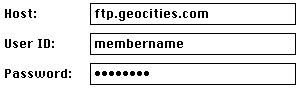
4. Now click on "OK" to log in. If you haven't already got an open internet connection, you will be automatically connected by Open Transport.

5. After connecting to the server, two windows appear. The Transcript window in the backround and the main Fetch window in the foreground. The main Fetch windows lists all files and subdirectories of your GeoCities homestead.
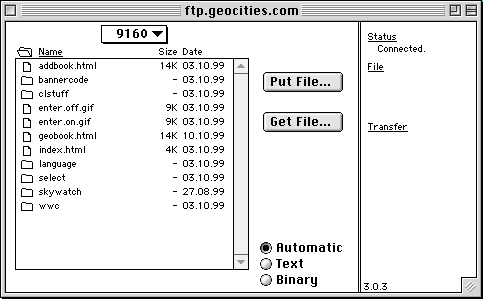
Table of Contents
|
II. Uploading a single file to your FTP directory |
1. To upload a single file to your directory, click the "Put file" button.

2. In the upcoming Open File dialog, just select any file you wish to upload and click the "Open" button.
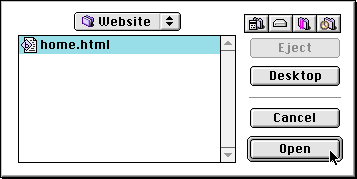
3. Next you'll see a window where you have the chance to rename the file before uploading and to choose the transfer method. Under "Format" choose "Text" for text files and "Raw Data" for files like GIFs or JPEGs. To finally upload the file, click on "OK".
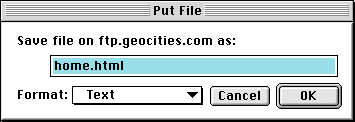
Another way to upload a file is just to drag it onto the Fetch window.
Table of Contents
|
III. Uploading multiple files to your FTP directory |
1. To upload multiple files to your directory, choose "Put Folders and Files..." from the "Remote" menu. The following window appears:
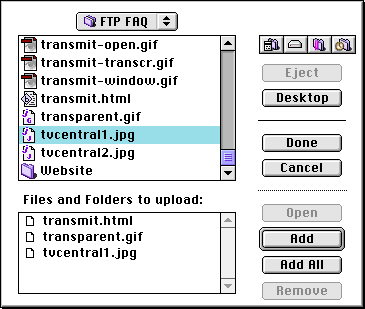
2. The upper area of the window looks like an Open File dialog. Select all the files or even entire folders you wish to upload, click on "Add" and they'll appear in the area "Files and Folders to upload". Then just click on "Done".
3. Normally you don't have to change any settings in the upcoming window. Just click the "OK" button to start uploading all files and folders you have selected in the previous step.
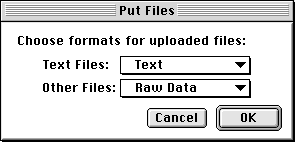
Table of Contents
|
IV. Deleting files from your FTP directory |
To delete any file or multiple files from your directory, you have two options: Select the file(s) and drag it or them to the Trash icon on your desktop, or just select it/them and choose "Delete Directory or File..." from the "Remote" menu. In both cases you'll see confirmation alert asking if you really want to delete the file(s). If so, press "Delete", if not, press "Cancel".
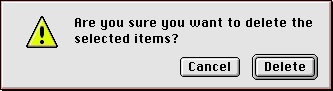
Table of Contents
|
V. Downloading files from any FTP server |
As with every FTP client, you can use Fetch not only to upload files to any FTP server, but also to download files from public FTP servers. To log on to these servers just enter their address and leave username and password fields blank. Once you can view their directory, just drag a file from the Fetch window into any window, onto any folder or simply on your desktop and it will be downloaded. Also, you can select the file you wish to download, click the "Get File" button and select a location on your hard disk where you want to save the file.
Table of Contents
|
VI. Creating a new subdirectory |
1. Choose "Create New Directory..." from the "Directories" menu.
2. Enter a name for the new subdirectory.
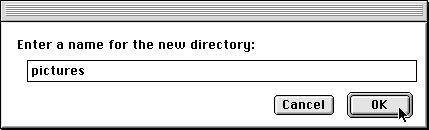
3. Just click on "OK" and the new subdirectory will be created.
Table of Contents
|
VII. Disconnecting from GeoCities FTP server |
After working on your homestead, just close the Fetch window and the Transcript window and you'll be logged off.
Table of Contents
This manual just provided a few basic instructions for the usage of Fetch. However, it showed you everything neccesary for getting started with the program. Fetch is not hard to handle and you shouldn't have any problems finding out how the other features work. A detailed help guide is included with the program.
Table of Contents
| 






