
Manuals for Windows FTP clients: "WS-FTP"
WS-FTP is a windows FTP client that is quite easy to use, plus the LE version can be used free for an unlimited time, so long as you aren't using it for business purposes.
The program is available at the Ipswitch website (they're the people who made this software), or from various software distributors, like Download.com, and Tucows. The price for the full version (WS-FTP Pro) is $37.50 US, which is about the same as other popular Windows FTP programs, but the free version (WS-FTP LE) will probably suit the average user's needs, so this FAQ concentrates on that version.
Once you download and install WS-FTP LE, you can use it to upload and download files to and from your Yahoo! GeoCities FTP directory, or to download files from other FTP servers. Here's our manual on how to use WS-FTP LE with GeoCities.
- Logging on to GeoCities FTP server
- Uploading files to your FTP directory
- Deleting files from your FTP directory
- Downloading files from any FTP server
- Creating a new subdirectory
- Looking at the Connection Transcript
- Disconnecting from GeoCities FTP server
|
I. Logging on to GeoCities FTP server |
1. Assuming you did a normal installation, the program should be available under Start -> Programs -> Ws-ftp.
2. The following window appears on your desktop (click on the image for larger view):
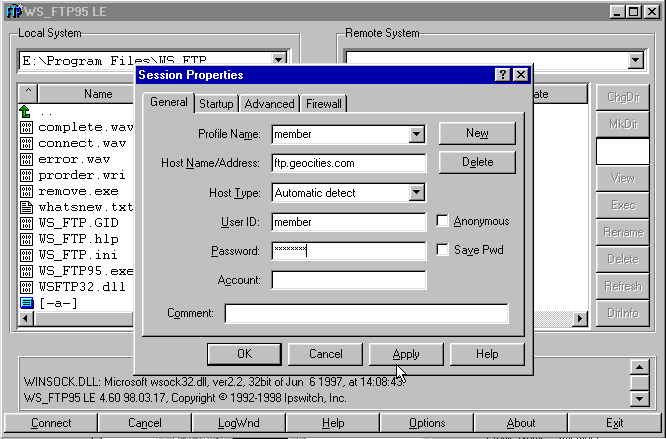
As you can see, the "Session Properties" box opens as soon as you start WS-FTP, so you can connect right away. If you select "cancel" this box will close.
3. The session properties box below is what you'll use to log in. Most users can ignore everything but the "General" tab. You may want to start by clicking "New" to create a new profile. You can easily switch between multiple sites by creating profiles for all of them.
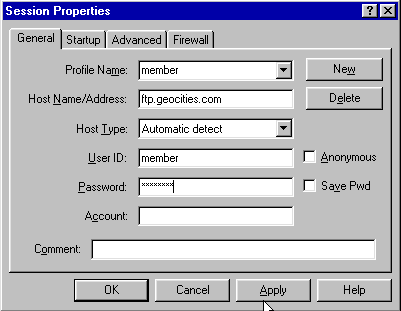
4. Enter whatever you want for a Profile Name. Under Host Name enter ftp.oocities.com, User ID should be your Yahoo! GeoCities member name. You can also enter your GeoCities password, and even save it with "Save Pwd" (be careful if you don't want other people accessing your account). If you don't enter your password now, the program will prompt you for it later. All other settings displayed above should work fine.
5. Now that you've got a profile set up, click OK to connect. Once you've connected to the server, you'll see your GeoCities FTP directory on the right. It lists all files and subdirectories of your homestead. On the left are the directories in your PC. (click on the image below to get the big picture).
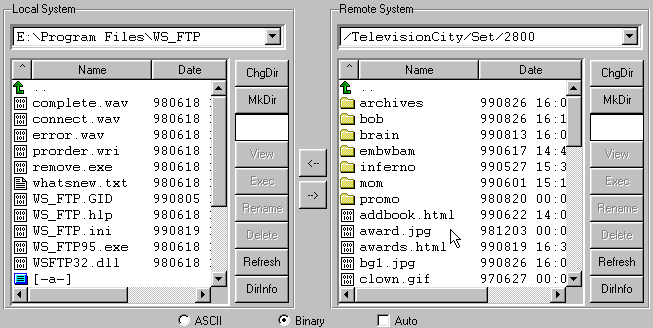
Table of Contents
|
II. Uploading files to your FTP directory |
1. Find the directory in your computer where the files you want to upload are. Yellow folders withing the directory listing take you into subdirectories, while the green arrow at the top of the directory listing lets you go up one level. You can find the appropriate directory on your GeoCities homestead the same way.
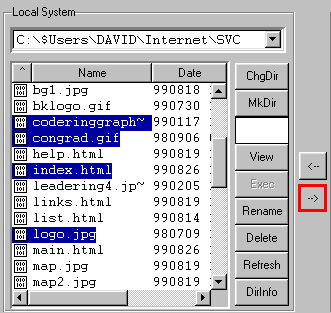
2. Select files - you can click and drag, or if you want to choose some files and not others, hold control while clicking on the ones you want. Selected files are highlighted in blue.
3. Click on the arrow that points to the right (it is highlighted in red above, but it is not highlighted in the actual program).
Table of Contents
|
III. Deleting files from your FTP directory |
Deleting any file from your directory is easy. Select the files you want to delete, just as described in the uploading seciton above, and click on the "Delete" button to the right of the directory.
A box appears asking if you really want to delete the file(s). You can choose "Delete All" to get rid of all of them quickly, or individually choose "Yes" and "No" for each file.
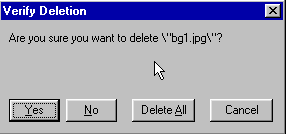
Table of Contents
|
IV. Downloading files from any FTP server |
As with every FTP client, you can use WS-FTP to to download files from any FTP server which gives you access to it (like public FTP servers with Shareware and Freeware apps). To log on to these servers just enter their address and leaver username and password fields blank.
Once you are logged in, you can click files in the Remote System directory, and click on the left arrow to download them to the directory you've selected on your computer. It is much like uploading, only the other way around. Of course, you can also use this to restore files from your Yahoo! GeoCities account to your computer.
Table of Contents
|
V. Creating a new subdirectory |
1. Click the "MkDir" button next to the directory listing. You'll be asked to name the new directory, as seen here.
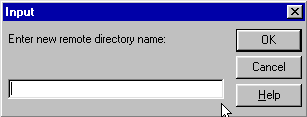
2. After typing in a name, click OK to create it. Click cancel to change your mind.
Table of Contents
|
VI. Looking at the Connection Transcript |
The connection transcript is a list of messages sent to you by the server during your session. It appears in real time at the bottom of the WS-FTP window, but if you want to view the whole thing just press the LogWnd button at the bottom of the WS-FTP window. This information can be useful to you, especially if you had problems during the session.
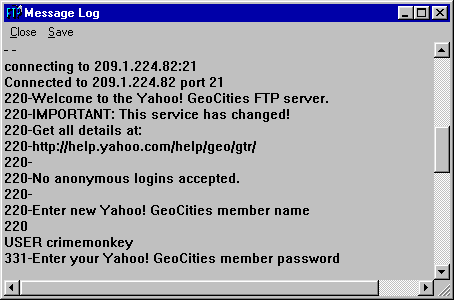
If you're looking for more information, WS-FTP saves a file called Ws-ftp.log in any directory you upload from or download to. This can be opened in a text editor, and displays the uploads and download that took place in that directory. Not very useful, but it might help you determine whether or not you've already updated a certain file.
Table of Contents
|
VII. Disconnecting from GeoCities FTP server |
When you're done, click on the Close button at the bottom of the WS-FTP window. The button title will change to connect, indicating that you can click on it again to re-connect, or to connect to another account.
Table of Contents
This manual should give most users enough information to use WS-FTP LE with their GeoCities homesteads. Most other features should be fairly easy to figure out once users have had some practice, and the program comes with a help utility which can be accessed by clicking on the "Help" button at the bottom of the WS-FTP window. Users of WS-FTP Pro can also view a user's guide online at Ipswitch's site (requires Adobe Acrobat).
Table of Contents
| 






