|
|
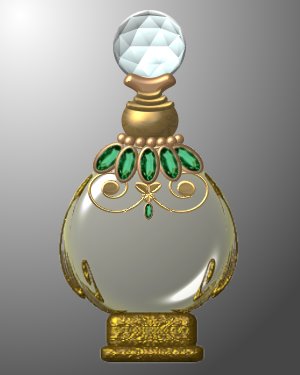
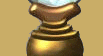
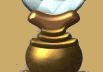
CRYSTAL GLOBE made with PI
by VickiG
|
|
|
@ELEGANT GLASS GLOBE
by VickiG
PI VERSION: 8
LEVEL: Intermediate
MAIN TOOLS: Path Drawing Tool,
Easy Palette (for presets),
Transform Tool (for sizing and rotation)
DOWNLOAD: If you wish to use same globe base and globe
download HERE
page, click on Objects. You can download the jewelsHERE.
INSTRUCTIONS:
- Open new white canvas 400wx500h
- Path Drawing Tool-shape elipse - 3d -
border 15 and depth 30 -draw a shape approx 147 x 148
Go to your easy palette - Material Attribute - Glass -
I used G12 - and apply.
- Base - open up base you downloaded from above site,
http://www.pircnet.com - left side of page - a list of different
pages you can go to. Click on PI User Objects and it is the last page.
Place globe in base, right click, arrange and send to back.
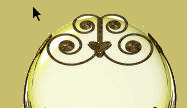
- Path Drawing Tool-custom shape - decoration 3 -
3d round - draw shape approx 105x60. Go to easy palette-
Material Attribute Gallery - Metallic - Copper 8 and apply.
Use Transform Tool and rotate and flip - flip vertically.
Unlock lock on resize - pull side out to each end of
globe then narrow it til it looks approx like shown.
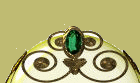
- Okay we are now ready to start with the jewels.
I used an emerald which I resized. I then made an elipse
shape (Path Drawing Tool - elipse) slightly larger than
the jewel, same copper preset, then arranged and sent to
back. Right click on both of these objects and align,
center both. Then right click, merge as single object.
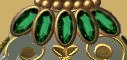
- Place jewel at top of globe like shown. Right
click and duplicate approx 5 or 6 more times and using
transform tool - rotate by degree - rotate each jewel
until they are situated around like illustrated.
- Path Drawing Tool - circle - 3d mode - same copper
preset - draw a shape approx 12x12. Go to EP
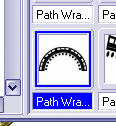
and Wrap Gallery - Path Wrap - first one, fourth one down
- change count to 6 and bending to 25. Rootaate and flip -
flip vertically - place as shown.
- Ready for the top. Path Drawing Tool - shape -
round - 3d mode - copper 8 preset, draw a shape approx
52x10. Right click, arrange and send to back.
- Path Drawing Tool - rounded rectangle - 3d mode -
border 6 - depth 30 -same copper preset - draw a shape
approx 70x10. Go to Easy Palette - Wrap Gallery -
Path Wrap - same as before but change the amount to 1
and the bending to 20. Transform tool - rotate and
flip - flip vertically -place as shown. Right click
and duplicate - transform tool -resize a bit smaller.
Right click and duplicate again - resize and make
smaller. Align as shown.
- Path Drawing Tool - Custom Shape - 3d mode -
same copper preset - choose shape - round shape. Draw
a shape approx 100x65. Rotate and flip - flip
vertically. Place as shown.
- Ready for the crystal ball!!! Path Drawing
Tool - shape round - 3d mode - pale gray - draw shape
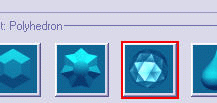
approx 75x75. Go to Effects - Material Effect -
Crystal and Glass - choose 3rd one, second row
down (looks like faceted glass) - change height to
100 and click ok. Place on top. Right click and
select all - right click and merge as single object.
YOU'RE DONE!!
I left the interior of the globe empty! You can
put whatever you want in there... :)
|
Copyright @TG Designs
All Rights Reserved

|
|
|
|