The following instructions cover creating a Macro that will work in conjunction with the perl script and take out all user interaction.
- Download
your 30 day evaluation of Macro Toolworks (MT) from the following link:
http://www.pitrinec.com/toolsworks.htm
- Go ahead and install MT, start it up and skip the interactive demo.
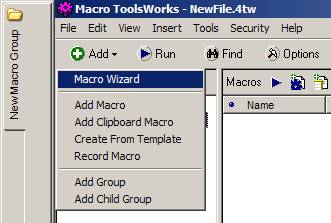
- In the top, left-hand corner click ADD and MACRO
WIZARD as shown below
- Type
the name of your macro, Transcender Window Close, or whatever you like and
click NEXT.
- In the
next window you must choose SCHEDULED TRIGGER from trigger type
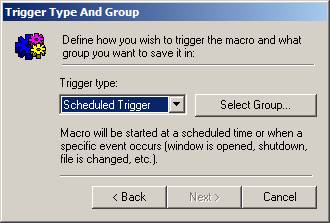
and then click SELECT GROUP, select the New Macro Group and then click NEXT.
- A
window will pop-up telling you your macro has been created, then another
window will show up allowing you to define your macro and trigger. Click the first button, DEFINE TRIGGER.
- For
the trigger type radio buttons, choose WINDOW and then choose Run macro if
window is OPENED. Now under the
Window Title section click the browse button
 to select the
transcender window. And now on the
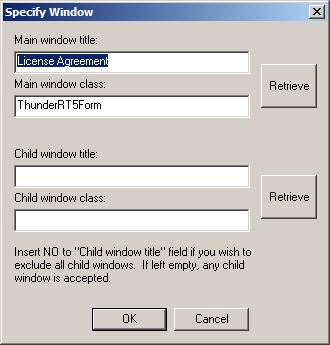
top section under Main Window Title click RETRIEVE.
to select the
transcender window. And now on the
top section under Main Window Title click RETRIEVE.
- A
small window will come up telling you to press Shift when your mouse is
over the window. Now start the
Transcender application to where the License Agreement window is
showing. Next position your mouse
pointer on the TITLE BAR of the license agreement window, it has to be on
the title bar or it won’t work.
When your pointer is on the title bar press SHIFT and it should
retrieve the information shown below:
Click OK.
- Now if
the Trigger and Macro Definition Window is still up click DEFINE MACRO
which will take you to the macro section.
You may also click FINISHED on the window. You’ll now see a paragraph of commented
out macro instructions. All that’s
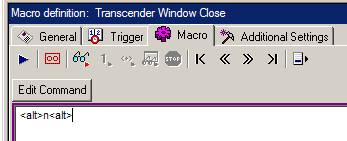
left is to input the ALT-N keystroke into the macro. Next, delete all the commented out
macro instructions and type the following exactly as shown except for the
quotation marks: ”
<alt>n<alt>”
Your macro screen should look like the following:
- Hit OK. Congratulations, your scheduled macro is complete. Next, try testing it out by opening the Transcender Window, it should come up and immediately go away. You may also want to save your macro. If you have any trouble or the macro isn’t working right, try starting over and repeating the steps. If all else fails and you can’t get it working, you can always make the trigger a timed trigger. In other words, instead of having the macro run when the window is open, you can have it run every 5 seconds, thus completing the same end result. So, start your perl script and get cracking…..