|
|
|
|
|
- Twink - |
|
|
|
|
|
... before ... |
... 1 ... |
... 2 ... |


Please note that this tutorial has two sections with two different methods of adding a name to an animated toon...
(1) Animated name On an Animated toon
1. Open the av in Ulead......
2. Go to the top where it says Frame...Add banner text
3. Pick an effect you like for this av and place the text, if you are not familer with how to do this refer to Animation Tutorial 2 Do NOT press ok you need to go to the frame control tab.....look below and youll see what I mean =)
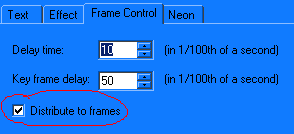
4. Once you have this checked press start preview...if the effect looks the way you want press ok and choose the recomended one...
5. Now you need to optimize the file, Ive rarely ever had a toon go over the requiered size, but its always safe to check...
(2) Non animated name on an Animated toon.
1. Open the Animated av in Ulead
2. Click the T on the left side of the screen then click the av.
3. A box should pop up so you need to choose a font and a size and color that you think is good..press ok...
4. Place the text where ever you want it on the av -click it and drag it over..
5. Right click the word on the right and go to object properties check the position and size tab and write down the left and top number..in my case it is left 6 top 43..
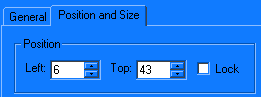
6. Look on the bottom of the Ulead screen and click the second tab, now you need to look on the right youll see the text you just created, youll notice there is no eye beside this...you need to click the first box to the right to make the eye appear
7. Now you need to right click the name again on the top right and go to position and size make sure those numbers are the same as they are on the first tab.. 8. You should now see the text on that frame as well in the same place as the first frame..
9. Do this until you have the name on all the frames of the animation...click preview....=) If you did it right the name should be on all the frames and in exactly the same place.
-Special Notes- You need to duplicate this and keep moving the star until you get the desired effect.
Check its size by clicking on the optimize tab at the top, it should be size 14,500 or less.
If the av size is too big look to the left above the tabs, ALWAYS lower dither first because it has no effect on the av at all.
: : i n d e x : :