|
|
|
|
|
- Twink - |
|
|
|
|
... before ... |
... after ... |


1. Open the Av in PSP.
2. Increase the colors on the av by going to colors increase colors to 16 million
3. Go to the top where it says Layers, click it then add a new Rastor layer.
4. Add a star tube anywhere on the image. If you dont have it you can get any color you want here
5. Save the file as a .PSP NOT a gif. Please note that if you are using PSP version 8 it will save the file as a pspimage...erase the image part to make it a PSP. -By saving this file as a PSP it lets you move the layers around in Ulead just like in paint shop.
6. Open the PSP image you just saved in Ulead…..a window will pop up click YES and check don’t show this again.
7. You should see a small version of your av on the right, beside your av is a small eyeball, click the box to the right of it and a small lock should appear.
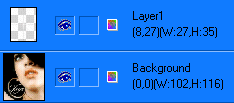
-NOTE- If you do not see the eyes on the right side of the screen go to View, and check Object Manager Panel.
8. Move the star by clicking the star in the middle and dragging it over to where you want it. You can lock the av by clicking to the right of the eye, this prevents the av from moving while you move the star. A lock appears.
9. Right click the frame on the bottom and choose DUPLICATE frame
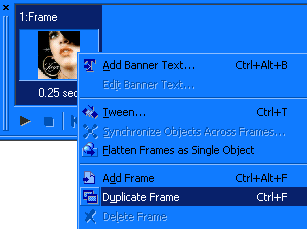
10. On the second av move the star somewhere else
-Special Notes-
You need to duplicate this and keep moving the star until you get the desired effect.
Check its size by clicking on the optimize tab at the top, it should be size 14,500 or less.
If the av size is too big look to the left above the tabs, ALWAYS lower dither first because it has no effect on the av at all.
Also if the stars move too fast, right click each frame on the bottom of the edit tab and go to properties,,,,make the delay time a higher number for slower, a smaller number for faster. You can also do this in file preferences to make the default something besides ten. I set mine to 25.
You're DONE!!