How can I use the keyboard?
It is not very difficult to make use of the keyboard, but if you want to make a good playable game with the keyboard, it becomes much more difficult. That's why I've made this tutorial. I recommend that you know a bit about the basics of Visual Basic, because I think you'd otherwise won't be able to complete this tutorial. You don't really have to understand everyhing, the most important thing is that you know how to use it.
-First create a new project with one form and one module. It isn't necessary for this example to make a module, but I think it's better to learn how to use modules properly. THIS IS VERY IMPORTANT: CHANGE THE PROPERTY KEYPREVIEW OF FORM1 FROM FALSE INTO TRUE!!! If you forget this, Visual Basic will give no reaction if you push a key.
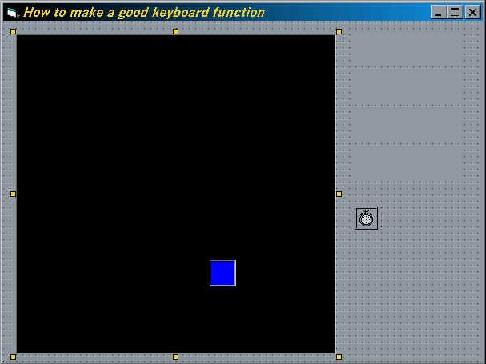
-Now we're going to create the interface for the application. Make the form big enough to contain a picture box of 6000 by 6000 twips and 4 labels. Make two pictureboxes, 4 labels and a timer. The form should look like this:
-On the right you
see the four labels and the timer. Change the name of the highest
label to lblLeft, the second label to lblRight, the third to
lblUp and the lowest to lblDown. Set the caption of the four
labels to nothing.
Change the interval of the timer into 20. Change the height of
the big picturebox into 6000 and the width also to 6000 twips.
Optionally, set the backcolor to black. Last but not least,
change the name of the small picturebox into picHero, because
he's our hero and set his width and height to 500 twips. For so
far the non-coding part.
-Ok, let's start coding!! First we're going to make some constants for the left, right, up and down buttons. Copy this to your module. The numbers are keycode constants, you can't change them (actually, you can change them, but it isn't very smart).
Global
Const LeftButton = 37
Global Const RightButton = 39
Global Const UpButton = 38
Global Const DownButton = 40
-Now, let's declare some Flags. The key to this well working keyboard-application are these flags. Every time you press a button, a flag is 'activated'.
Global
Const LeftButtonFlag = 1
Global Const RightButtonFlag = 2
Global Const UpButtonFlag = 4
Global Const DownButtonFlag = 8
-We have to make a function for the flags. Here is the very small function and the declaration of the variable Keystate in which the keystate is saved (copy and paste this also to the module).
Global KeyState As Integer
Function
CheckKey(Flag As Integer)
CheckKey = KeyState And Flag
End Function
-Now we have to add some code to the Form_KeyUp and the Form_KeyDown events. The Form_KeyDown event is the event that happens when you push a button and the Form_KeyDown is the event that happens when you let go of the button. Double click on the form (not on a label or picturebox) and copy and paste this code, it will save you a lot of typing.
Private
Sub Form_KeyDown(KeyCode As Integer, Shift As Integer)
Select Case KeyCode
Case LeftButton
KeyState = KeyState Or LeftButtonFlag
Case RightButton
KeyState = KeyState Or RightButtonFlag
Case UpButton
KeyState = KeyState Or UpButtonFlag
Case DownButton
KeyState = KeyState Or DownButtonFlag
End Select
End Sub
Private
Sub Form_KeyUp(KeyCode As Integer, Shift As Integer)
Select Case KeyCode
Case LeftButton
KeyState = KeyState And (Not LeftButtonFlag)
lblLeft.Caption = ""
Case RightButton
KeyState = KeyState And (Not RightButtonFlag)
lblRight.Caption = ""
Case UpButton
KeyState = KeyState And (Not UpButtonFlag)
lblUp.Caption = ""
Case DownButton
KeyState = KeyState And (Not DownButtonFlag)
lblDown.Caption = ""
End Select
End Sub
Each time you let go of the button, the lblLeft, lblRight etc. captions are set to nothing, so that you only see what button you've pushed when you are holding down the button.
-Here comes the best part. This is what we have all been waiting for. Double-click on the timer on the form and paste the following code in the timer event. This is the simple code about using the keys to move your player. If you press the left, right etc. button, the code after "if ... then will happen. So if you press the left arrow key, the code after "If CheckKey(LeftButtonFlag) Then" is activated. The left and top coordinates will change, so that it looks like the block, picHero, moves. Every time another if..then statement checks if the player is still in the game-field. If you delete the line "If picHero.Left > 50 Then", the player could "walk" through the gaming field, picture 1.
If
CheckKey(LeftButtonFlag) Then
If picHero.Left > 50 Then
picHero.Left = picHero.Left - 50
lblLeft.Caption = "Left cursor key"
End If
End If
If CheckKey(RightButtonFlag) Then
If picHero.Left < 5400 Then
picHero.Left = picHero.Left + 50
lblRight.Caption = "Right cursor key"
End If
End If
If CheckKey(UpButtonFlag) Then
If picHero.Top > 50 Then
picHero.Top = picHero.Top - 50
lblUp.Caption = "Up cursor key"
End If
End If
If CheckKey(DownButtonFlag) Then
If picHero.Top < 5400 Then
picHero.Top = picHero.Top + 50
lblDown.Caption = "Down cursor key"
End If
End If
This was it!! I hope you've learn't something and that you now know how to make good use of the keyboard. Click HERE to download this tutorial. If you have any questions or comments, please feel free to e-mail me by clicking here.