|
Data Validation - Examples
Data validation aims to reduce the Mechanical Errors. For example, if the value in a cell must be greater than 100 you should select the cell and chose Data / Validation. In the "Settings" tab complete the fields as follows: "Allow:" - Whole Number, "Data:" - greater than, "Minimum:" - 100.
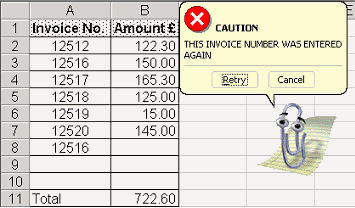
Data Validation can also be used in more sophisticated situations when you select the Custom option of the "Allow:" field. This allows the user to enter a formula that should return either True or False. The value entered in the cell will only be accepted as long as the formula returns True. An example is the illustration below which shows how Data Validation can be used to prevent duplicate values in a list. To do this, select range A2:A11, chose Data/Validation/Custom (Allow field) and enter the following formula in the Formula Field:
=COUNTIF($A$2:$A$11,A2)=1.
Note that A2 is in absolute reference (without the Dollar sign) so that in each cell of the range A2:A11 the reference will change to the reference of its own cell (eg in A3 the formula will read as =COUNTIF($A$2:$A$11,A3)=1).
If you want to display a specific message, select the "Error Alert" tab of the "Data Validation" window and enter your error message.
|
|