Excel Tutor - Cyprus

Conditional Formatting

This lesson explains how to create Conditional Formatting and illustrates some cool techniques to be used. The following areas are covered:
1. Explaining the basic principles of Conditional Formatting.
2. Using Conditional Formatting with Formulas. The following techniques are illustrated:
2.1 Warn the user that the values may not be correct. For example the values are colored if they differ by more than a specific percentage compared with last year's figures.
2.2 Quite data entry
2.2.1  Cells are Formatted with black if they should not be completed.
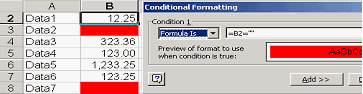
2.2.2  Cells are Formatted with a colour until data is entered into them. (See the second illustration below).
2.2.3  Make results invisible until all data is entered.
2.3 Identify duplicates.
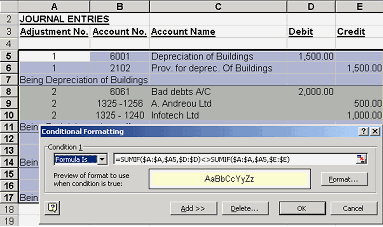
2.4 Format unbalanced amounts. (See the first illustration below).
2.5 Format cells if they contain formulas.

Conditional Formatting - Examples


Conditional Formatting automatically formats cells (Font, Border, Pattern) if a condition is met (eg the value of the cell is less than zero). For example if you want to warn the user for negative values you should select the particular cell, chose Format / Conditional Formatting and complete the fields as follows: "Cell Value is", "Less than", "0". Then you have to click on the Format button , chose the red colour and press OK twice. When you follow these steps, the value of the cell will be formatted in red if it turns to negative.

As with Data Validation, you can also enter a formula that should return either True or False - if True, the formatting selected will be applied. The illustration below shows how Conditional Formatting can be used to identify unbalanced Journal Entries. To do this, select the range of Journal Entries (starting with A5), chose Format / Conditional Formatting and complete the fields of the Conditional Formatting window as shown below. Then click on the Format button and select the appropriate format. Press  OK to finish.

The illustration below shows how Conditional Formatting can be used to avoid Omission Errors. All cells that should be completed are formatted with red if they are empty.

Home | Who Am I? | My Training Program and Examples

| Downloads | Links | Contact