
CREATING TOURNEYS
Creating the Tournament
1. Make sure that you are logged into the Y!S site.
2. Click on the "Create Tourney" link.
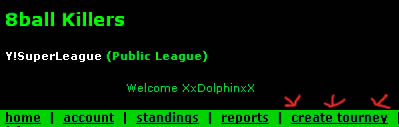
3. Choose the settings of the tourney.
a) Format -- Single Elimination or Double Elimination
..... (this determines whether a player is granted one or two losses in the tourney before they are eliminated)
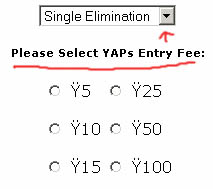
b) YAPs Entry Fee -- 5, 10, 15, 25, 50, or 100
..... (this determines how many YAPs are required to enter the tourney... to check how many YAPs you have, go to the "Accounts" link)
c) Tourney Name -- you can put any name you like
..... (name must be appropriate and within the guidelines of the league rules)
d) Tourney Style -- select from any of the many styles of tourneys offer by the league
..... (tourney style rules may be found on the "Rules" link, or if you are a member of Killers, you can find rules to our MANY styles by clicking HERE
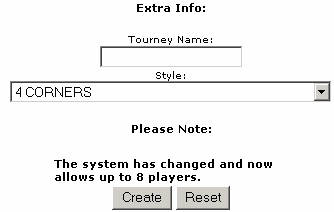
4. Click the "Create" button at the bottom of the page.
5. Center portion of page should automatically refresh.
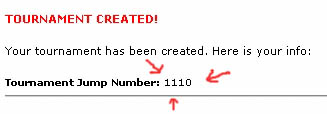
... At the top, the text "TOURNAMENT CREATED" will appear. There will also be a Tournament Jump #.
... This Jump # is what you give to the other members so that they may enter the tourney.
Running the Tournament
6. Enter the Jump # in the box on the left side under the title "Tourney Jump:"
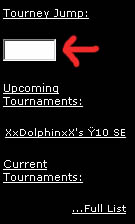
... This will bring up the tourney's front page in the center section.
7. REMINDER !!!
... You must remain for the entire tournament, even if you lose in round 1. You are required to close the tournament out.
... This tournament will commence the moment 8 players have registered, however you can manually start it once 4 players have registered.
... Be sure to keep refreshing this page so that you know how many players are registered and to see updated hosting options.
8. When you have at least 4 members joined in the tourney, and are ready to close the tourney, make sure to issue a "Last Call" in the lobby for any other players that may wish to join.
9. When everyone is in, close the tourney with the "START TOURNEY" link at the bottom of the Front Page

(if 8 members join, the tourney will start automatically)
10. Click on the "STANDINGS" link to view the match pairings.
... Announce the matches to the members in the lobby, or at the HQ table if you have one.
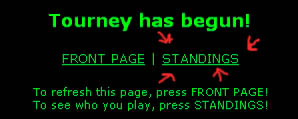
11. When members report the result of their match, go to the STANDINGS page.
... Click on the button next to the LOSER'S name.
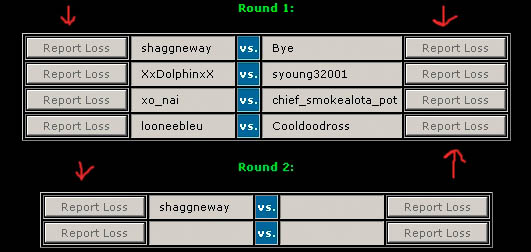
12. When the next Round is ready, announce it's matches, and report appropriately.
13. When all matches have been completed, make sure to "CLOSE" the tourney.
