
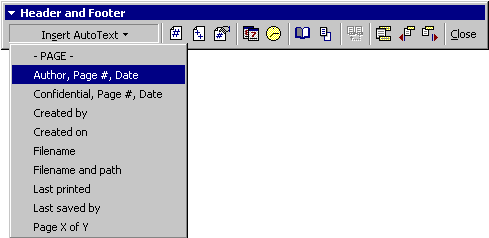
Normally working with Headers or Footers is not a very big problem. Just choose Header and Footer from the View main menu and type your message. Here is a picture of the Header and Footer Toolbar that appears when requested.
The third button in from the right side switches between the Header and Footer sections of the page. Note that there are several built-in functions to save you typing and time when preparing a Header or Footer.
You can choose to include Page Numbers, the Date or Time plus an assortment of AutoText entries.
To save time you can choose from some pre-formatted AutoText entries to place in any portion of the Header or Footer.
Use the Open Book icon to go to Page Setup dialog box. The icon to the right of the book is very helpful if you need to hide the document from view while working on the Header or Footer.
| Professor Al Fichera | Page 1 | 01/14/2002 |
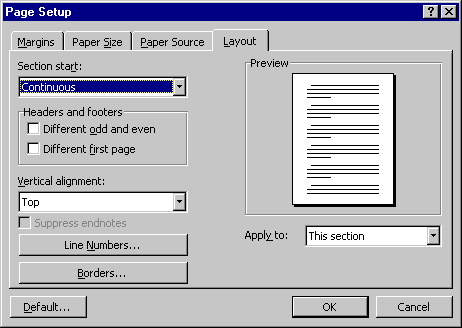
There will be times when you wish to change the style or information in a long document. Perhaps the placement of Odd / Even page text, Index or Glossary material etc., using section breaks makes the task so much easier. Choose Break... from the Insert menu, and then select Continuous.
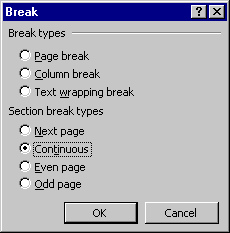
I'll be placing a Continuous Break on the Previous Page so I will be able to change the Header and Footer on this page. When working with Breaks, it would be a great idea to turn on the Show/Hide button on the Standard Toolbar so you'll be able to see exactly what you are accomplishing. The following is an attempt to duplicate what the continuous break will look like on your page.
===============Section Break (Continuous)===============
With this tool you'll be able to create any type of document you wish. Notice on the picture of the Header and Footer toolbar that the Same as Previous button is now active and waiting to help you make changes to your Header or Footer.

Use the two buttons to the right of the Same as Previous button to check how the progress is going on your Header and Footer changes. These buttons are called Show Previous and Show Next and are indispensable to the progress you'll make in this endeavor.
The following illustration shows that my next page header will be the Same as Previous. If this is OK, then I'll leave it alone. If it is not, then all I have to do is deselect the Same as Previous button on the toolbar and the sections will break ties leaving me any option I wish to use for the document.
See wasn't that simple?

Quick Tip:
Did you know that if you double-click the Left Mouse button on any visible Header or Footer that it would open the Header and Footer toolbar?
|
Professor Al Fichera Look, I Changed the FOOTER. |
Page 2 | 01/14/2002 |
Copyright © 2001 & 2002 Professor Al Fichera
Back to MS WORD 2000