WRAP TEXT AROUND GRAPHIC IN WORD 2000
Here's a better way to wrap text around a graphic image, allow the text to follow the contours of the image rather than just the box enclosing and imported graphic. Here, and in Step-by-Step is how to make this work for you. The example below is the expected result.

-
Select Insert | Picture to import a picture into your document.
Then size and position it as you would withany image.
- Click the Text Wrapping icon on thePicture toolbar.
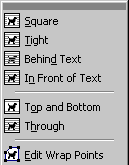
- Select Edit Wrap Points from the resulting pop-up menu.
- If your image is a .wmf file, WORD contours the text wrapping points around the image automatically.
Otherwise, you'll need to do this manually.
- Click the crosshair pointer anywhere on the red dotted outline around the graphic and drag the outline to a new position.
- Repeat this as often as you need to, until the dotted red outline closely follows the contours of the image.
Note: Each black dot is a spot on the red outline that was dragged closer to the image.
Step-By-Step
-
Select an image, then place it and size it as you would any image.
-
Click the Text Wrapping Icon on the Picture toolbar.
(The button is square with white lines and has what
looks like a dog image in the middle; it's the 4th
in from the right side.)

-
Select Edit Wrap Points from the Icon's pop-up menu.
-
Drag the red dotted outline so that it follows the image contours closely.
-
When you click outside the image, Word will automatically wrap existing or new text around the image wherever you place the graphic image.
Copyright © 2001 & 2002 Professor Al Fichera
Back to MS WORD 2000