The purpose of this page is to introduce you to the Main Menu and Toolbars of WORD 2000. There are pictures of the different drop-down menus with short descriptions to help explain them to you. The pictures used are not high in memory so there shouldn't be too much of a problem loading the page.
The following links will take you to the different topic areas within this document. Use these picture links if you want to know more about a certain topic.
| Topics in this Document | ||
| Table of Figures | ||
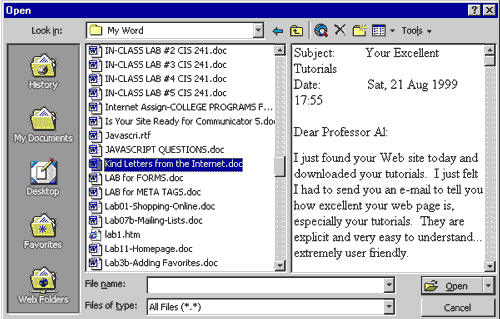
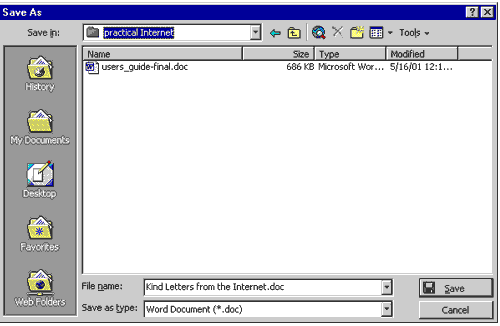
I can't think of a better way to start a lesson on Microsoft Word 2000 than explaining all the special menus, toolbars and dialog boxes. Perhaps I should start with a couple of rather important ones. The Open, and Save As… boxes.
In Windows Open dialog box choose the area that contains the file you wish to open, be it 3 1/2 Floppy (A:), or other drive on your system.
In Office 2000 you can get a Quick Preview of the file by selecting that icon first. Seeing the first page of the document might help you if you weren't sure about the file name and contents. I'm using the Details view button in this screen shot.
For all of you new to working with Windows, the first time you save a document, the dialog box that opens will be Save As… It makes no difference how you attempt to save the file, from the keyboard, mouse, drop-down menu or toolbar icon, the first time saved you get Save As… this allows you to name and find a home for the file.
Not unlike the Open dialog box, you will have to find a home to Save your new document. You probably have an area called My Documents on your hard drive C:, it's quite possible to add additional folders here, some just for your word documents. If you are working in Office 2000 at school or the office and wish to work at home in an older version of Word, you will have to choose the type from the drop-down list called Save as type: Word 2000 can read just about any other version of a word processing document, BUT, an older version or competitive version cannot read Word 2000 unless it has been saved downwards first. It would be in your best interest to make a note to yourself of this and post it on or near the computer if you are working between two platforms.
Now that you've seen the Open and Save As…dialog boxes, here are some screen shots of the different features of Microsoft Word 2000. We will start with the Main Menu, it's drop-down menu choices, then on to the different toolbars.

This menu can be accessed without a mouse if needed by holding down the [Alt] key and choosing the underlined letter. This is a nice trick if you hate your mouse or if it has taken a vacation from working!
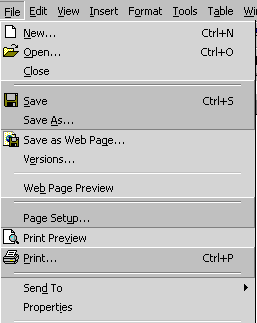
As you can see this is sort of the nerve center for your document, anything from a New… document or Opening, Closing and Saving.
Another nice feature is the open any of the previous four (4) documents that were opened at the bottom of the drop-down box.
Please notice that Word 2000 shows a picture of the toolbar button equivalent and a Control Key combination for you Keyboard freaks!
In the Save section you will notice the Save as HTML… selection. It couldn't be easier for you to create a document and send it up to your Web Server than it is now in Word 2000!
The Edit drop-down menu:
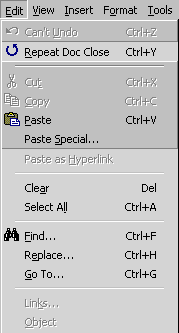
The Edit menu can be accessed from several places inside Microsoft Word 2000. Again, as in the above example, you will notice the icons pictured on the left and the Control key combinations on the right side of this drop-down box.
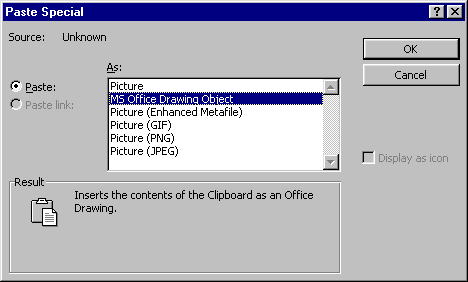
Your right button on the mouse will also provide you several of these choices when clicked. The most important choice has no shortcut shown. The Paste Special… choice is very important when you are pasting graphics or objects. It's in this box that you will choose how much memory to use and whether or not to link the graphic or Excel chart to its parent.
Notice in the Paste Special… dialog box below that there are several choices to be made. In pasting the picture below I chose to paste it as a Picture to conserve memory. I also chose the Float over text option, this gives me the ability to place the graphic anyplace I please. The Paste link: option was not available at this time.
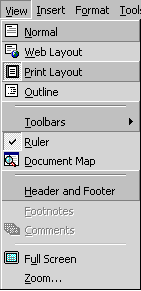
The View drop-down menu:
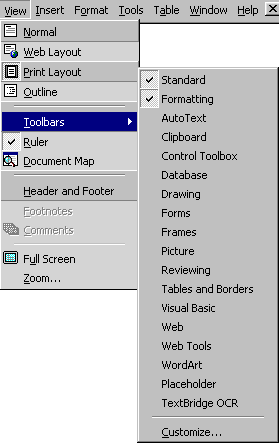
There are several very important items to be found on this drop-down menu. When you are involved with producing HTML documents you will be able to check the Online Layout and HTML Source Code, this is not shown here at this time since I haven't chosen to create a HTML page just yet. The Page Layout mode is the best to work in since it is WYSIWYG (What You See Is What You Get). The Toolbars can be found here in a cascading menu and of course the most important Header and Footer toolbar. Remember, if you need to see something that's not on the screen yet, perhaps it will be in the View menu.
It's in this menu that you will find your Toolbars and one of the ways that you can customize them. Another way would be to right-click on any open toolbar and choose Customize. There are dozens of tools you haven't seen yet, you'll have to go to the custom screen to add them to a toolbar or create a new special toolbar to hold all these great new toys!
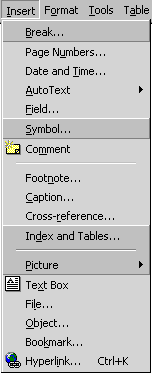
The Insert menu:
As you can see for yourself, there are items that can be inserted into your document from this menu. Anything from another page, page numbers, the date and time Symbols and Pictures are just a few. I think you'll spend quite a bit of time using this menu as you learn to use all the features of Microsoft Word 2000.
The more advanced topics include Footnotes, Captions for pictures Index and Tables of Contents. You may include a Hyperlink to a part of your long document or to the World Wide Web itself!
As a novice Word 2000 user, you will spend more time learning the top several options first and perhaps learn how to use the insert Picture cascading menu. If you need help with the more advanced items don't forget to use the Office Assistant from the Help menu to guide you through the options.
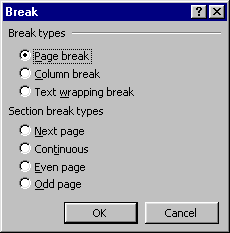
This is a picture of the Break… dialog box and it's choices. This little jewel of a dialog box will help you create breaks in columns or on the same page. If you need another page, you can go to this box or choose the keyboard equivalent, [Ctrl] + [Enter] combination that produces a hard page break. You will use the Continuous break to be able to change how your Headers and Footers look on long documents.
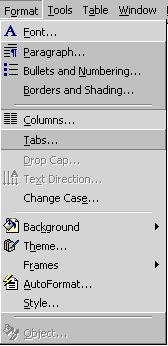
The Format drop-down menu:
Your first few trips to this menu will probably be to format the Font and the Paragraph… As your skills grow you'll be formatting Bullets and Numbers, Columns, Tabs and more. If it has to do with formatting your document expect to find it here!
Formatting usually relates to how it's going to look when finished; it's here where you'll dress up your document. So, between the Insert and Format menus you'll probably add the most amount of memory to the document. Graphics and graphic treatment takes a heavy toll on memory. Remember to save often once you hit these drop-down lists! Every time I have added a new graphic to this document, I re-saved it. I'd really hate to have recreate it all over again!
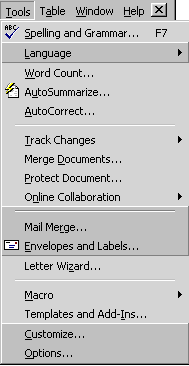
The Tools drop-down menu:
Most of these options become more important to the experienced user of Word 2000.
Spelling and Grammar… can be turned on automatically from the Options… menu. When you need to make an Envelope or Labels… you'll find the option here. It couldn't be easier for you to create return or mailing labels. But don't let that stop you from making File labels, VCR labels, Floppy Disk labels or what ever else you can dream up.
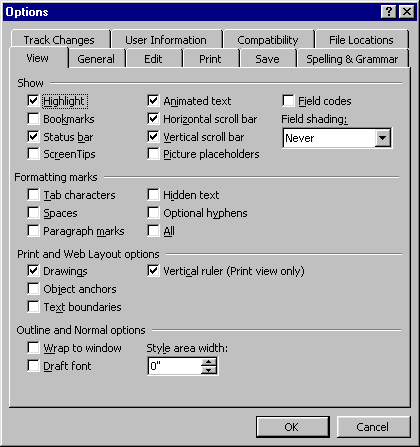
The Options… dialog box has several tab choices, this is a picture of what to expect.
It would take several more pages to show every one of the ten dialog boxes these tabs lead to, however the Spelling & Grammar box will show you the options I have selected to operate with. When I misspell a word or use improper grammar (forbid), a wiggly red line underscores the word and a wiggly green line shouts about my bad grammar. (Not that I've ever experience that! Right!)
Please take note on how to embed TrueType fonts under the Save tab. This means that you'll actually be able to see a special font of yours used in the document on another computer. Let's say you take your document file on a floppy disk to work and your work station doesn't have that particular font on its system, no problem, you'll be able to view the document in all it's former glory.
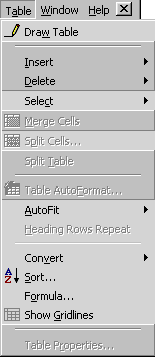
The Table drop-down menu:
One of my favorite parts of Microsoft Word 2000 (or any other prior version of Word), is the part about Tables. Tables are cool!
But Tables are somewhat of a intermediate level activity. But don't let that stop you from trying them. Tables can be used to line up numbers, items, or pictures. They give you absolute control over the placement of items on the page. They are indispensable to people writing Web pages too! A table can be outlined with a border or have only certain lines drawn. They can be Split or Merged into one cell. Hopefully you will try to learn how to use them in a course or spend some time with the Office Assistant as a guide.
Tables have a nasty habit of not letting you delete them without a little knowledge on your part first. If you try to delete a table with the delete key, all you'll accomplish is deleting the contents of the cell(s). To actually delete a table row or column you will have to go to the Table drop-down menu and select Delete Rows.
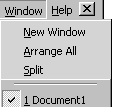
The Window drop-down menu:
This certainly is a small menu by the standards we've seen so far, but don't let that fool you. It's here that you'll create New windows and Arrange them on the screen. You will also be allowed to Split the screen so that you can see two or more documents at once, (two is the most you should try, since the screen will become quite small.) At the bottom of this drop-down box you'll see how many documents are open and be able to switch back and forth between them. Great for copying from one and pasting to another!
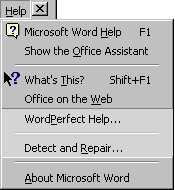
The Help drop-down menu:
If you can't find the Office Assistant, he's here as the top option. You can invest in many manuals on Word 2000 but Microsoft thought to put everything you need to operate the program right here under the On-line Help menu. Even help for people coming from WordPerfect! Spend some quality time with this menu, you won't believe how much help you'll receive, and it won't cost you an additional penny!
Well this covers the Main menu choices, now let's go on to explore some of the toolbars that come with Word 2000. Two of the most important are the Standard and Formatting toolbars and you shouldn't be caught without them at the top of your screen.
The Standard toolbar:
The Standard toolbar should always be the topmost toolbar. As you become familiar with other Office 2000 programs you will begin to recognize the similarities between toolbars. It's here you will create a new document, open or close a document. You may also Cut, Copy or Paste. Undo or Redo something. If you need to know what a certain icon will do, leave your mouse pointer on top of the icon for a couple of seconds and a pop-up sign will tell you it's name. Here a few of the items that you may not readily know.
The Formatting toolbar:
The Formatting toolbar almost looks the same in any of Microsoft Office 2000's products. It's here where you can affect the font, and Size, its Formatting and Placement on the page. You will control Paragraphs, Indents, Borders, Line and Text Color.
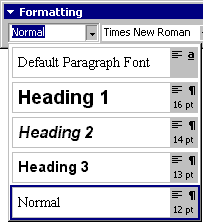
The first drop-down box on the left determines the built-in Styles and any future custom styles you may create.
This is a picture of the Styles drop-down box from the Formatting toolbar. As you can see, the Heading 2 style is selected, that happens to be the style of the sub-headings I've been using to create this paper. The balance of this document is in Normal style which is using Times New Roman 12 pt.
Don't lose sight of the fact that toolbars are just that, the more popular tools people use. There are many more tools than show up on these bars. You may go to the Main menu for additional choices or View | Toolbars and choose Customize… to add a few more choice tools to the toolbars. Another way to get to Customize is to right-button click on any toolbar and choose Customize…
The Drawing toolbar:
You could write a whole booklet on this toolbar alone! (Look for my booklet on Word 2000 Graphics to see more on the subject.) This toolbar has been overhauled in this Office version. A whole new bunch of tricks to use not only in Word but any other Office Suite programs as well! WordArt gets it's own button, a Fill and Draw drop-down menus have been added. You can control the 3-D aspect and select a number of Shadows for objects from the enormous AutoShapes drop-down box of choices. Spend some quality time here and your document presentations will outshine those of your competitors!
The Header and Footer toolbar:

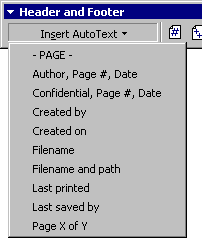
This toolbar has been re-thought out also for Word 2000. It's here that you will add what will appear in the Header and/or Footer areas at the top and bottom of your document. If you wish, let Word 2000 help you with the choices by using the drop-down Insert AutoText box. Here you will find several pre-made combinations.
In the Header and Footer toolbar you can break connections between pages and use different headers and footers in the document with ease. (Well with a little instruction first.)
To break connections between sections of your document you will have to create them first. You will use the Insert | Break… | Continuous combination so that you will have multiple sections within the document.
Here a few more items on the landscape of your screen that might be nice to know about. At the bottom left of your screen are the shortcut buttons to page layouts and a view of the current status of the document, including where you are in relationship to the whole document. When I took the snapshot of this item I had only one page and one section. At this point in the document this reads Page 8 Sec 1 8/8. I haven't added sections yet since I'm not really involved with the Header and Footer and any special Page Numbering at this time. The small buttons above the Page 1 present you with differing views of the document. I'm using Page Layout View and shy away from the Normal View since it is not WYSIWYG.
The Format Paragraph Dialog Box
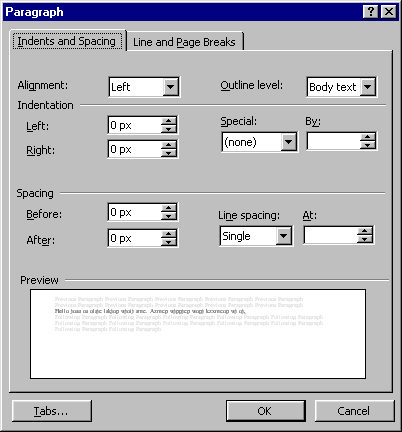
Find the Format Paragraph dialog box under the Format menu or from the right-mouse button when you need to format a paragraph. Notice that there is a small preview window to let you see the result of your action. My most often used portion is with Spacing Before: and After:
You will find a button on the bottom of the dialog box to format the Tabs… Tabs have their own box under the same menu, this is just incase you want to do a couple of things at the same time.
Formatting The Tabs
Format | Tabs…
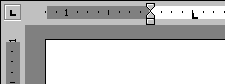
Here's a look at this box and some of the really neat things you can accomplish with tabs. Tabs can be reached from the ruler area of the screen and your mouse button. This is the quick fix tab area below, notice the little 'L' looking tool, this means the tab will be 'Left' justified. Clicking this button repeatedly will produce, Left, Centered, Right and Decimal Aligned tabs.
Notice that there are rulers at the top and left sides. This means that I'm in Page Layout View and that the rulers have been turned on from the View menu. This picture shows that my Left margin is in 1 1/4 inches which is the default, and that I've scrolled down a bit and we cannot see the first 2 1/2 inches of the document. (The ruler on the left starts at 2 1/2 inches.) You can also see that I haven't chosen to use tabs just yet. (Too bad, it would have made a good picture!)
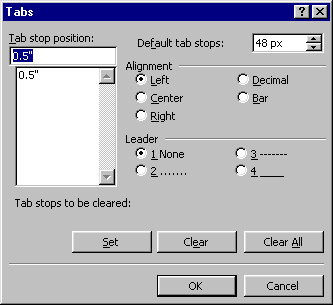
This is a shot of the Tabs dialog box. For this picture I added a few dummy tabs in this document. (I'm not using any tabs at all so far, so I had to set these up to take the screen shot.)
Notice the highlight is on the 3.5" ruler mark, I have chosen this tab stop to be a Decimal stop. That's why there is a small black dot next to the word Decimal. If I wanted to have a leader for any of these stops, I would choose the stop from the Tab stop postion: then choose a Leader type then click on the Set button. Hit OK and I'm in business with tab leaders. Leaders are just little dots or dashes between the left and right sides of a tab area. Something like this:
Word Instructions………………pg. 1
The Page Setup Dialog Box
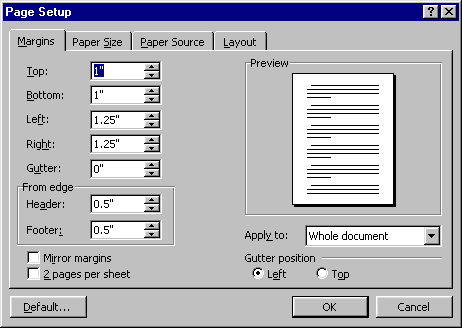
Under the File menu you will find the Page Setup dialog box. Under the Margins tab you can change the defaults if you wish, then choose whether or not it should apply to the whole document or just one area alone. I've had to change the From edge defaults from 0.5" to 0.7" to accommodate the printer's software that I'm using.
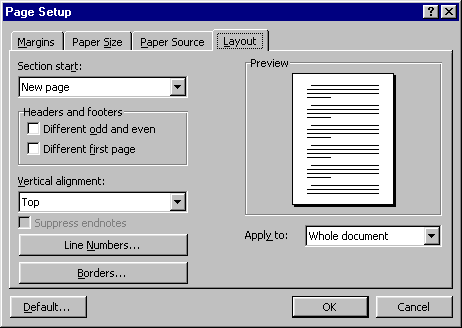
The next picture you will see is from the Layout tab.
The Page Setup Layout Tab
Under the Layout tab of this box you can play with several important setup features. For instance, say you want to make a Title page and that it should be centered between the top and bottom and left and right sides. No problem, choose the Vertical alignment: section and select Center, then be sure to Apply to: the current page. If you are writing a book and want your Headers and Footers to look different on odd or even pages, you've got a checkbox to use!
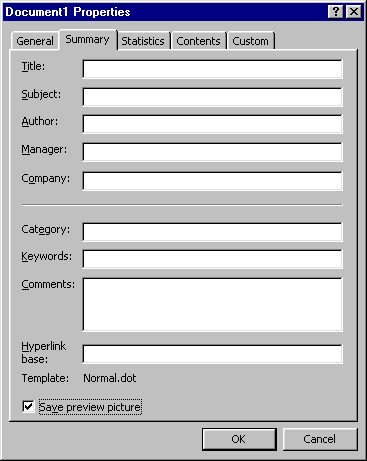
Lastly, you might want to look at this dialog box, the Document Properties Dialog Box. It contains important information about your document, including Author and the statistics. A good way to safeguard your original property.
Well, this ought to get you rolling on your Test Drive of Word 2000. Use your good common sense when trying out new software. Assume that you can do anything you can imagine, and that the help for doing that is close at hand. Word 2000's Help system is outstanding. And don't forget the Office Assistant is always ready to give you a helping hand. For those of you addicted to hard cold facts delivered in books, there are so many good ones available at your local bookstore. From 'Bible' styles that are more rocket science than help, to books with more pictures than words. I guess it couldn't hurt having a couple at hand to study when the computer is down (forbid)!
Copyright © 2001 & 2002 Professor Al Fichera
Back to MS WORD 2000