Professor Al Fichera
Introduction to the Internet
NETSCAPE E-MAIL ATTACHMENTS
Attaching a Document to E-mail
E-MAIL
When you attach a document to an e-mail message, your browser sends an exact copy of the file to the recipient. At the receiving end, the recipient can open, edit, and print the file, just as if it had been created on his or her own computer. Before you attach a document to an e-mail message, make sure that your recipient has the same program on his or her computer. It is always in good taste to tell your e-mail recipient what is being attached to the letter and what program created it.
- In Netscape Navigator, display the Message Composition window, find it in several places: Under the menu item Window | Netscape Mail, the Small Envelope icon with a small yellow ? question mark in the lower right corner of the Netscape screen, or under the File menu | New Mail Message or [CTRL] + [M].
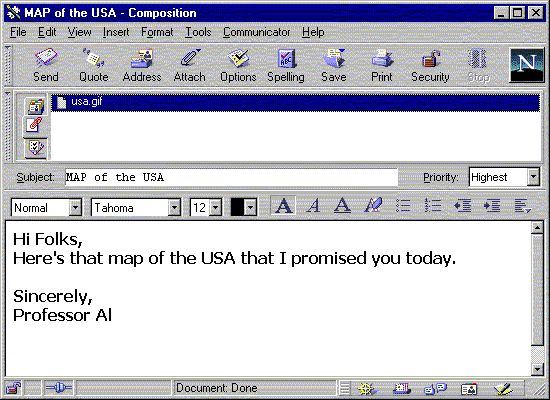
Fill in the Mail To, Cc, and Subject text boxes, and type a message if you want. Then click on the Attachment button (or click on the Attach toolbar button) to display the Attachments dialog box.
- Click on the Attach File button to display the Enter File to Attach dialog box.
- Use the Look In drop-down list to display the folder
 containing the document you want to attach, click on the file name, and then click on the Open button. (If you add a file in this box and then decide against attaching it, click on the file name, and then click on the Delete button. Netscape removes the file name from the Attachments dialog box.)
- Netscape displays the name of the file in the Attachments dialog box. If you want to add one or two more attachments, you can repeat steps 2 and 3 to add more file names to this dialog box.
- Leave the As Is option button selected, and then click on OK to return to the message Composition window. (Choose the Convert to Plain Text option button only if you want to strip all the formatting from the attachment and send only plain text.)
- Netscape lists the name of the attached file in the Attachment box. (Since the Attachment box is gray, the file name will be hard to see.) Click on the Send button to send the e-mail message.