Professor Al Fichera
Introduction to the Internet
E-MAIL URL ATTACHMENTS
How to Attach a URL to a Netscape E-Mail
ATTACH A URL IN NETSCAPE
If you just want to include a hypertext link to a Web page in an e-mail message, but don't want to send the Web page as an attachment, type the URL directly into the e-mail message. It will be displayed as a hypertext link when the recipient receives the message.
Rather than typing the URL into your e-mail message, you can have Netscape enter it for you. Right-click on a link to the URL in a Web page, choose Copy Link Location from the context menu, click in the e-mail message, and press [CTRL] + [V].
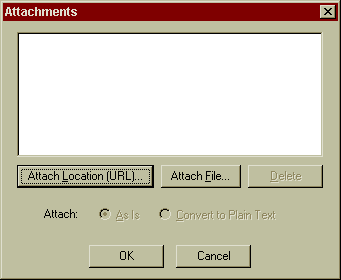
Steps:
- Display the Message Composition window, fill in the Mail To, and Subject text boxes, and type a message. Then click on the Attachment button to display the Attachments dialog box.
- In the Attachments dialog box, click on the Attach Location (URL) button.
Please Specify a Location to Attach. Type the URL for the Web page in the text box and click on OK.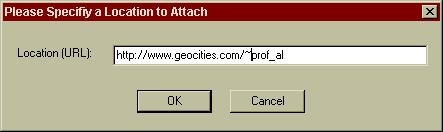
- Netscape lists the URL in the Attachments dialog box. Repeat steps 2 and 3 if you want to attach more URLs. Then click on OK.
- In a moment, Netscape displays the URL in the Attachment box in the Message Composition window. Click on the Send button.
- If you visit a Web page you want to send to someone, you can send it right from the page by choosing File | Mail Document.
- Netscape displays the Message Composition window. It uses the title of the Web page as the subject line, it attaches the URL to the message, and it inserts a hypertext link to the page in the body of the message.
- Fill in the Mail To and Cc (optional) text boxes, type a message (you can type above and below the link), and click on the Send button.