Professor Al Fichera
Introduction to the Internet
E-MAIL URL ATTACHMENTS
How to View a URL in Netscape E-Mail
VIEWING AN ATTACHED URL IN NETSCAPE
You have to save most attached documents before you can open them because Netscape can't display most document types. However, it can display all Web pages so it always displays attached URLs directly in the Message pane. In addition to attached URLs which actually send a copy of the Web page with the message, messages you receive might contain hypertext links to URLs. These links behave differently than attached URLs; they actually take you to the Web page, wherever it lives on the Web, instead of sending a copy of the page along with the message.
A good way to practice sending e-mail messages with attachments is to send them to your own e-mail address. That way, you can test out all the techniques available to you, and it will take the "Oops" out of attaching files.
Steps:
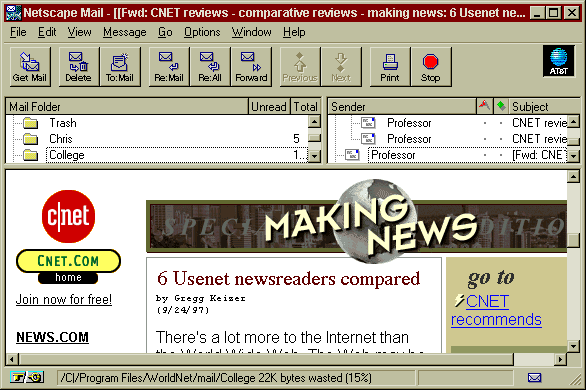
- In the Netscape Mail window, click on the message in the Message Header pane.
- If the sender typed the URL into the e-mail message or used the File, Mail Document command, you will see a hypertext link to the Web page. Click on the link to jump to the page. (You can click the Taskbar button at the bottom of your Windows 95 screen to get back to your e-mail window.)
- Notice that when you click on a hypertext link in an e-mail message, Netscape automatically switches from the Netscape Mail window to the main Netscape window to display the page.
- The message might just contain an attached URL and not a hypertext link. If you have View, Attachments As Links selected, you'll see a link at the bottom of your e-mail message that looks like a box. In the box, click on the hypertext link to display the page. (It has to be noted, if someone sends you a file in a format that you don't own on your computer, you will not be able to view the file. For example, I send you a file in Microsoft Word 97 and you have Word 95 or something else, you will not be able to open and view the file. It is highly advisable to tell your recipient what type of file you are sending them.)
- Netscape temporarily fills up the entire Message pane with the attached Web page, obscuring the rest of the message. To bring the rest of the message back into view, click on a different message, and then click back on the message with the attachment.
- If you display a message with an attached URL when View, Attachments Inline is selected, the Web page is automatically displayed inline. (Within the actual e-mail document.) You will notice that Netscape can't always display all the formatting when you view a page inline. (This will most always be the background of the Web page.)