Professor Al Fichera
Introduction to the Internet
NETSCAPE E-MAIL ATTACHMENTS
How to View and Save E-Mail Attachments
ELECTRONIC MAIL
Downloading a document attached to an e-mail message is much like downloading a document from a link in a Web page. You click on the link, tell Netscape where you want to put the file and what you want to name it, and then wait while Netscape saves the file.
The View menu in the Netscape Mail window contains the commands Attachments As Links and Attachments Inline. When Attachments Inline is selected, Netscape displays certain types of attachments directly in the Message pane, instead of displaying a link to the attachment. (If Netscape doesn't know how to display a file-this is true for most documents, including word processing and spreadsheet files-it displays it as a link even if Attachments Inline is selected.)
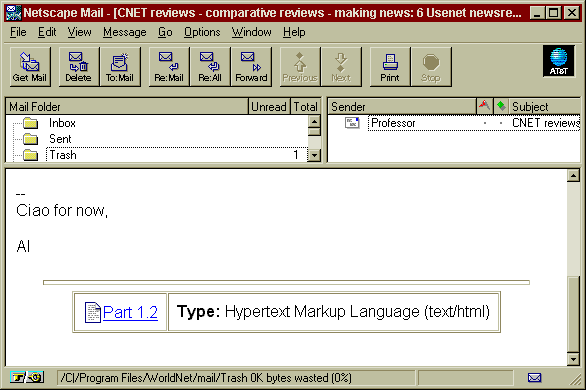
When you click on an attachment link, Netscape responds differently depending on the attachment type. With most files, it displays the Save As dialog box to let you save the file to disk. The way Netscape handles attachment links varies depending on the settings in the Helpers tab of the Preferences dialog box (displayed by choosing Options, General Preferences).
Steps:
- Click on the message in the Message Header pane of the Netscape Mail window.
- Scroll down to the end of the message in the Message pane. Netscape places the link for the attachment in a box that also supplies information about the attachment. The Name is simply the file name. Type lists the MIME type of the file and Encoding list the kind of encoding that was used. (You don't normally have to pay attention to the Type and Encoding information.) Click on the link to view or save the file.
- In most cases, Netscape displays the Save As dialog box. Choose a folder from the Save In drop-down list, and click on the Save button.
- Netscape saves the file to your disk. You can now double-click on the file using whatever program was used to create it, assuming you have the program on your disk. If you don't, you might be able to use a comparable program that recognizes the file type of the downloaded file.
- You may receive messages that have multiple attachments. If you do, just repeat steps 2 through 4 to save each document.