automation X

automation X |
|
|
How do I install the LDLS Word Template ? |
|---|
|
Home Macros Scripts Web Links Other Tools FAQ Links About |
To identify where your Microsoft Word starup folder is located:
At this point in time the Libronix_Link.gif file must be saved in the location C:\Documents and Settings\All Users\AutomatingX\
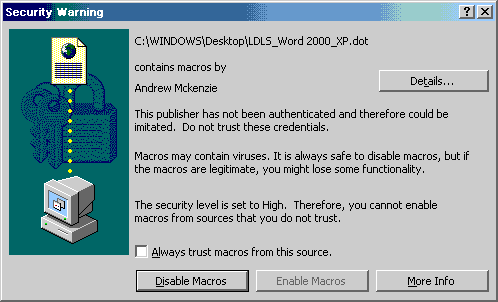
The word macro templates include a self-signed digital certificate that I have create using the create digital certificate tool that comes with Office 2000 Professional. Hence you will get this warning because it is not an 'officially certified' digital certificate from a third party certification authority. Please ignore this message (all it means is I haven't paid a third party for a certified digital certificate), tick the box Always trust macros from this source and click Enable Macros. If you do not follow these steps you will not be able to access the tools in the template. I have include a self-signed digital certificate with the template in order to overcome the following problem that can occur in Word 2000 and XP.
Prior to the LDLS Word Template including a self signed digital certifcate, if your security level for Microsoft Word was set to High, the macros in the template were disabled. If you are using an older version of the template you can the enable macros by changing the security level to Medium, closing Word, and then re-opening Word. To change your Microsoft Word security level:
|
|
Word Template Features |
Word Processor Macros |
Download Word Template
|
|
|
This site is maintained and updated by Andrew. Page Created: 4/2/2002. Page Updated: 30/6/2002 Current Date: |
|||

 Known Issues