An Introduction to the Restoration of Old Vinyl Records at Home
Sound Editing with the best software - Cool Edit Pro
Removal of Clicks and Pops - Prepare for Batch Job
Before I go to the topic. I would like to go one step further to exemplify the idea of dealing batch job. Many times we face some easy but repetitive jobs, we would like to do it in a batch rather than individually one at a time. Removing clicks and pops could be a batch job while removing background noise is much complicated. I would like to show you with the project beginning with the .cda files processing. Here is a CD Mr.R.Beetison sent me. This is a clean and clear vinyl recording, divided track by track which were already burned into CDR with 24 .cda tracks files. We need to turn the CD tracks into .wav files in order to edit the sound files.
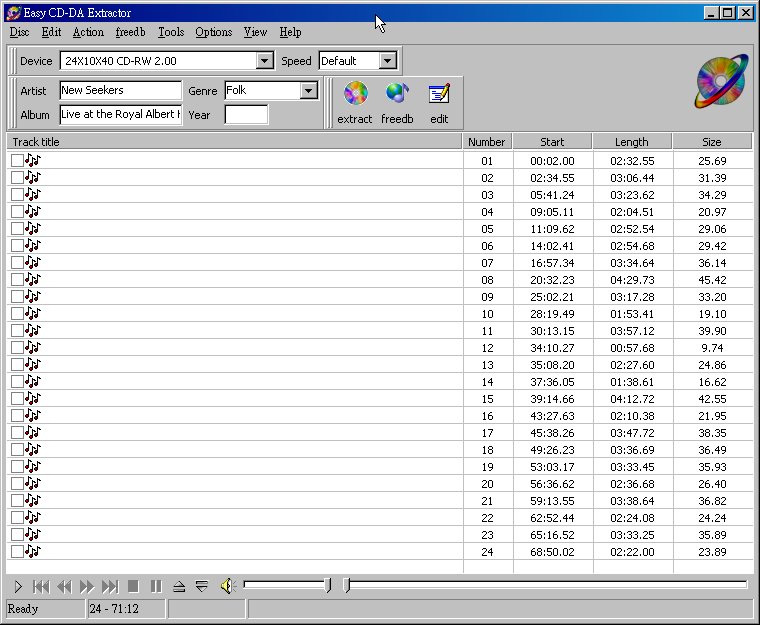
Place the CD into a CDROM, activate Easy CDDA Extractor for extrating the CD Audio files .cda into the computer. The program shows that this CD has 24 tracks. Because this is a home-made CD, we cannot find any data for the tracks, and no ready reference could be retrieved from the CDDB online. For proper reference of individual tracks, we would like to type in the names of the songs...but I thought that would cost me some time even though I can type fast and accurately. So, I searched the web to see if I can directly use the web resource to replace tedious hand typing. After a few keystrokes for the basic infos to fill the blanks of Artist, Genre and Album, I quit the program. To quit the program is an important step because it writes the CD data to the reference data file called cdplayer.ini in the windows folder.
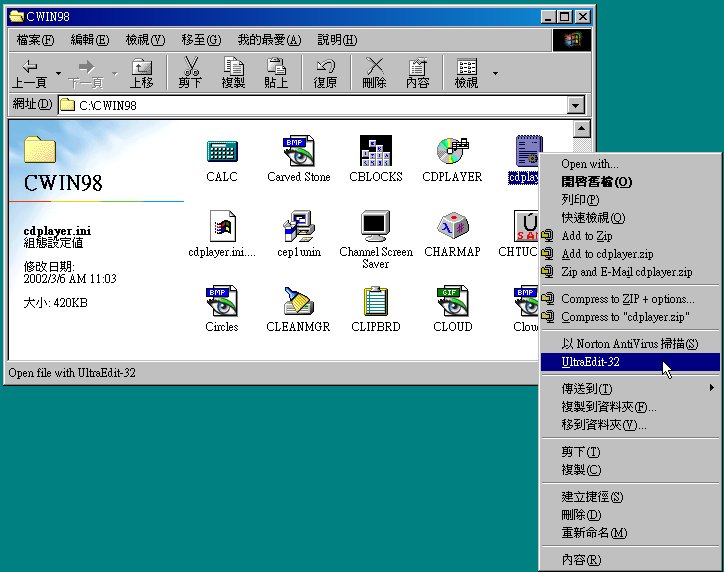
Now go to the windows folder and edit the cdplayer.ini file by any text editor. I use UltraEdit for text editing because it has many convenient features.
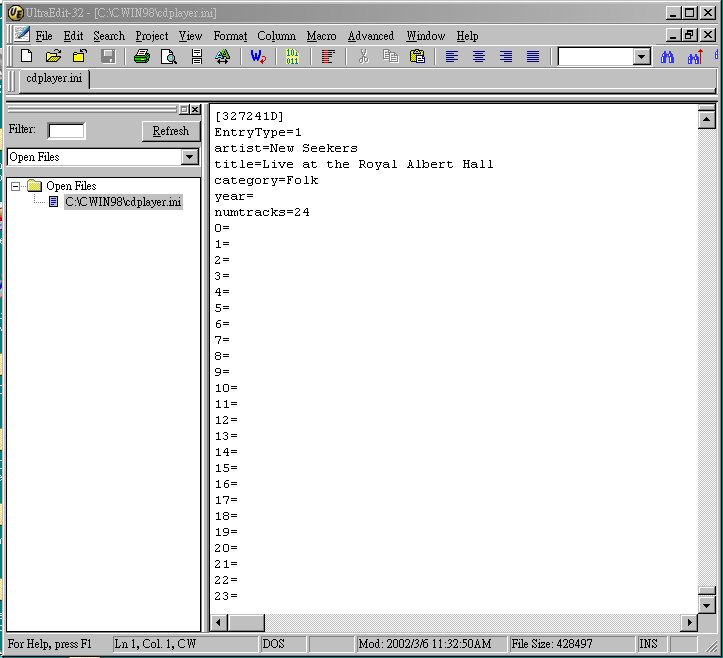
At the end of the Cdplayer.ini file you can see that Easy CDDA Extractor has written some data including what I've typed in the fields of Artist, Title(Album) and Category(Genre) but the song titles remain blank. We are going to fill in the title-blanks.
Now search the web for the album data. You could find one on Lyn Paul Website.
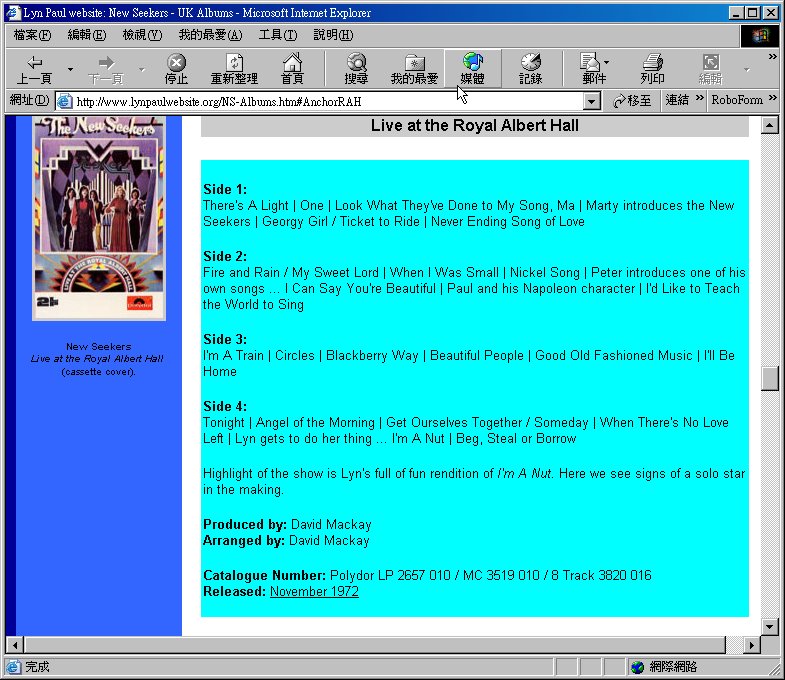
See! I found this. Copy the Data we needed for the tracks to a text file and rename it NSLive.txt (Any name you like).
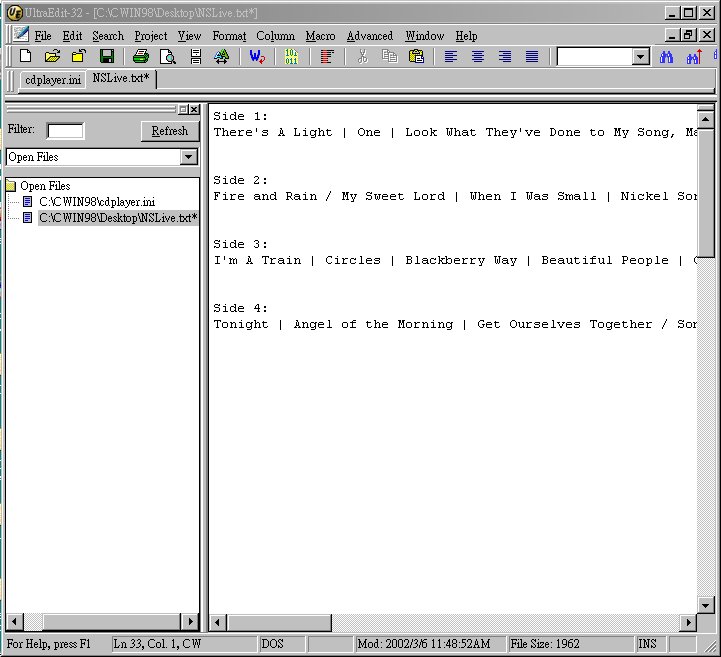
Do some editor's job to make it tidy.
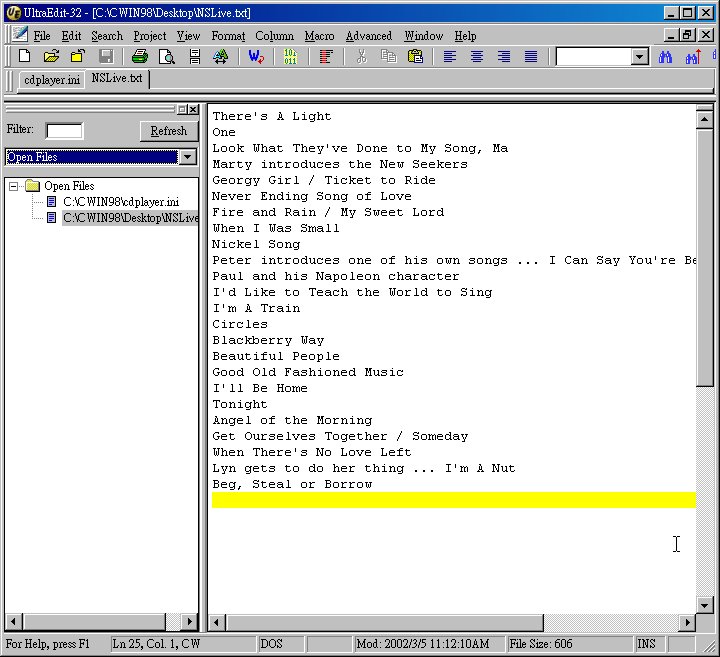
In order to make the track titles to fit the cdplayer.ini format, we need to do some tricks to add the 0=, 1=....23= at the beginning of each lines.
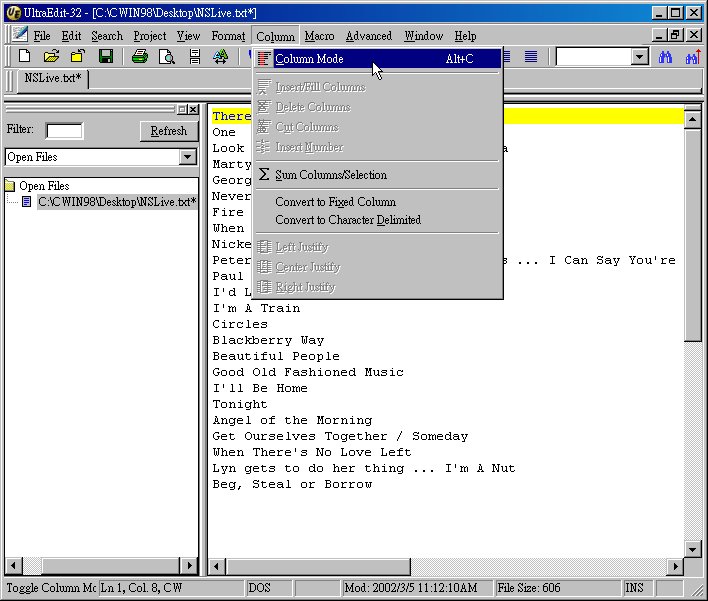
Select Column Mode first. Microsoft words won't give you this convenience to edit text with column mode.
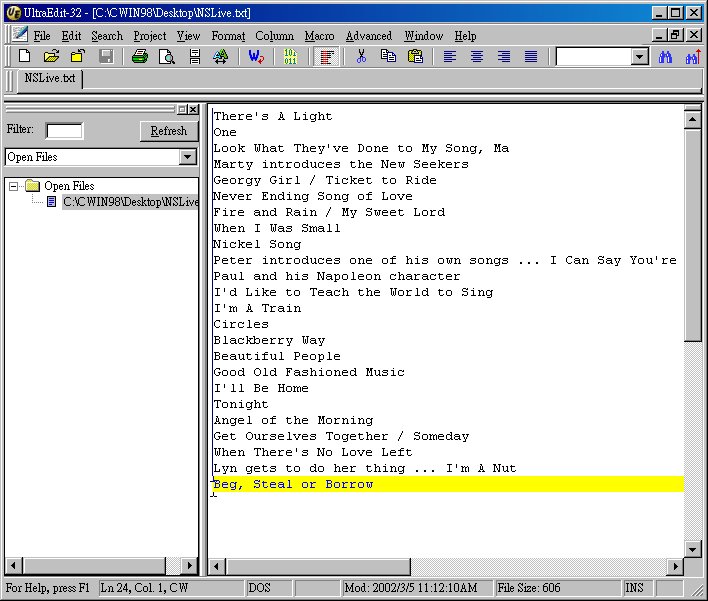
Highlight the beginning of each line by selecting the initial part of lines.
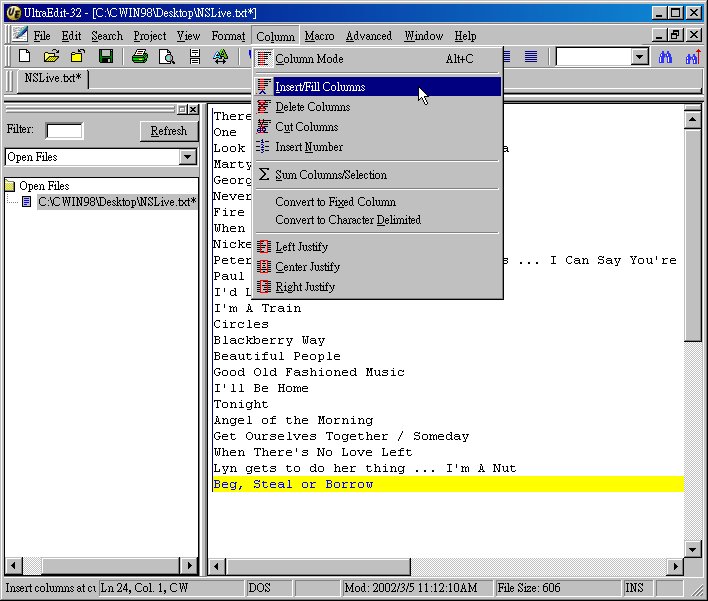
Select Insert/Fill Columns.
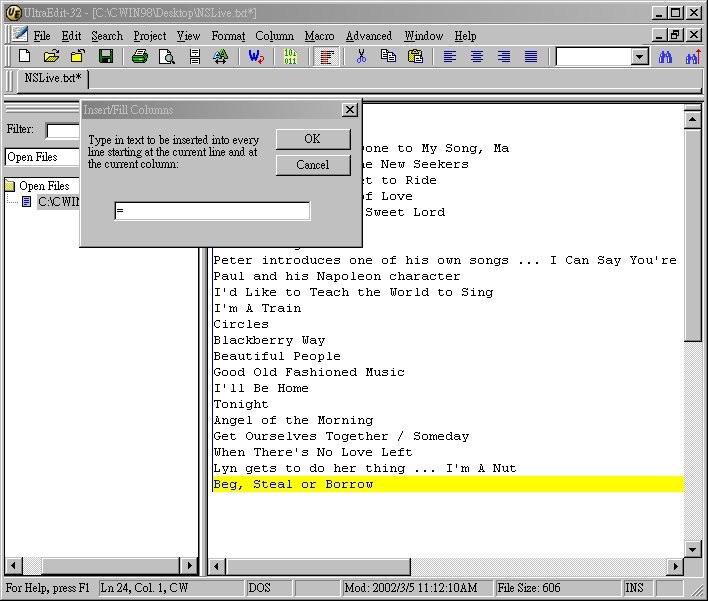
Fill in the blank with "=".
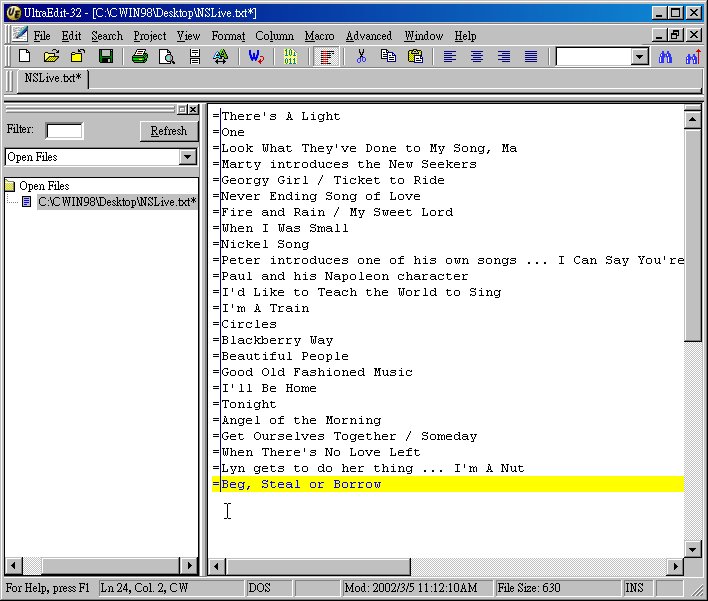
So, this action has placed the "=" at the beginning of each line.
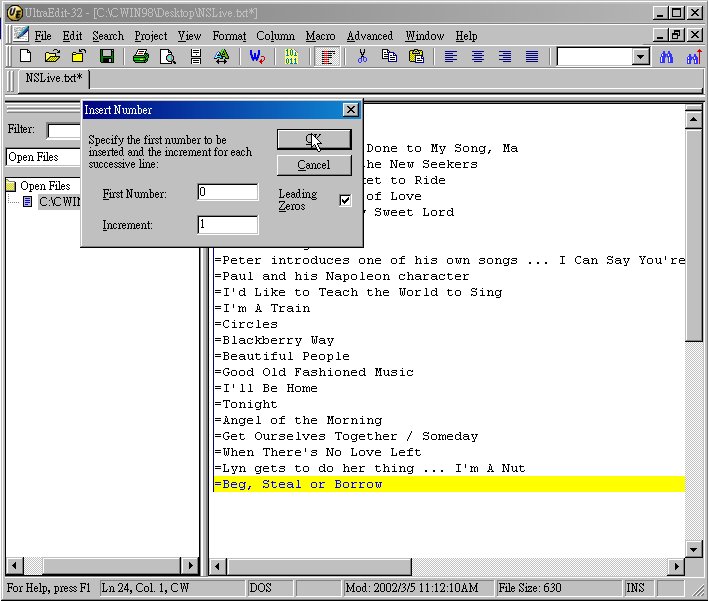
Now repeating the procedure but select the "Insert Number function" this time. Begin with "0", with increment "1", we'll get the following result.
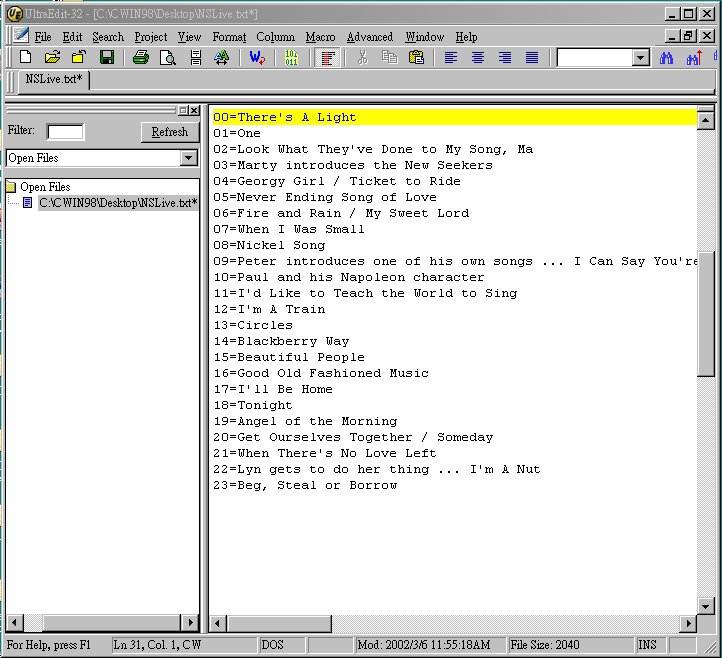
However, the job is incomplete. We have to delete the "0" at the 10-digit place in order to make it fit to the Cdplayer.ini format.
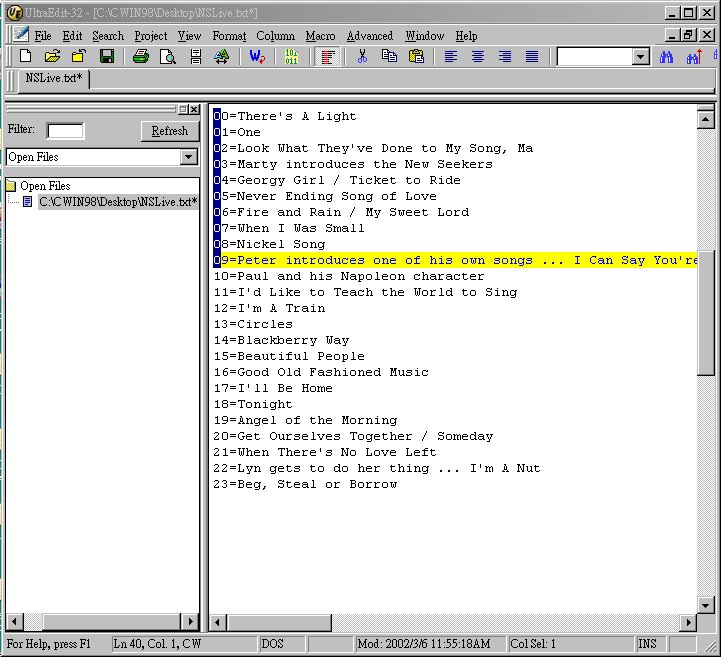
Hightlight and delete.
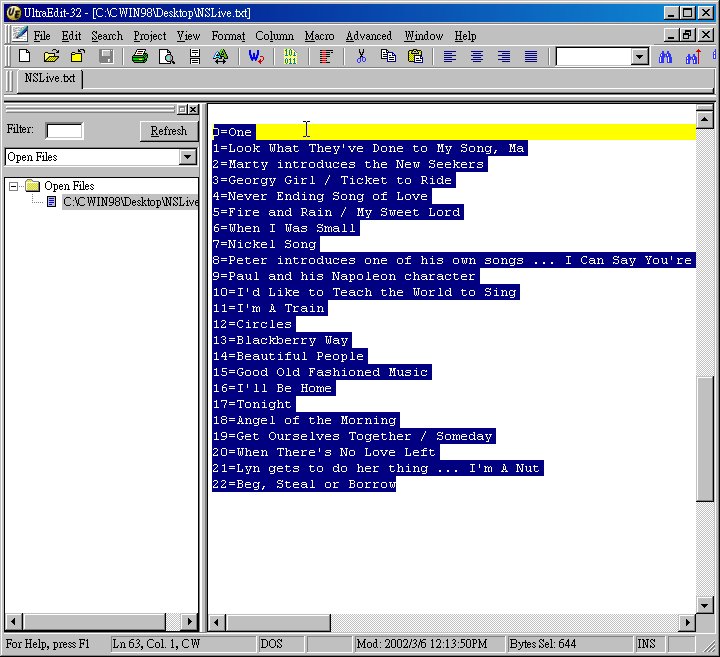
OK, it's done. Quit Column Mode. Highlight the completed text and copy them to the clipboard.
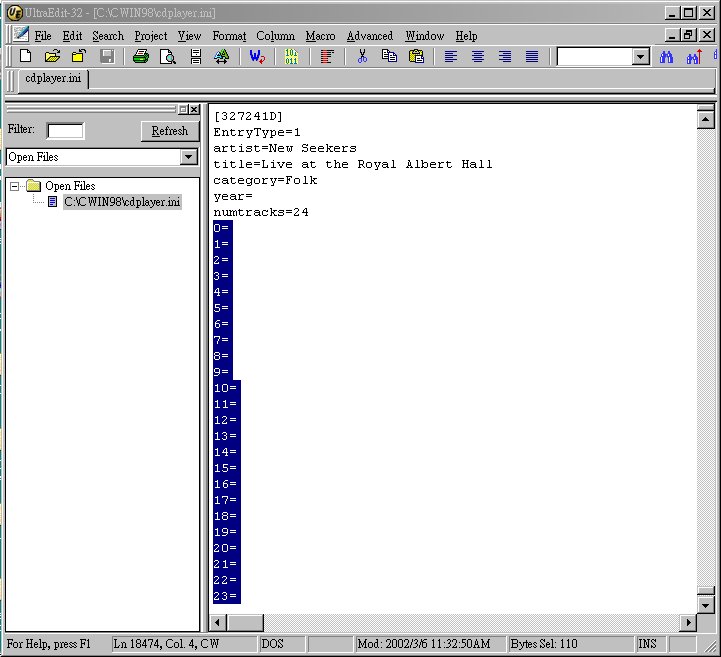
Open the Cdplayer.ini to highlight the to-be-replaced text and copy from the clipboard to replace the blank data.
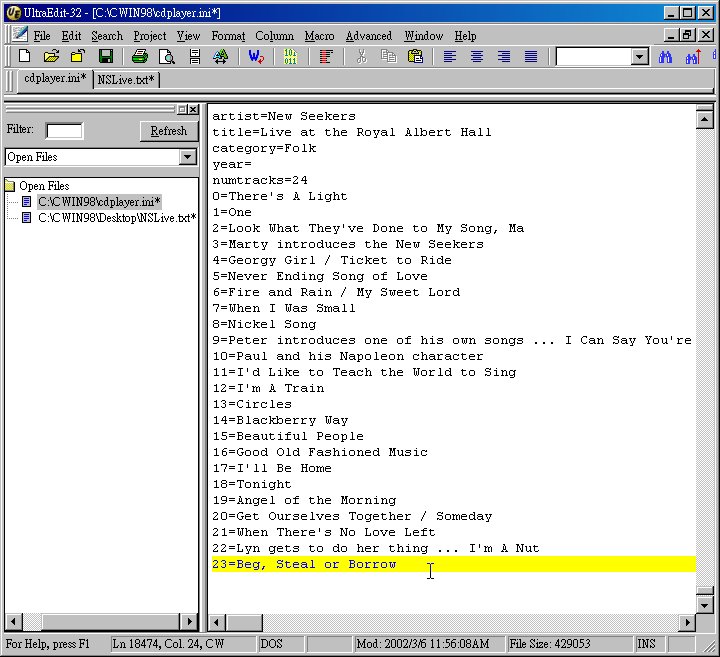
Now it's all done. Save and quit the text editor.
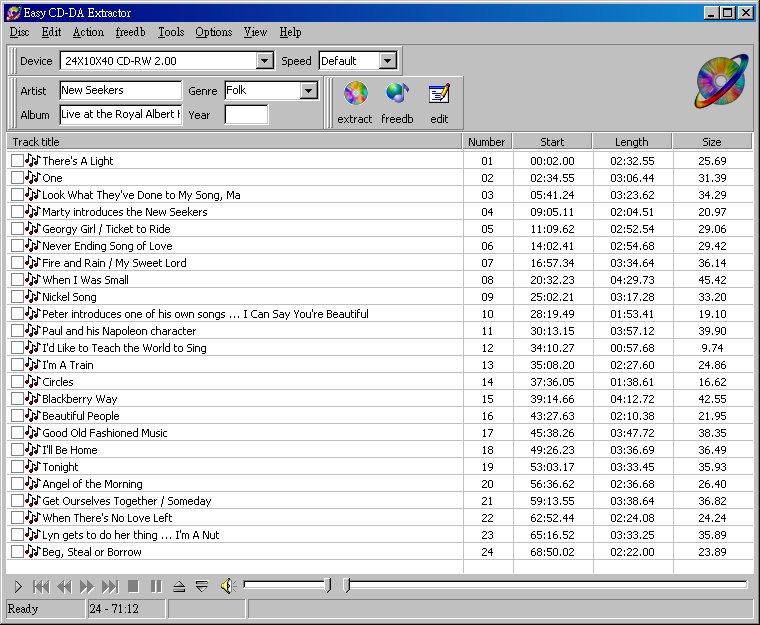
Activate the Easy CDDA Extractor again and you'll be happy to see the song titles already fit to the appropriate tracks.
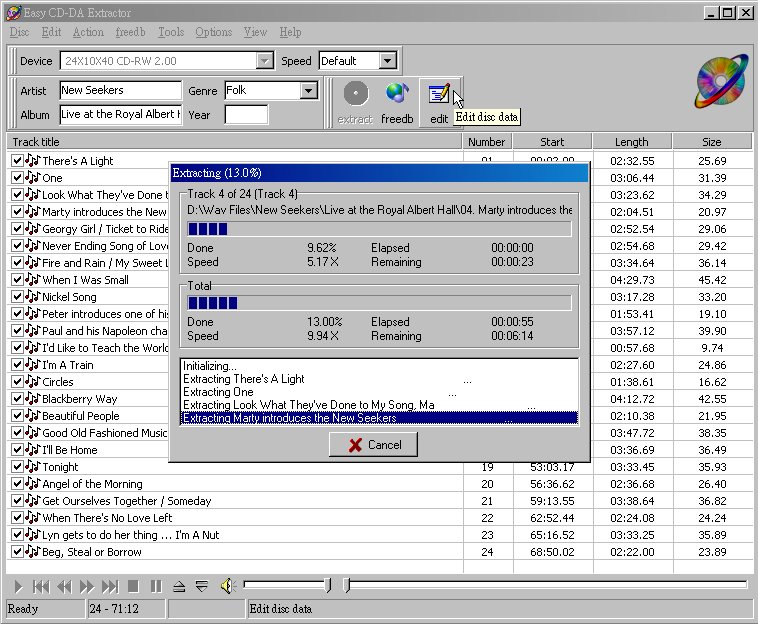
Extract the .cda files to the computer to the folder you want. You can choose to make .wav or mp3 etc. For sound editing, we choose the windows .wav format.
WOW, tedious enough? Now get the Clicks & Pops eliminated in a batch...Next!
NEXT PAGE: How to do the sound editing (6. Editing - Clicks & Pops Batch preparation)