An Introduction to the Restoration of Old Vinyl Records at Home
Sound Editing with the best software - Cool Edit Pro
Clicks & Pops Eliminating in a Batch
To remove the clicks & pops of the vinyl recording. You can choose the internal plug-in of Cool Edit Pro. However, an external plug-in developed by Jeferry Klein called ClickFix is much faster and equally effective for removal of the annoying clicks & pops.
Before we do the clicks & pops removal, we want to record down the process once for reference and register it in a .scp (script) file.
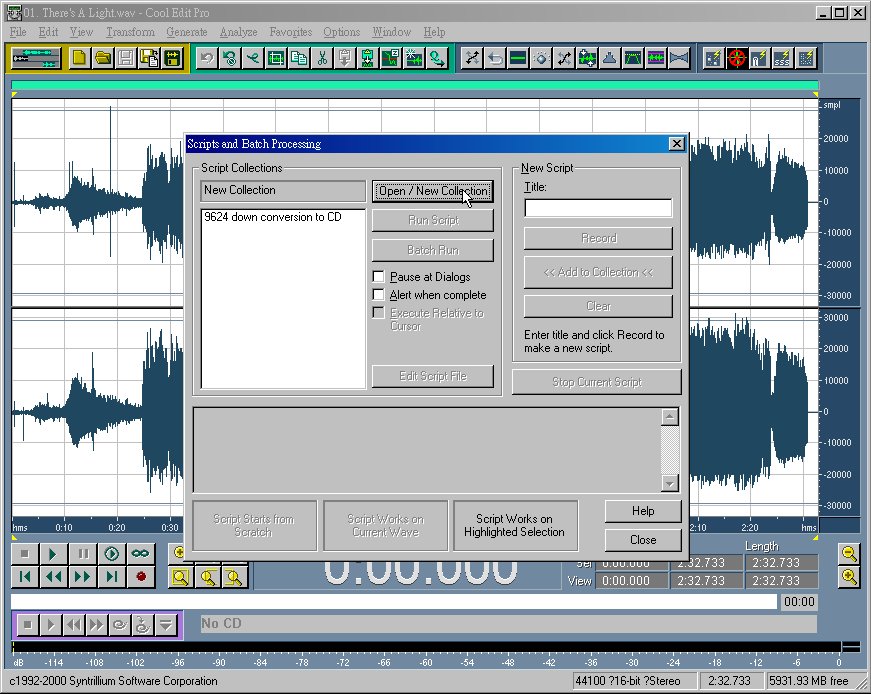
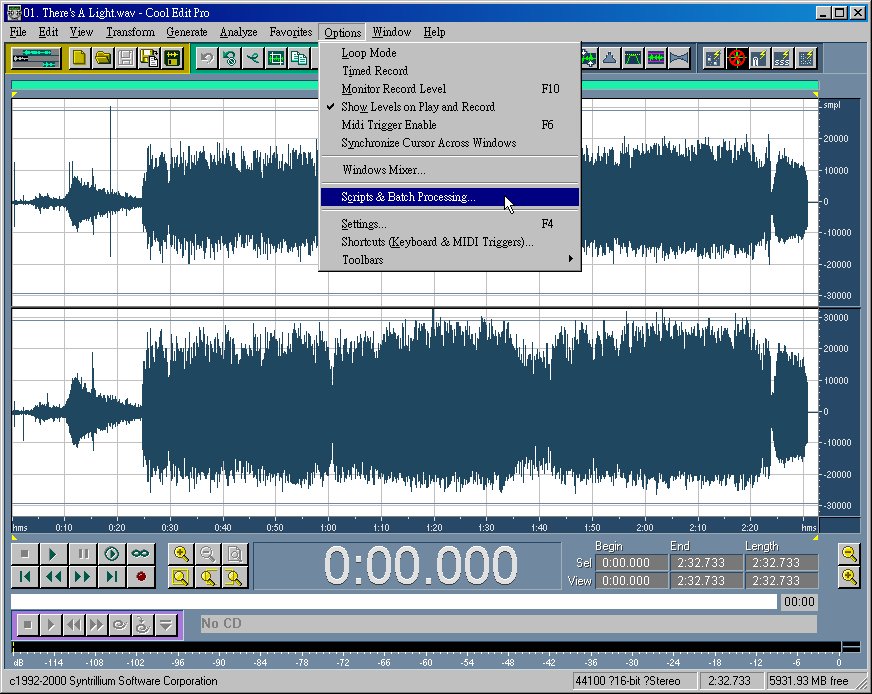
Select "Open/New Collection".
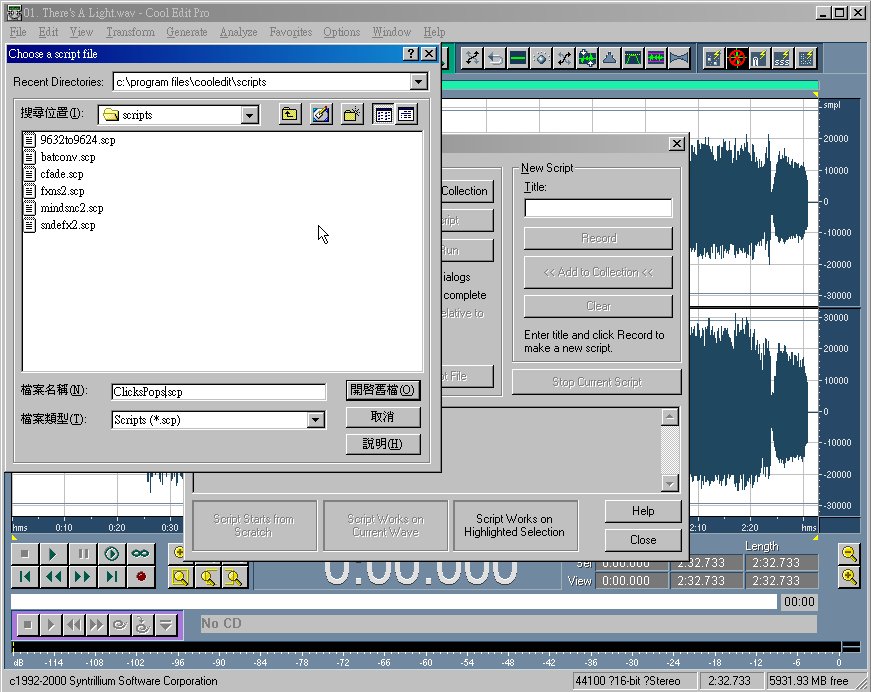
Give the New Collection a name, for example "ClicksPops.scp".
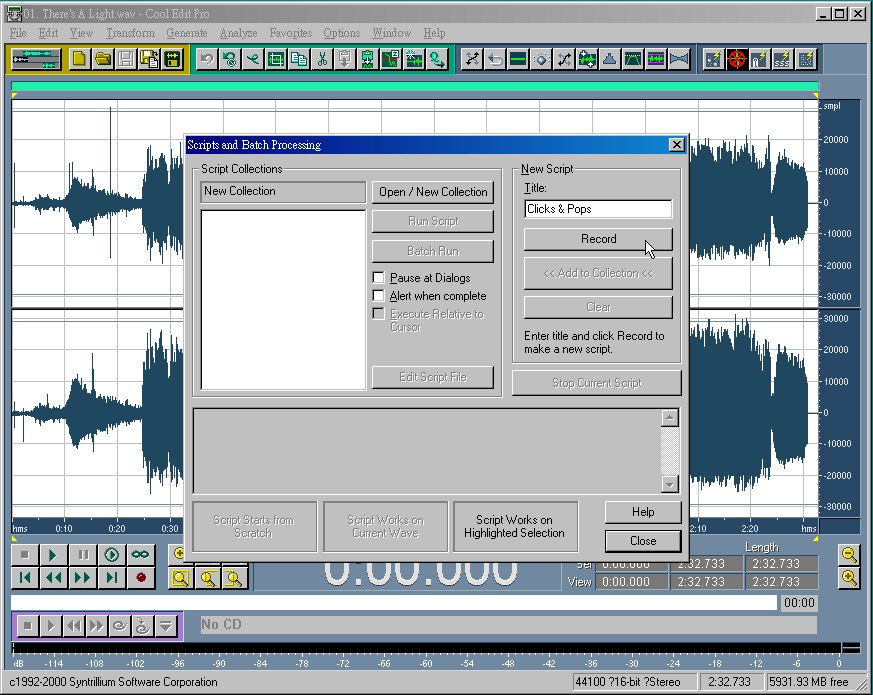
Give it a Title, I typed in "Clicks & Pops". Now press the Record Button and begin the procedure.

Our aim is to repeat the job over and over for different .wav files. The procedure includes the following 2 steps.
1.Select Entire Wav.
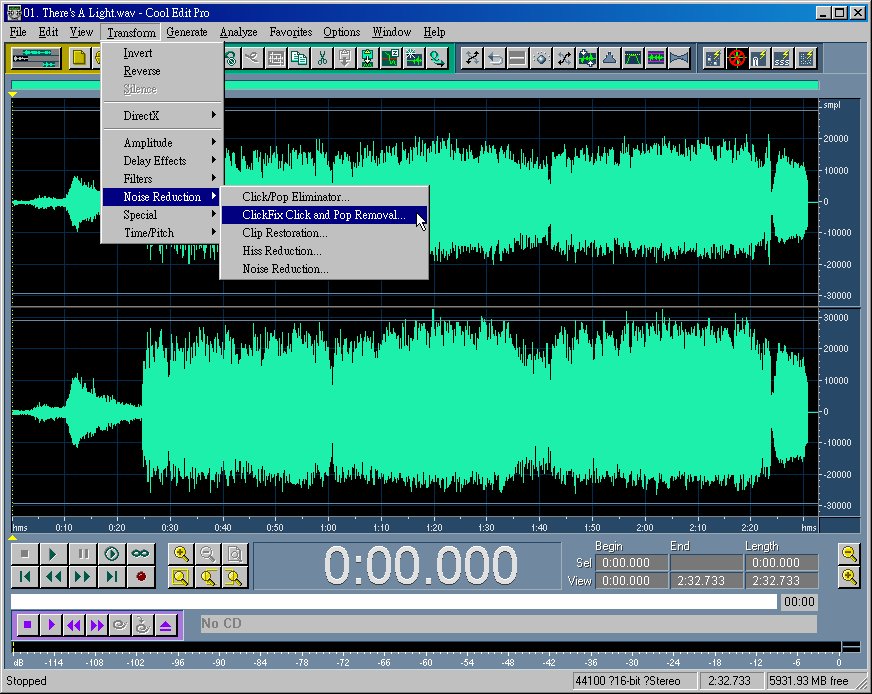
2.Activate the ClickFix plug-in and execute.
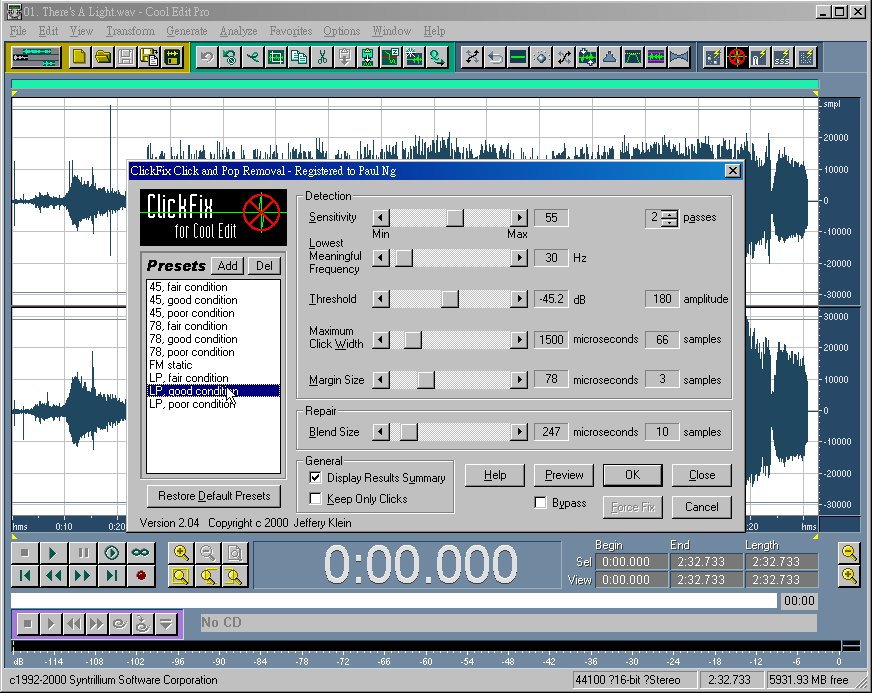
I select the "LP, good condition" because it adds the least among of artifact to the .wav file.
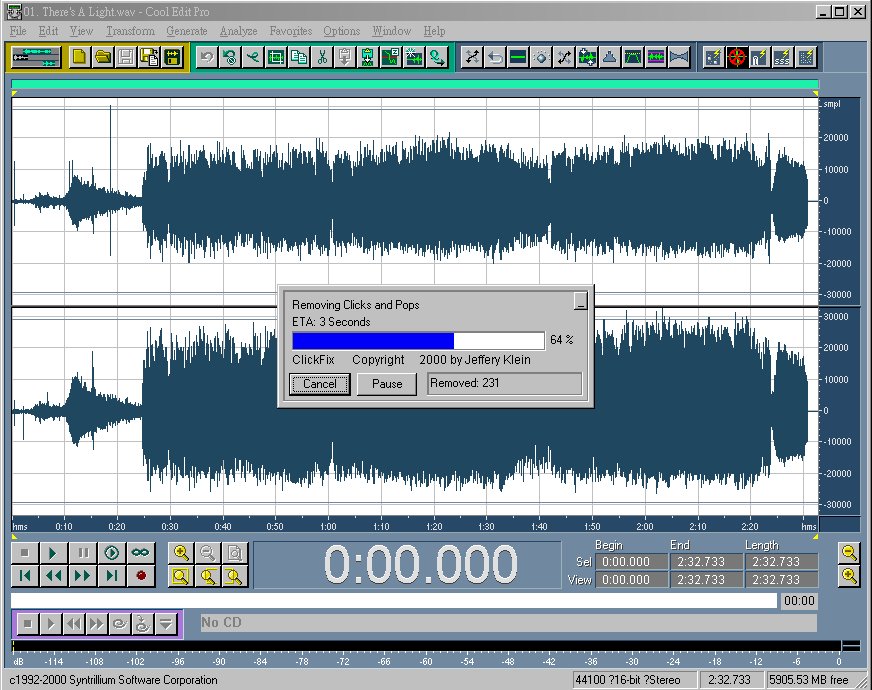
After pressed on the "OK Button", the job begins.
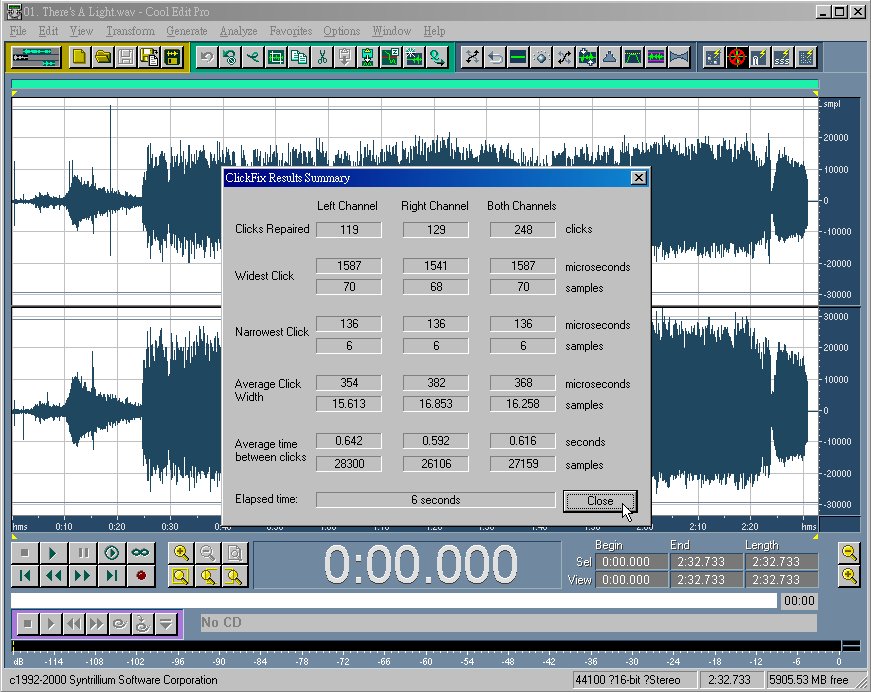
This is the result. Now close the summary.
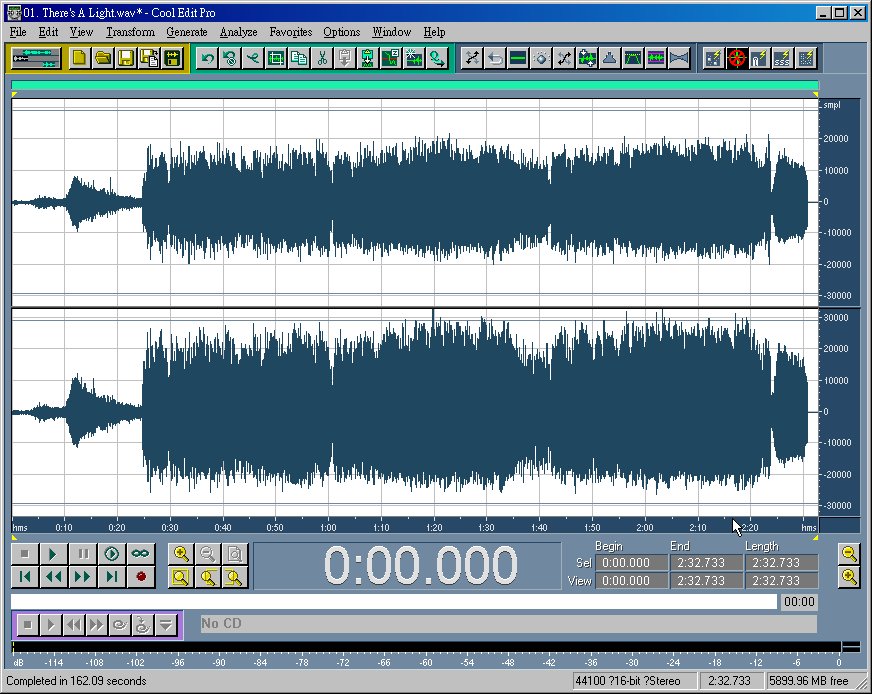
We've got the clicks eliminated now. How nice.
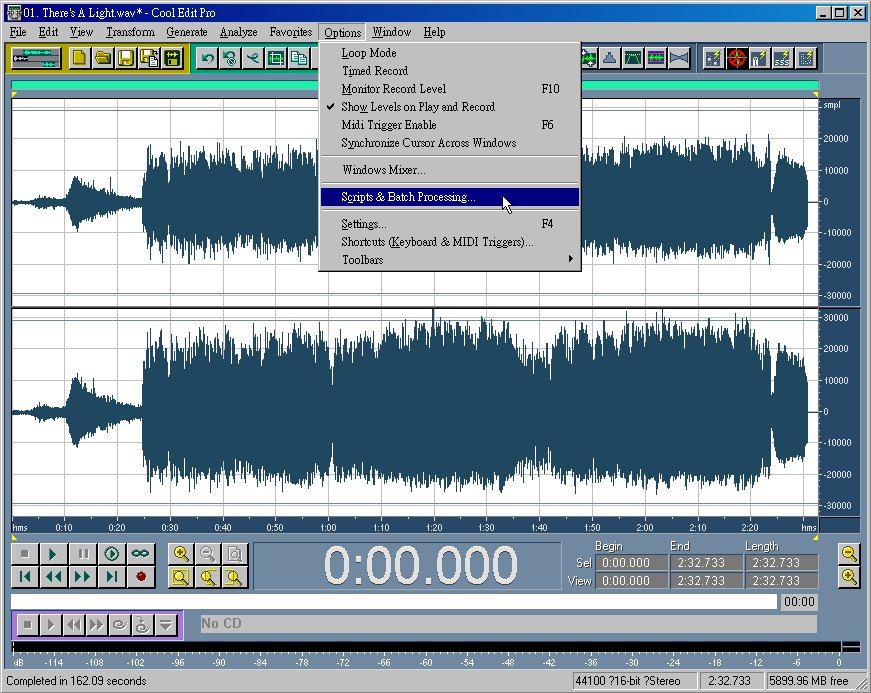
To end the recording of the 2-step procedure, activate again the "Script & Batch Processing" to save the .scp file.
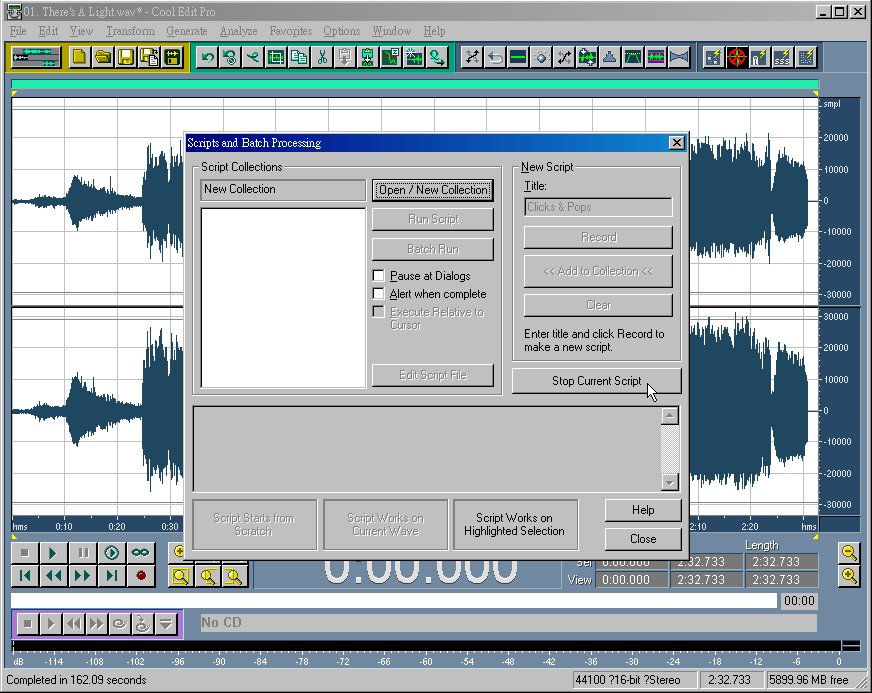
Click on the "Stop Current Script" Button.
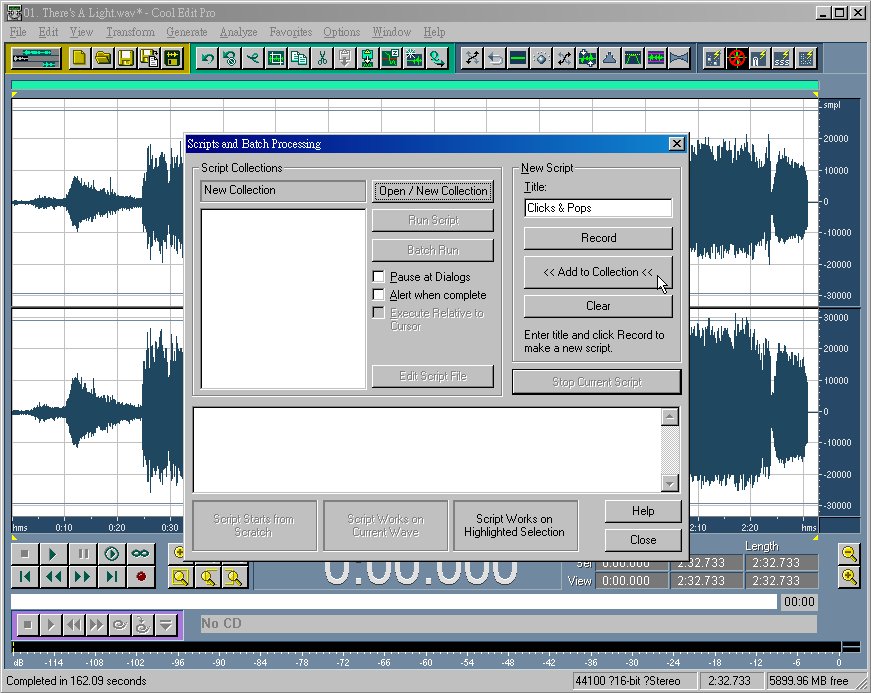
Now click on the "<<Add to Collection<<" Button.
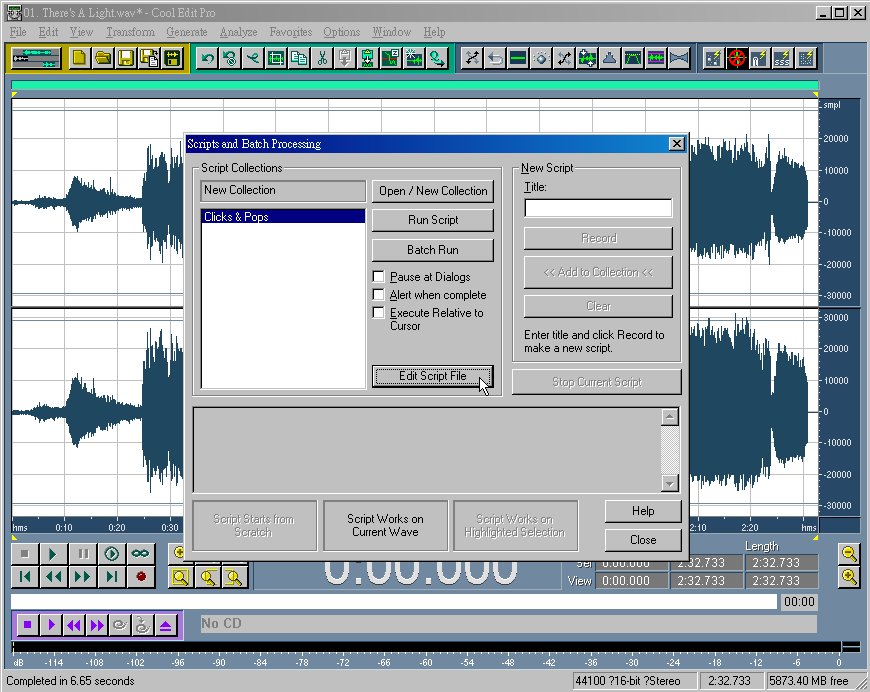
You may press on the "Edit Script File" to find out what has been written for the recording of the whole procedure.
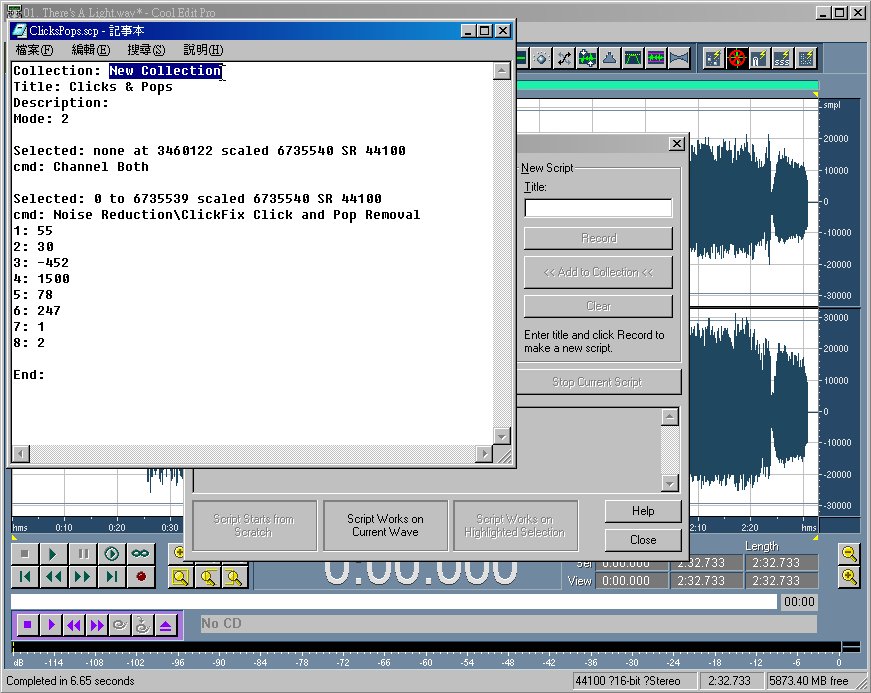
You may edit the non-essential part of the script, for example, replace the Collection Title with an appropriate one. It is interesting but most of the data recorded down are very low-level numeric values unknown to all of the users, so let's close the editor and save the .scp file and move on. Press on the "Close" Button to leave the script menu.
NEXT PAGE: How to do the sound editing (7. Clicks and Pops - Final Batch Processing)