You may want to print
this out because it's long and may load slowly.
I don't use a decoder card and you can look
at my system to have an idea.
I suggest a a processor of at least 350 MHz,
any kind either AMD or Intel. If you upgrade to a 300 MHz or higher K6
under Windows 95 you'll need a patch from AMD,
or Microsoft. You'll also
have to optimize your K6, not only to improve performance but for stability
reasons as well. I've heard of some people running as low as 233 Mhz without
a decoder card but I have my doubts. My experience has shown that it depends
heavily on the the DVD. South Park ran fine, as did Pleasantville, but
You've Got Mail didn't...
Minimum 96 MB RAM, 128 is better and PC100 or higher
if possible.
A DVD Drive. I found the lists and information
at www.7thzone.com to be very helpful
when choosing a drive. Double DVD speed ought to be fine, but at quad or
higher you're definitely OK.
A DVD software player. You should have gotten
a free copy of WinDVD from
3Dfx. If you didn't contact the customer support (see the FAQ at 3Dfxgamers.com (not tech. support!)
in your country. Some swear by PowerDVD,. I've tested it and haven't sene any real advantages over WinDVD, especially in TV-Out mode. If you want more info about what is out there
go to www.7thzone.com or www.digital-digest.com.
Regardless of what you choose you'll want
DVDGenie from Inmatrix. I'll explain
more later...
If you haven't got TV-out
working you'll need a cable for the video from the pod. You'll also need
a cable for the audio from your sound card. More on this later.
Lastly
Space for messing around with connections
and time.
Now's later!
In general it's good to first get DVDs to
work on the PC first. So go there first.
If DVDs look fine on the PC let's go on to
the fun part.
You already have the big pod attached and
in the manual you should have a picture like this:
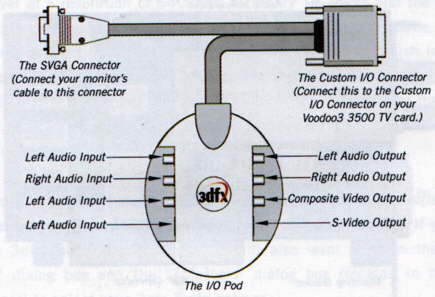
If it looks like this you'll note that the
bottom "Left Audio Input" is wrong. It should be "S-Video input".
The connections on the
pod are simple phono (sometimes called "cinch") connections.
Most VCRs and TVs in Europe have a so called
SCART connection:
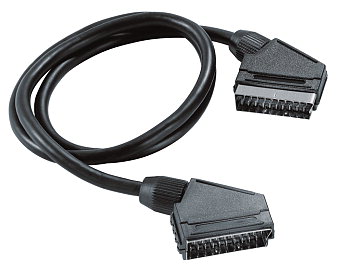
If you're lucky enough to have an S-video
connection and it works let me know because I couldn't get it to work.
You may also have phono (sometimes called cinch) connectors on your TV
or VCR for video (usually yellow) audio right (usually red) and audio left
(usually white or black). Then you can use direct phono cable the video
out from the pod to the TV or VCR. You will have to run the phono cable
from your sound card directly to your TV vcr for the reasons below.
Now to connect the pod to the the VCR or
TV all you need is the a composite cable like this:
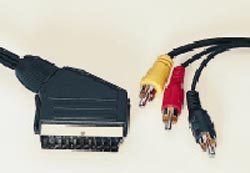
Right?
WRONG!
Well part right.
If you want to capture as well as play on
the TV you must ensure that the SCART connection of this composite cable
has an IN/OUT switch.
Secondly, you need to
run audio directly from the Line-Out or Speaker jack on your sound card
with a cable with the following connections:
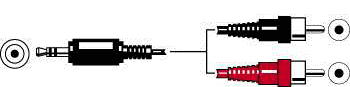
If you look closely, the connection on these
cables are all "male". You'll need a "female" connector for each of the
sound cables, left and right:
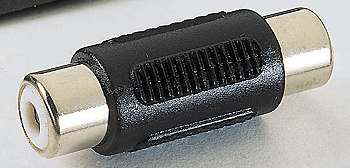
I found a double-female connector in the
auto-audio section of an electronics shop.
So you plug the sound into the soundcard,
plug the two ends into the female connector, go from the connector to the
stereo connections on the SCART cable. The only connection to the pod is
the video part of the composite cable.
So you have the cable from the sound card,
then the female connector(s), then the sound on the composite SCART cable
(usually red and white or black). The video connection (usually yellow)
of the composite SCART is in the Video OUT jack of the pod.
Make sure the switch on the SCART connector
is switched to IN, plug it into the VCR or TV and you should be good to
go.
Make sure your TV or VCR is on AV. If you
don't have this channel, enable TV out, it will automatically go to the
monitor again in 15 seconds. In these 15 seconds switch through your channels
until you find your PC picture.
On most TVs there is a little black frame
around the picture. The only way to avoid this is to change resolutions.
I'd suggest doing this before switching to TV-out.
You may have trouble switching from a resolution
such as 1024X768 or higher to the TV because it can only handle 800X600.
Just reduce to 800X600 before switching.
Some have reported problems with any color
setting other than 16 Bit. I've done tests and cannot see a difference
between 16, 24 and 32 bit (no I don't wear glasses and my eyesight is fine)
so I always leave at at 16 bit. It's a faster setting anyway.
I also have the problem that the TV is much
brighter than the monitor so it must be adjusted.
Are you still with me?
Try playing a few files such as intros from
games or other full screen animation to see how it looks.
The next thing to do is to install and get
your software set up.
I use the WinDVD software that came with
my card. If you haven't gotten it or lost it go to www.7thzone.com
or windvdzone.cjb.net. Please make
sure you obey all rules of the terms of use of
this site!
Depending on
your system you may need to do a little tuning of the software. DVDgenie
offers many little tuning and tweaking possibilities. The most important
is hidden under More options:
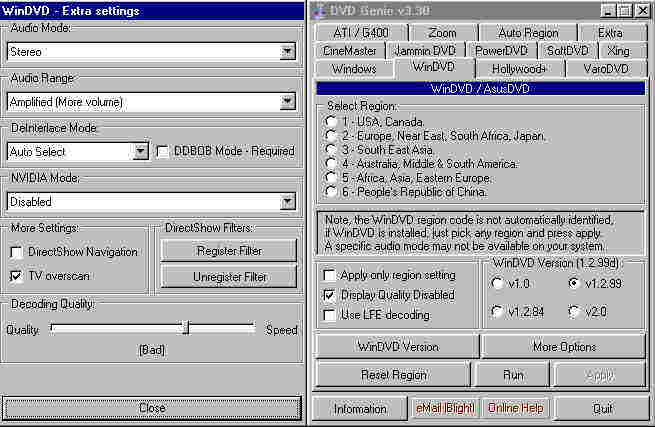
Under Decoding Quality you can choose the
decoding speed. Although the setting to the far right says "Horrid" it
isn't that bad and is sometimes the only way to get some DVDs to play without
skipping. Another important option is the audio range. I have it set to
amplified for better (louder) sound.
Maybe someday there will be more options
for Voodoos.
Just a note: If Microsoft Media Player acts
strange after installing WinDVD, click on the Unregister filter button
and everything will turn out back to normal.
I suggest running the software after switching
to TV-out.
FINALLY:
Now the big test!
-
Put the DVD in.
-
Enable TV-out
-
Start WinDVD
-
Enjoy!
What? The picture flashes? The picture changes
different colors?
That's Macrovision.
If you can, run the cables from the pod directly
to the TV. If you have to go through a VCR you can try the many cracks
and hacks that are in the INternet to turn off macrovision. I tried them
all and had no luck. The only one that MIGHT work for you is the
version of PowerDVD 1.5 that is macrovision free. It didn't work with my
SCSI DVD drive, it might work with yours! However, the 3500 has macrovision
built in and I don't think it would work. But it's cheaper than the other
solution, which is under:
If you want to copy
DVDs for private use only! (see terms of use
first!)
Was that too much?
Want to try it on the PC first? Here
you go.
Maybe I do need a decoder card after all.
OK here it is.
Didn't find you you wanted?
Need more help? Mail me.