 |
|
 |
| Let me know how you like my tutorials, and feel free to suggest corrections or new topics..... |
 |
| AIM: Aylad2001 |
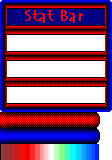 |
| Stat Bars Description: We've all seen the custom stat bars many servers have. I recently learned that many Graal scripters would like to do a custom stat bar of their own, but aren't sure how to make them work. Well, that's what I'm here for. The Graphic: The first step in creating the stat bar is, naturally, the graphic. The image will be comprised of two different sections: the frame and the bars. The frame is basically just a border for the stat bar. You might put the name of your server at the top, and perhaps a label for each bar. I created an example stat bar for this tutorial, which you should be able to see at the upper-right of this page. I didn't put a label for each bar, because I used a more-or-less standard ap bar, which should be recognized by any experienced Graalian, and the red bar for life (i.e. blood) and blue for magic (i.e. aether or whatever) is a common scheme for electronic games. (Diablo, Alice, etc.) The important thing about the frame is it has between 1 and 3 transparent rectangles, depending on how many of the statistics you want to show on the stat bar. I did one for all three stats: HP, MP, and AP. Each transparent area should be 100 pixels long, but you can make them as tall as you like. If you save my statbar image on your computer and measure the blank areas, you'll discover that I made a mistake and each slot is only 98 pixels long. Do as I say, not as I do, and you'll be fine. :) After you finish the frame, jot down somewhere the size of the frame, the height of each slot, and the distance between the slots. You'll need this later. The bars are the next step, and it's generally easier to put them below the frame on the image. Make each one 100 pixels long, and as high as the slots which they will fill. Note that on my AP bar I basically copied-and-pasted from states.png, and then widened the bar to fit the slot. Easy enough so far, right? The Script: Start your script off with the obvious: if(playerenters) toweapons -statbar; The dash ( - ) before the weapon name makes the weapon invisible when the player presses "Q". If you don't use this, you should at least put an asterisk ( * ) before the weapon name so the player can't delete the NPC. The next part should be to hide the state images you plan to represent on your stat bar. In other words, if you have a hitpoint bar, hide the hearts. If you have HP, MP and AP like the example above, insert this line: showstats 1+2+4+8+16+256+512+1024; Now put in a "showimg" command, possibly within an if(hasweapon(-statbar)) block: if(hasweapon(-statbar)){ showimg 0, yourstatbarname, yourX, yourY; } Now what's yourX, yourY going to be? Decide where on the screen you want the statbar, and measure from the nearest 2 edges to the upper-left corner of the frame. This is the tricky part. IF YOU WANT THE IMAGE IN THE UPPER-LEFT: Easiest option. Leave room so the A,S,D states don't get covered up, and then yourX is distance in pixels from the left border of the screen, and yourY is the distance in pixels from the top border of the screen. IF YOU WANT THE IMAGE IN THE LOWER-LEFT: Not too difficult. The yourX variable is the same as described above, but the yourY is a bit trickier. Find the distance from the bottom of the screen to the top of the frame -- let's say it's 160 pixels. In place of yourY, type: screenheight-160; This will enable you to resize the Graal screen while leaving the image the same distance from the borders. IF YOU WANT THE IMAGE IN THE UPPER-RIGHT: Similar to the example above, except backwards: yourX has the screenwidth variable: screenwidth-(distance from border to upper-left corner) ...and yourY is just a simple number value. IF YOU WANT THE IMAGE IN THE LOWER-RIGHT: A combination of the two options described above. Both yourX and yourY have screenwidth/screenheight variables. Let's say the width of the frame is 120 and you want a 10-pixel border, that's a total of 130: screenwidth-130,screenheight-160; // replaces yourX,yourY; Then go ahead and put in a changeimgvis command to set the drawingheight to 4 (meaning it's drawn with the other states rather than as an image on the level): changeimgvis 0,4; The next page has the information on scripting the bars. |
|
|