Bacl to Part 4
Miscellaneous (Tuners accesories)
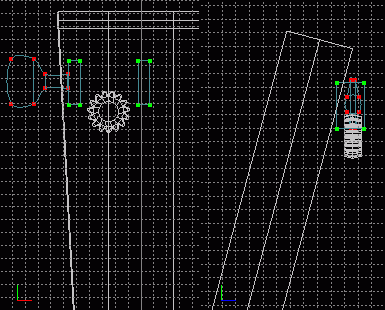 Click on the guitar_tuners layer from the Dialog Window and in a Front view insert a box via Model - Insert on the menu. Use the
  Translate tool to move the box along the Y and X axes until it is near the tuner. With Grid Setting still set to .1,
  Scale the box in a Front and Right view until it measuers 1 grid space along the X-axis, 3 grid spaces along the Y-axis and 2 along the Z-axis. Reposition the box in all axes until it is on the end of the tuner. With the entire box selected, click the
  Clone tool and Translate the copy along the X-axis until it is the same distance from the gear, but on the opposite side from the other box.
Square Select the end circle of the tuner and Translate it along the X-axis past the rightmost box. You may notice that it does not look like an exact cylinder at all now. Translate it backwards along the X-axis until it lies very close to the circle which it was extruded from earlier (the ending circlular spline should still be selected when done). Click the  Extrude tool and Translate the extrusion along the X-axis past the right most box. That should look more like a proper cylinder. Previously, the ending circular spline was still encountering curvature due to the unpeaked curves passing through it from the head of the tuner. These curves still pass through that area, but now it serves as a type of buffer so that the extrusion just created will not be affected by those unpeaked curves.
Presently, everything looks good except the proportions are a little off in relation to the overall size of the guitar. Scale each box slightly along the X-axis until it measures only about half a grid space. Make sure all
Extrude tool and Translate the extrusion along the X-axis past the right most box. That should look more like a proper cylinder. Previously, the ending circular spline was still encountering curvature due to the unpeaked curves passing through it from the head of the tuner. These curves still pass through that area, but now it serves as a type of buffer so that the extrusion just created will not be affected by those unpeaked curves.
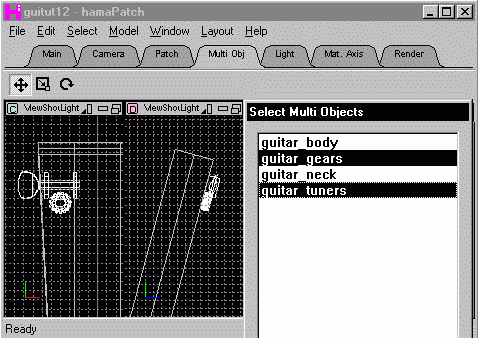
Presently, everything looks good except the proportions are a little off in relation to the overall size of the guitar. Scale each box slightly along the X-axis until it measures only about half a grid space. Make sure all  axes are on and click the Multi Obj. tab on the toolbar. Click the Scale tool and a window should pop up displaying all layers. Choose guitar_tuners and guitar_gears. No matter which layer was last chosen, all objects chosen will act as if they are in the same layer when any tools from the Multi Obj. toolbar are used. Scale the entire assembly smaller, switch to a Right view and Rotate it slightly until it matches the angle of the guitar's head. Translate the selection until the boxes press up against the guitar's head. In the layer selection window deselect guitar_tuners and translate only the gear as needed until it rests slightly above the guitar's head. Save current progress. guitut12.hmp
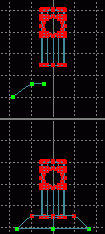 To practice using a previously created model or part in a new model/scene we will use the insert feature. In the Model Zip file there is a file called peg_insert.hmp make sure you have it, or if you wish to create it yourself follow these instructions and then proceed. From the menu choose File - Insert and hamaPatch (*.hmp) insert the file peg_insert.hmp and make sure only Object Info is chosen and press Enter. There should be a new patch created called patch_obj_00. Switch to that layer, rename it guitar_peg and Select - All points. Notice that the peg is almost as large as the guitar body. After zooming in on the gear portion we can see that the peg's diameter should measure about 1 grid space (under a .1 setting). Scale in all axes the inserted peg until it is about 1 grid space in diameter. Choose Model - Translate and type 12 in the Y field. Pan up and see how close the peg is to the rest of the tuning assembly. If it is way off, use the Translate tool along only the Y-axis until it is closer. Make sure you are in a Front view and draw a 3 point open spline to be lathed making a base for the peg. Use a lathe setting of 4 and click the
  Lathe tool. Translate the base along the Y-axis until it rests slightly within the bottom of the peg. I had to scale the bottom points of my lathe inward somewhat as well, for I made it too large.
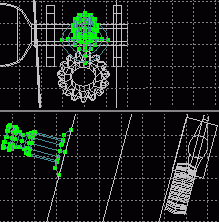 That base plate is still too big. In a Right view Scale the bottom and top of the peg's base plate until it is only slightly larger around than the peg, yet both parts of the base should still be a different size. Now Translate and Rotate all points of guitar_peg in all axes until the bottom is in line with the slant of the guitar head and the center of the peg aligns with the center of the gear (I just held a pencil up to the screen until both centers aligned along it). Switch back to a Front view and make sure the peg is oriented correctly along the X-axis. Save current progress. guitut13.hmp
That tuner would probably not have any effect on the gear since it does not have any threads to catch the gear. There are several ways you could do this, and I will mention two but only demonstrate one. In a Front view, choose the guitar_tuner layer and from the menu, choose Model - Insert - Circle(4) choose Model - Translate and type 12 in the Y-field (perform additional translatations to the circle as much as necessary until it is atop the gear). Choose Model - Rotate and type 90 in the X field. In a Top view, Scale the circle in all axes until it measures about 1 grid space (with a setting of .1) in diameter.
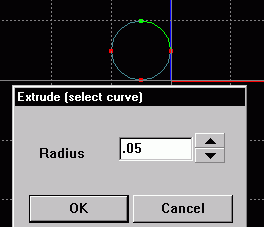
 Square Select a point on the circle and use the Tab key to choose any curve. From the menu choose Model - Extrude(select curve) and type .05 in radius field. The Extrude Select Curve function creates a four point circle at one point on a curve and extrudes it to all other points on the spline. In this case we made a torus whose major radius was that of the inserted circle and whose minor radius was the value entered. Just as a lathe must be created on an XY plane to be rotated around the Y-axis, an extrusion guideline must be created in an XZ plane to be extruded around the Y-axis (though the outline does not need to be a circle or even a closed shape). Therefore the circle needed to be rotated to this plane before extrusion would function properly. You should now have a torus of roughly the same diameter as the base of the tuner. The point on the exrtusion outline circle should still be selected, if so Select - Connected and press delete otherwise Zoom in and delete the circle after selecting it.
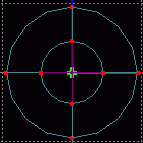 Use the Sqaure Select tool to select the middle collection of points in the torus. Choose Model - Toggle Invisibility and then Select - Connected. Now use Model - Rotate to turn the torus 90 around the Z-axis. Invisibility allows a point and its associated curves to not be rendered as a patch, yet still help to shape the curves they are connected to. Had we deleted the center points the torus would have changed shape slightly, but as it is the shape holds and uneccesary patches are not created. Save current progress.
The alternate method would have been to create a spline in the shape of a spiral around the tuner's base and then roatate it so that its center lies on the Y-axis. Now Extrude Select Curve as before and Rotate it back and place it on the tuner. However, I did not desire that much detail.
Expand two view windows by clicking the vertical rectangle in the upper right corner of the View window and set one window to a Front view and the other to a Right view. Choose the guitar_gears layer and Select - All select Edit - Cut and then choose the guitar_tuners layer and select Edit - Paste. On the Dialog Window under the Patch tab click etc. - Show Only Select Object. Select - None, select the entire torus and align it on the tuner. Scale the torus in all axes until it is about one third the size of a grid space (.1 setting). Clone the torus and Translate it along only the X-axis somewhat. Clone the cloned torus and move it a little more along only the X-axis. Translate the three tori so that the center one rests between two prongs of the gear and the other two rest on either side of the gear barely touching prongs. Save current progress. guitut14.hmp
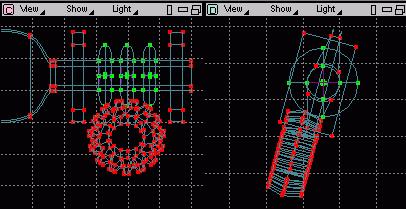
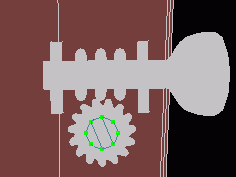 In a Right view, Show All Objects via the etc. button on the Dialog Window's Object tab, choose the now empty guitar_gears layer and insert an 8 point circle via Model - Insert on the menu. Select Model - Translate and move 12 along the Y-axis. Use the
  Rotate tool and try to match the slope of the guitar head (about 11 grid spaces up and 3 over from the top point to the bottom point in mine). Translate along the Z-axis until the circle lines up well with the face of the gear. Connect corresponding points on the circle to make a face, Show - Surface, and Rotate the view so that you can see the new disc over the gear. Select - Allpoints on the circle and Translate in all axes until the disc just barely plugs the hole in the gear (translating as necessary).
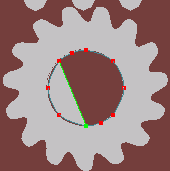 Remain in that rotated view and select a point on the corner of the rectangular patch in the center of the disc. Select the curve leading from that point along the circle's edge and use Model - Subdivide Select Curve to create 2 subdivisions. Repeat this on the opposite side of the circle, creating a 10 point circle. Delete the recently added connecting splines, leaving only a circular spline.
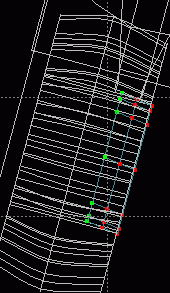 Select this spline and Extrude it 2 times towards the center of the gear translating each extrusion slightly to remain within the hole of the gear. You can only extrude one spline at a time, yet we had a circlular spline with 2 connecting splines for a total of 3 splines. This selection would not have properly extruded so the excess splines had to be removed and will be readded later.
Make sure you are in the guitar_gears layer containing these new circles and Show Only Select Object using the Dialog Window. In a perspective view add 2 connecting splines across the faces of the first and second circles exactly as they were before they were deleted for extrusion (do not connect the points created with Subdivide Select Curve yet). Select one of the points created on the original circle when Subdivide Select Curve was used and select the curve extending from that point to the second circle's corresponding point and click the  Delete Point tool and repeat this on the opposite end of the first circle only. Now connect the 2 points which would correspond to these on the second circle. You should now have a flat head screw top with a slot in the middle. Here the same principle of not creating a patch yet holding the shape was used as with the invisibility method previously. However, this time I simply did not give the program enough information to create a patch in that spot, or removed necessary information, thereby eliminating the need to use invisibility to the same end. I could have made those 2 added points on the first circle invisible and achieved the same result. Show All Objects and Rotate the view (with Show - Surface turned on) until you can see the screw residing within the gear well enough. Make sure the screw is not perfectly fit into the gear's hole by scaling it a little smaller than the hole as necessary. Save current progress. guitut15.hmp
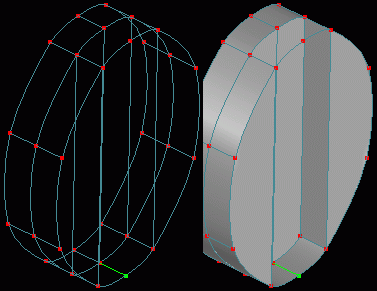 Switch to the guitar_peg layer, rename it guitar_pegs, Select - All, and click the
  Cut tool from the toolbar under the Main tab. Switch to the guitar_tuners layer and click the
  Paste tool. Repeat the moving process on the screw head remaining in the guitar_gears layer. To copy a tuner assembly and move everything relatively, the simplest way is making everything be in the same layer (more tuner assemblies are needed next).
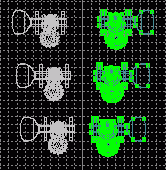 Select the circular spline (bottom of the hole of the gear) which is closest to the head of the guitar and translate it slightly towards the guitar so that it appears that the screw goes into the head of the guitar in a zoomed right view with Show - Surface turned on. Select - All points of the tuner assembly now which should all be in the same layer and click Edit - Copy. Choose Edit - Array from the menu, enter 2 for Count and in the Translate row enter .05 for X, -.65 for Y and -.15 for Z. Click OK and make sure the copies of the tuner assembly look well placed. On the Dialog Window, make sure that the guitar_tuners layer is selected and click the Copy button below the listing of objects on the . A new patch_obj will be created called guitar_tuners(copy). Choose this new layer and Select - All points. Choose Model - Flip X from the menu and change to a Front view to see the new arrangement. This was just a new way to copy things, there is no real reason to choose this over another method in this case. The Flip X,Y,Z functions take the coordinate value of the selection and negate it so that if the coordinate was -.5 it would now be +.5 and vice versa. This worked particularly well for us because the model's center was at 0 on the X-axis.
Select - All points of the copy layer and Cut and Paste them into the original layer. Click the Delete button on the Dialog Window after selecting the copied layer to get rid of it.  Freehand Select at least one point on each peg and its base then Select - Connected (you must select at least two points the first time you select anything for all other selections to be included in one group) and Edit - Cut. Now in the guitar_pegs layer Edit - Paste the selection. Go back to the guitar_tuners layer and select some points on each gear and its screw then Select - Connected and Cut and Paste them into the guitar_gears layer. Save current progress. guitut16.hmp
Tutorial created by Jonathan Lee Dec. 31, 2001. Updated Jul. 13, 2002 for version 2.8.1.
Freehand Select at least one point on each peg and its base then Select - Connected (you must select at least two points the first time you select anything for all other selections to be included in one group) and Edit - Cut. Now in the guitar_pegs layer Edit - Paste the selection. Go back to the guitar_tuners layer and select some points on each gear and its screw then Select - Connected and Cut and Paste them into the guitar_gears layer. Save current progress. guitut16.hmp
Tutorial created by Jonathan Lee Dec. 31, 2001. Updated Jul. 13, 2002 for version 2.8.1.
Submit question, comments, or ask for further instruction from draven2561@hotmail.com
Part 6
Home