






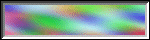

Finally I use Instant Button #1 filter. You can find that filter for Paint Shop Pro at
NVR Border Mania. You need to download that filter and unzip to Paint Shop Pro directory. Start PSP and select
File/Preferences/General Program Preferences. In Plugin Filters area you need to locate folder where you filter files are, then
click OK. You can find that filters after that in Image/Plug-in Filters, chose Instant Button #1 and your button is ready to use.


Create new image size 400 by 40 with any background. You need to use your imagination and you need to know what do you want to write or draw on that banner. I used textured background and Image:Resize to right size. If you want that your banner looks like button you can use "Button Filter" Instant Button #1. I used standard settings.
 This paragraph uses a Single Pixle GIF to create the indent at the beginning.
By using a transparent, single pixel image, with HSPACE=X and VSPACE=Y arguments in the <IMG> tag, you can position
the elements on your page where you want them. The examples below will give you an idea of the differences between width/height
and hspace/vspace.
This paragraph uses a Single Pixle GIF to create the indent at the beginning.
By using a transparent, single pixel image, with HSPACE=X and VSPACE=Y arguments in the <IMG> tag, you can position
the elements on your page where you want them. The examples below will give you an idea of the differences between width/height
and hspace/vspace.
 This has 5 pixels of hspace on
either side.
This has 5 pixels of hspace on
either side.
This has 25 pixels of hspace on
either side.
This has a width of 5 pixels.
This has a width of 25
pixels.
This has a width of 25
pixels and a height of 5 pixels.
Using hspace/vspace is cleaner, since it doesn't actually scale the image, and
it gives you twice as many pixels for each unit you specify.

If you want to see page with this background
One note; if you want people to READ your page, rather than just admire your background, try to minimize the contrast and edges in your
background and maximize the contrast between text and background. Smooth, low contrast backgrounds with type of very different value
(that is, darkness or lightness) are much easier to read against. Your users will thank you.
Finally, the tile is saved as a JPEG, which is acceptable for a background. In order to make the JPEG as small as possible I save at the
lowest possible quality. This minimizes the time that a user has to wait for your background to download before they can read the text of your
page. Don't forget they're not there to look at your background!
The first step is to obtain a graphic. Really neat backgrounds can be made from just about any natural pattern that repeats or any random
jumble of identical objects, such as candy, seashells, whatever you like. I'll use a 96x96 pixel graphic. I work at this size since I feel it's large
enough to keep the background from looking too tiled while keeping the file size (and download time) small.

Another way:
Open new image size 123 by 82. That will be your border, so you can decorate it or draw it however you like. Just fill the window to edges. Then Image:Rotate the image left for 90 degrees. Select the entire window Selections:Select All and copy Edit:Copy or with CTRL+C.
Open new image size 600 by 123 and hit CTRL+E (to paste transparent selection). Now you need to put that smaller floating image at left edge.

 Get your own Free Home Page