|
5. Color the line
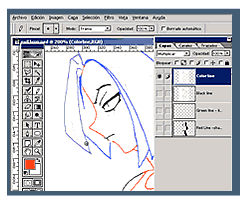
Duplicate the black line color layer. Rename the new laye as "color line". Turn off all visibility except for the new layer.
Select the pencil tool. Set its blending mode to ADD. Select the color to paint your line (and write down the number from the RBG palette, so all your drawing will hae the same color code)

|
Copy black line layer. Name it COLOR LINE

|
| Don´t worry if the color is too "light" we can correct all this later. Just make sure From now on, WRITE DOWN settings of brightness and contrast and we´ll also be using the hue and saturation (CTRL U)
Paint to taste. (That wasn´t that hard to figure out...)
-----(Skip this step if you want)-------
If you like to give personality to your line, select "black line" layer, load the blue channel; switch to paths ->make path from selection. Select pencil tool, switch brush accordingly (or custom brush) pick black color. Return to the path submen contour path ->pencil options ->center line filll ->1 or 1.5 pixels. VOILÁ! now your drawing has got more personality!
---------------------------------------------
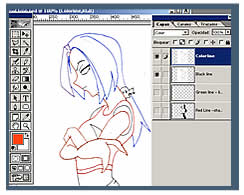
Set the color line layer to it´s blending MULTIPLY mode. You´ll see all colors go darker (and just to suit your tastes hit CTRL+U and play around with the amount of saturation and lightness of each channel). When you´re done set the line color layer´s visibility off.
And now, enjoy the drawing in it´s simple state, because we are just about starting the fun...
Next step: COLOR FILL! ;)
|
Blend mode paint for pencil: ADD.
Paint the lines
Change color line layer to
blending mode: MULTIPLY
|




