


 |
Painting animated cartoon tutorial
|
|
by David Rivera | Xsi animator | www.oocities.org/imagindreams2003 | www.imagindreams.com
|

|
6. Color fill If you made a perfectly flawless-gap free drawing then you´re ready to fill in the color. Breathe life into your character!! :) Go to IMAGE>ADJUST>SELECTIVE CORRECTION (color), put the drop down menu into black channel, minimize it´s percentage to suit your taste (this will make your color line appear more evidently) |
Paint in the black line layer with the fill tool,
then adjust black color correction % to taste. 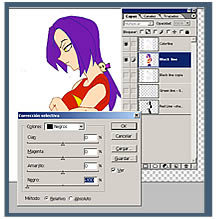 |
|||
| 7. Sort them up Color line upmost, followed by light layer, then shadow layer, then the color layer. SAVE! write an ID for this drawing like 000A1 or code it to suit your identification on the animation process (including folder scene, and stuff like that..) Organization it´s the key to success ;)
8. Final touch That´s all: if you need some more, go to the next page >> |
Order the layers: 1. Color line, 2.light layer "green Switch "COLOR LINE" layer |
|||
|
Evil Lynn is (C)1996-2003 David Rivera. ImaginDreams is (TM)&(C)1996-2003 David Rivera
|
||||

