Setting up an email account in Outlook Express 6
Open the Outlook Express Program. Make sure you have the email settings provided by your Internet Service Provider, handy. You will need your username, password, pop and smtp addresses.
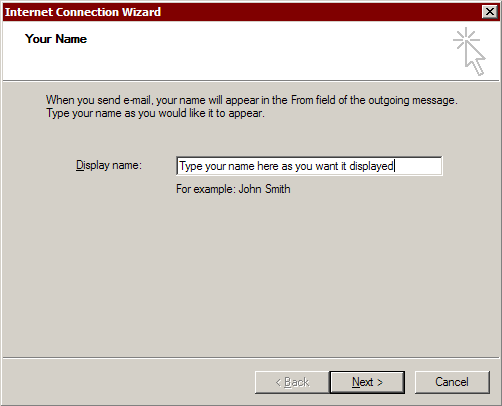
Note: If no accounts have ever been set up in Outlook express on your PC, opening the program may take you directly to the Internet Connection Wizard (the third picture on this page).
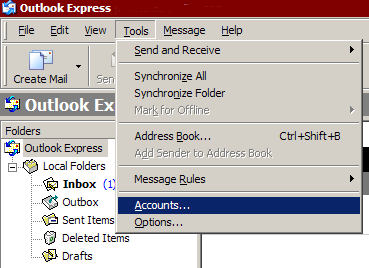
Click on Tools - Accounts
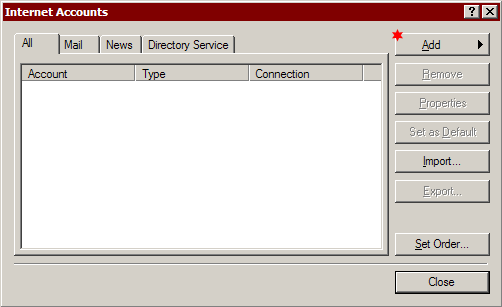
The window below will appear. Click Add, then Mail
You should then get a screen like below. Type your name as you would like it to appear on outgoing emails, and click Next
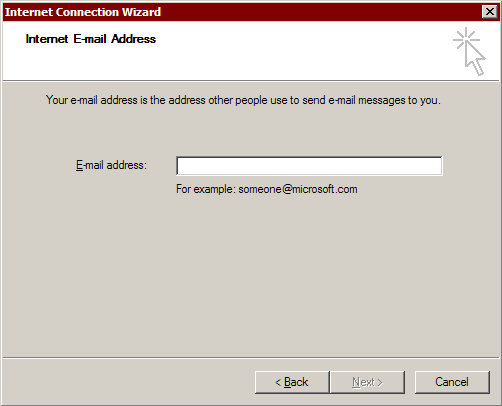
Type your email address here, and click Next
This will be something like yourusername@servername.com. Be careful
here, the address must be typed in lowercase letters only.
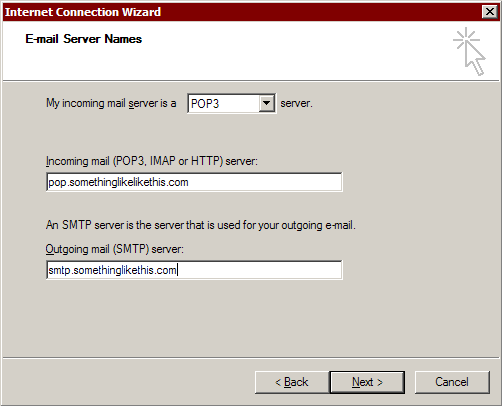
Enter the Incoming (pop), and Outgoing (smtp) Mail Server settings, as below.
Click - Next
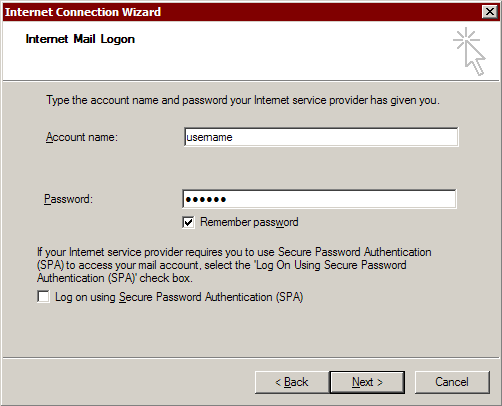
Enter your username and password. The password is case sensitive, so you must type it exactly as it is shown in your Internet service provider's instruction's. When your done, click Next
Click on Finish, and then Close on the accounts screen.
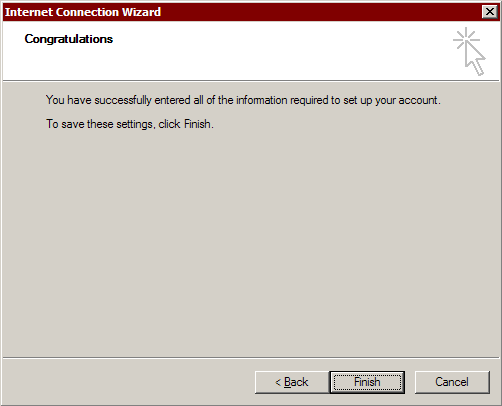
That's it! You have now set up your Email Account.