Excel Tutor - Cyprus

Macros

This lesson aims to demonstrate users how to create Macros and explain the basic principles of Visual Basic for Applications. The following areas are covered:
1. Basic Principles.
1.1 Recording a Macro.
1.2 Viewing and editing the Macro created.
2. Running Macros - Options available.
2.1 Using the Run Macro Button and a Short Cut Key.
2.2 Using a Button from the Form Toolbar.
2.3 Using a statement in Visual Basic.
2.4 Using Events.
2.5 Using a Customised Toolbar. Explaining an event procedure to unhide and hide the Toolbar automatically when the file is Opened and Closed.
2.5 Using a Customised Menu. Explaining the John Walkenbach's method to add and delete menus automatically when the file is opened and closed.
3. Programming Fundamentals.
3.1 Understanding Objects, Properties and Methods.
3.2 Declaring and Using Variables.
3.3 With-End Constructs.
3.4 For - Next constructs.
3.5 If-Then constructs.
3.6 Select Case Constructs.
3.7 Creating Function Procedures.
3.8 Input Box and Message Box.
3.9 UserForms.
3.10 Error-Handling Techniques


Macros - Examples

Macros are basically used to automate tasks. For example you can have a macro that do all the tasks required to create a report (eg look for specific data in a table and copy it, insert formulas, format cells etc). This automation reduce time and errors. If you want to see how macros work in practice you can download the file "Accpro" found in the Download Page

Macros can also be used to create custom Functions (see the file "Convector" found in the Download Page) . These can replace complex formulas created using the standard functions of Excel. They can also make calculations  that would otherwise be impossible to be made.

For simple Macros, you can use the Macro Recorder (found in the Tools menu) to record the task you want to automate. If you want to create Customised Functions or more advanced Macros you have to learn the Visual Basic For Application
(VBA), which is a computer language. To see a simple example of how Macros are created, click on this link.

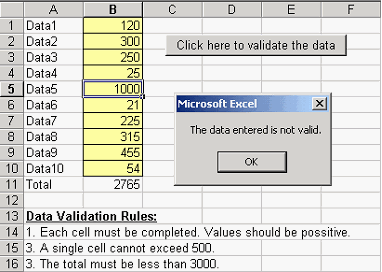
An example of how macros can be used to reduce errors is shown below. This Macro is in effect a Data Validation check that ensures that the data entered is valid.

To enter this Macro you have to follow the steps below:
1. Open the Visual Basic editor by selecting Tools / Macro / Visual Basic Editor (or pressing Alt + F11 )
2. Insert a new module by selecting Insert / Module and copy the following statements to the active code window:

Sub DataValidation()
Dim
I As Integer
' Check that each cell contains positive values and < 500
For I = 1 To 10
    If Cells(I, 2) <= 0 Or Cells(I, 2) > 500 Then
        Cells(I, 2).Select
        GoTo
ErrorMessage
    End If
Next I
' Check that the total is < 3,000
If Cells(11, 2) > 3000 Then
    Cells(11, 2).Select
    GoTo ErrorMessage
End If
' If data is OK
MsgBox "The data entered is OK."
Cells(30, 1).Select
Exit Sub
' If data is not OK
ErrorMessage:
MsgBox "The data entered is not valid."
End Sub

3. Close the Visual Basic editor and return to Excel. Enter data and run the Macro.
You can run the Macro by using the following methods:
A. Use the normal Excel menu by selecting:
Tools / Macro / Macros / DataValidation / Run
B. Assign the Macro to a button of the Forms Toolbar (as shown in the figure above).  The latter can be done by following the steps below:
(a) Load the Forms toolbar. To do this  Right click on a tool bar and select "Forms" from the shortcut menu.
(b) Click on the Button icon and use standard mouse techniques to place it on the worksheet
(c) In the "Assign Macro" window that appears, select the macro "DataValidation" and press OK.

You can download the above example from this link.

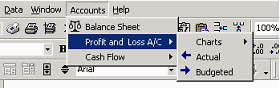
Another way to run a Macro is to create a customised menu as shown in the figure below. In this example, a selection of an item of the menu triggers a specific macro. A relatively easy way to do this is to use the John Walkenbach's  menumakr workbook. You can download it from the following site:
http://j-walk.com/ss/excel/tips/tip53.htm

Home | Who Am I? | My Training Program and Examples

| Downloads | Links | Contact