Excel Tutor - Cyprus


Go to Subtotals - Examples

Creating Subtotals


To follow the steps below, you have to download the "Database" file.

1. Sort the database first by the Product field and then by the Region field:
- Select a cell within a database.
- Select Data / Sort and the "Sort" window appears;
- In the "Sort by" field, select "Product";
- In the "Then by" field select "Region";
- Ensure that the Ascending option buttons are selected;
- Click OK.;

2. Add subtotals for the first level of detail i.e. the Product field:
-  Select a cell within the database;
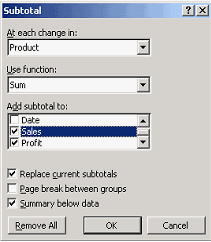
- Select Data / Subtotals and the "Subtotal" window appears;

- In the "At each change in" field select "Product";
- Ensure that in the "Use function:" field the "Sum" is selected;
- Select the "Sales" and "Profit" in the "Add Subtotals to" field;
- Click OK.

3. Add subtotals for the second level of detail i.e. the Region field.
- Select a cell within the database;
- Select Data / Subtotals;
- In the "At each change in" field select "Region";
- Ensure that in the "Use function" field the Sum is selected;
- Select the "Sales" and "Profit" in the "Add Subtotals to" filed;
- Remove the tick from the "Replace current subtotals" box;
- Click OK.

4. Delete the second Grand total.
Note that if you add subtotals twice (as above), Excel mistakenly add two Grand totals at the bottom of the report. To correct this you have to delete one of them.

Home | Who Am I? | My Training Program and Examples

| Downloads | Links | Contact