
PowerPointTM Slide Orientation - Information

If you were going to give an on-screen show you can link slides in different presentations using PowerPoint'sTM hyperlinking feature. However, when you want to have photographic slides made from your presentation you must make two separate files. In this case slide 9, 14 and 19 will have to be in another file. If you tell us the sequencing (either in person, by FAX or email) we will make sure you get your presentation with the slides ordered correctly and mounted in a clear plastic slide holder that fits nicely into a loose leaf notebook.
The way to make two files with different orientations yet share the master slide template is as follows:
Before you start adding content to a presentation, you should have the look and feel (the background etc.) worked out and saved in a file consisting of one slide. Write protect this file. Copy it to a diskette and write protect the disk and hide it. You can have several blank files with different styles in your archives. When you start to make a presentation, open your template file and immediately Save As a different file name and version. Then you can change the Page Setup to be the orientation you want and start adding your content. When you change the Page Setup PowerPointTM will change the orientation and scale of the background keeping all color grading and text formatting proportional.
Keep in mind that some slide backgrounds which contain images might look funny when they are scaled to a different orientation.
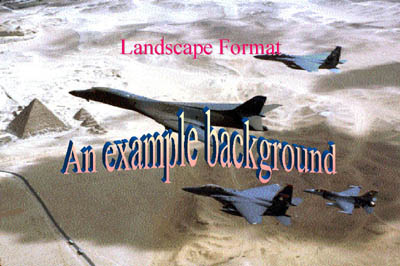
The above slide is how the background was intended to look. The
aspect ratio is correct.
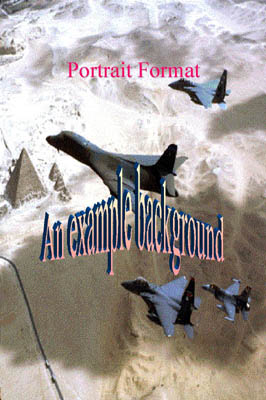
The aspect ratio for the background in the photo above has been reversed
causing it to look funny when the page orientation was set to portrait.
Backgrounds which contain images may not have the look you want when
you change page orientations. However, most plain backgrounds, or those
with simple graphics will look just fine, as do the ones below.


Click for more information about orientations.