Back to Part 1
Neck
You should now have a passable model of a guitar body. guitut03.hmp
Create a new patch_obj, rename it guitar_neck and change the color to a darker brown.
Switch to a Top view, expand that view window and  Zoom in somewhat. Turn on Grid Lock - All via Show on the View window.
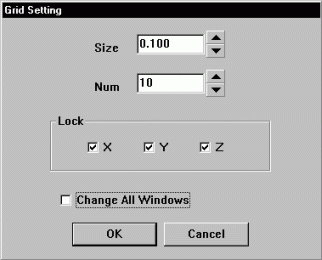
We want to draw the basic cross section outline of a guitar neck, but the grid spaces are too large to easily use Grid Lock and Add Point. Click Show once again on the View window and choose Grid Setting. In the window that appears type .1 for the Size and uncheck the Change All Windows option. Click OK and you should see a noticeable change.
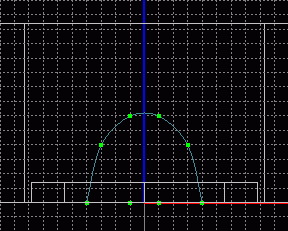 Draw the cross section outline of the neck using the
  Add Point tool. Remember to use an even number of points so that connecting splines can be added later to this spline to create patches of four points and not three. My outline used 8 points. Go ahead and select the lower four points and use the
  Peak tool this way you will not have to peak them later after extrusion.
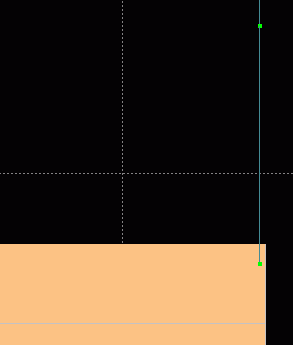 Switch to a Front view, Zoom out a little so you can see the outline and a few grid spaces above the top of the guitar body. Change all Grid Settings to 1.00, select Grid Lock - None and Select - All points (in the current patch guitar_neck). The outline is nowhere near the top of the guitar in my model it is closer to the center. Turn off all axes
  except Y (green) or use the
  Manipulator and
  Translate the selection about half a grid space from the top of the guitar. Still with all points selected, switch to a Right view and click the
  Clone tool. An exact copy is created and selected atop the original selection. Click Model - Rotate from the menu. In the window that appears type 90 in the X field and 180 in the Z field, then translate it along the Z and Y axes until the copy is lined up with the top of the back part of the guitar (turn on Surface under Show to aid in the placement). You want the bottom four points to pass into the guitar body and the entire selection should be just slightly above the bottom of the guitar. Save current progress. guitut04.hmp
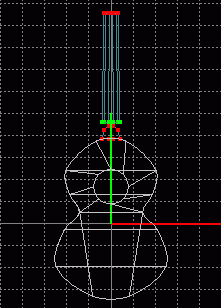 Turn off Surface under Show and Zoom out in a Front view until you can see the entire body of the guitar and several grid spaces above it. Now Select - None then use the
  Square Select tool to select all points in the origrinal outline. Click the
  Extrude tool and extrude along the Y-axis using the Manipulator for about 4.5 or 5 grid spaces with Grid Lock set for None. In case your guitar size is different for some reason, the neck of the guitar should be about the same length as the distance from the top of the hole to the bottom of the body. With the extruded portion still selected, choose Model - Scale from the menu and type .9 in the X field. However, that does not appear to be enough of a scale factor. Choose Edit - Undo (Patch) Scale from the menu and repeat the Scaling steps, but type .8 instead of .9 in the X field.
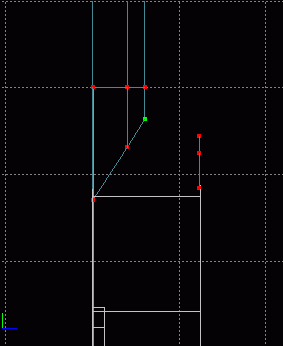 Switch to a Right view, Zoom in some, Select None and Square Select the original outline (horizontal portion of the neck closest to the body). Extrude this once more, but Translate it the opposite direction along the Y-axis a short distance away from the original. The original needs to be moved a little now. The extruded portion should still be currently selected, use Square Select and draw a box around both the currently selected extruded outline and the original outline. This should deselect the selected portion and select the unselected portion (unless your Select Vertex setting has been changed from Inverse using Configuration + etc. Setting under the etc. tab on the Dialog Window). Once you have selected the original outline via some method, Translate it along the Y-axis about half a grid space away from the body. Select - None and use Square Select in a Right view (which you should still be in from before) and draw a selection box around the left most point on the extruded outline closest to the body. It looks like only one point, but it is realy several lying in a row along the X-axis, so you have to use some selection tool to get all of them. Translate the selection along the Y-axis toward and slightly inside the guitar body. Deselect those points using the shortcut key Enter, choose the rightmost points of that same outline via Square Select and move those points about one fourth of a grid space away from the body (try to make a 45 degree slanted diagonal line through the 3 sets of points). Save current progress. guitut05.hmp
Those two outlines closest to the body need to be connected in order to form the curve and the complete neck base, but if we connect them as is, there will not be much of a curve because the points do not pass through enough splines to be properly controlled. Basically, there needs to be another outline between those two. If we extrude the most recently created outline, we would have to do too much to it for it to line up well with the other. So extrude the original, currently unconnected copy. Select - None and Square Select the right most outline, click the Extrude tool, and Translate the extrusion about half a grid space along the Z-axis, towards the other sets of points. Under the Patch tab on the Dialog Window, click the etc. button (not the tab) below the white space and choose Show Only Select Object (this will get the guitar body out of your way).
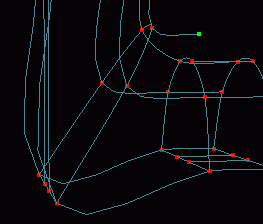 Switch to a Perspective view, turn off Show - Surface, Zoom in, and Rotate the view until you can see well enough to begin connecting corresponding points (remember to create points away from the model and drag back to the model to weld). Notice that you do not need to connect any corresponding points whose patches would lie entirely within the body.
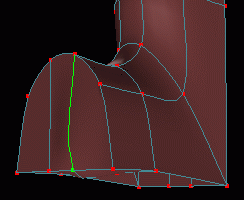 Go through as you did on the body and select a point and select its curve with the
  Select Curve tool (or use the Tab key) and use the Peak tool where necessary. Or use the
  Hand Select Curve tool on the Patch toolbar to choose part of that parabola shape and the Model - Peak (Around Select Curve) function from the menu. The bottom most outline still needs to be connected, to make the neck thoroughly solid. Zoom in and connect and peak the corresponding points again. Save current progress. guitut06.hmp
Tutorial created by Jonathan Lee Dec. 31, 2001. Updated Jul. 13 2002 for version 2.8.1.
Submit question, comments, or ask for further instruction from draven2561@hotmail.com
Part 3
Home