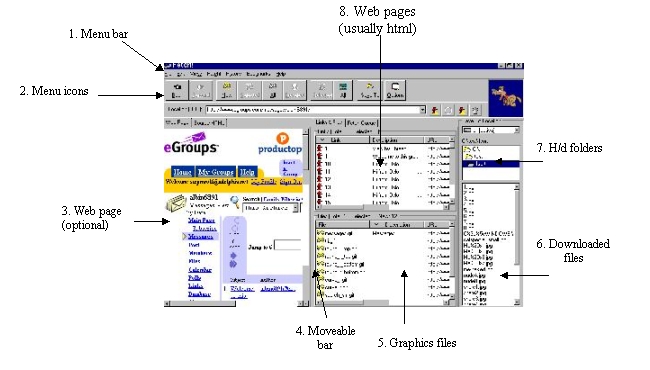
| Logging in will be easier, if the
Web Page (item 3. above) is opened as far as possible.
1. Widening the web page When Fetch! opens the mouse pointer will look something like this: |
 |


2.. Setting
viewing options
| 2.1. Click on the word Edit in the Menu bar (item 1, above). |  |
| 2.2. This action produces a drop-down menu. In that menu click on the word Options. | 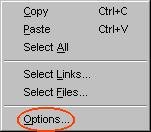 |
2.3. In the dialog box that appears, click on the Display tab at the top and make certain that Display All Images is selected.
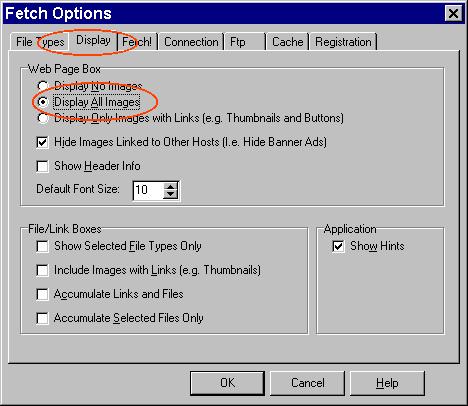
Then click the OK button.
3.. Calling up eGroups log-in page

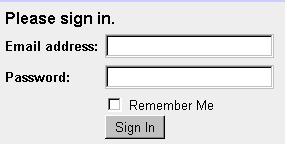
Enter the URL for eGroups and click the red hydrant at the right end of the input window.4. Enter your username and password as usual and click the Sign In button.
5. You may now reduce the size of the
web page by repeating step 1, except that the movable bar is dragged to
the left.
Faq 9: Fetch! in eGroups
page
1: Home
page
2: The Fetch! screen
page 3: Logging on to
eGroups
page
4: Picking a screen
page
5: Getting the files