
Left-click on the first icon to the right of the Location window -- it's a fire hydrant. This will activate fetch.
When Fetch! has analyzed the page the window will look something like this:
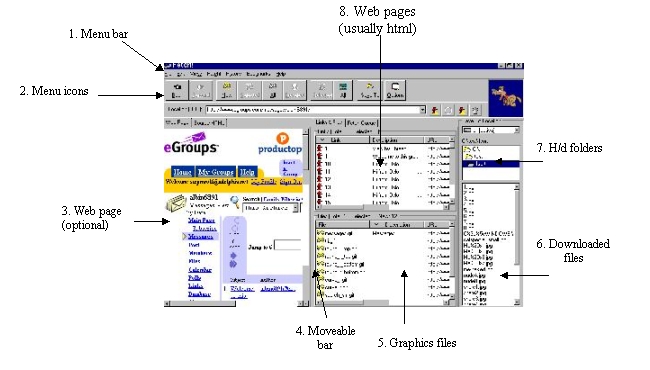
Directing Download
| Before downloading the pix it's a good idea to tell Fetch! where you want them. You can do this using the Explorer-like illustration on the right side of the Fetch! window. | 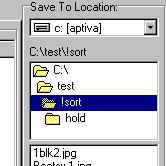 |
Selecting Messages
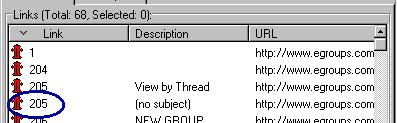
| 1. Scroll area 8 (called Links)
until you see the numbers eGroups assigns to the msgs.
2. Left-click on the msg following the one with the description View by Thread.
|
 |
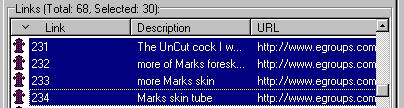
| 3. Holding down the <shift key>,
scroll down until you can see the last message number.
4. With <sift key> still down, click on the last message number. All the messages should now be hightlighted. |
 |
| 5. Click on the Selected button
at the top of the Fetch! window. This tells the program to analyze the
messages that you just highlighted. This will take a little while, depending
on a number of factors.
6. As it finds picture files the names
will appear in area 5, above. In the description column pictures
will be labeled as Attachments.
|
 |
| 7. To assemble all the Attachments into one area, click on the Description bar. This will alphabetize the entries by Description. | 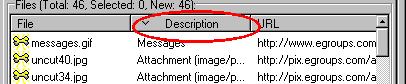 |
Downloading Pictures
| 1. In area 5, above (called Files),
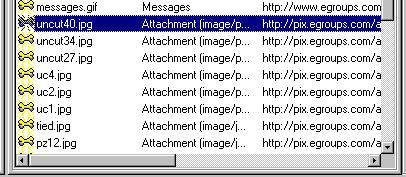
left-click on the first Attachment.
2. Holding down the <shift key>, scroll down until you find the last attachment. With the shift key still held down, left-click on the last attachment. With this operation, you will have selected all the pictures and nothing else. |
 |
| 3. Click on the Selected button at the top of Fetch! window. The program will download the pictures. |  |
| 4. You can watch the progress of the download by clicking on the tab at the top of the screen called Fetch Queue. |  |
Faq 9: Fetch! in eGroups
page
1: Home
page
2: The Fetch! screen
page
3: Logging on to eGroups
page
4: Picking a screen
page 5: Getting the
files