Glossary Lists < DL >
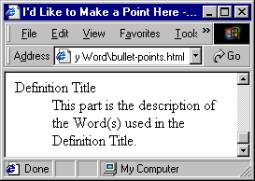
There’s one more list that is worth knowing about, it’s called the Definition List and has a lot of good uses that it can be put to. Its not too different is structure from what you just learned how to make, but it does have some really neat features. It shares the "everything lives on it’s own line" characteristics of the prior listings, and the indented nature too, but it does have a look of its own.
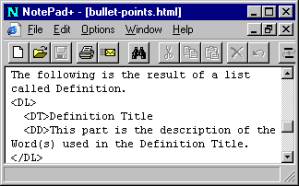
This list starts with this code < DL > of course it stands for Definition List, we will add another tag < DT > this stands for Definition Title. And, lastly a < DD > tag that stands for Definition Description. That’s it. And it works like this, copy the code you see below and you’ll be off "Definition Descripting" all on your own!
Of course, one of the nice things about this type of list is the ability to continue adding new Definition Titles and Descriptions, one after another until you don’t need the list any longer. Don’t forget to close the extended list with the < /DL > tag at the end.
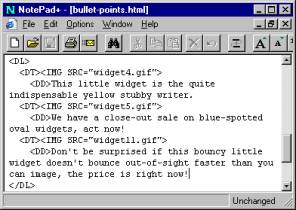
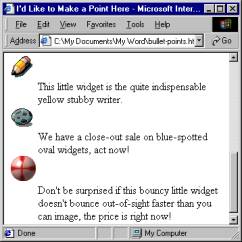
Another cool thing you can do with Definition Lists is replacing the words after the < DT > with an image file. This format is used quite frequently on the Web by businesses wanting to show a product picture then have an offset description near by. Take a look at the code below and see what you think about this type of format.
Well, that covers just about all the lists you can write with HTML, now I did say earlier that there were other ways to get bullets on a page, but it did add memory to the size of the Web page. I thought I’d show you the alternative way of adding bullets, that’s with images you have acquired from Internet resources. I have a great deal of wonderful links to graphic resources on my Web site under the book called Web Page Design. Again, that’s at http://profal.com then go to the link called Graphic Shoppe to find tons of Free images and backgrounds. A later chapter will be devoted to using Graphic images and such.
I will pick a couple of bullet styles and use them in the code below for you to study.
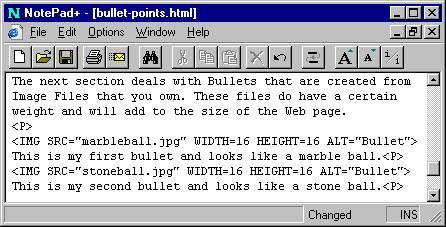
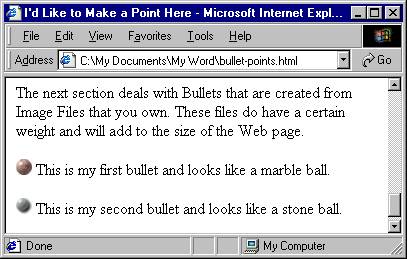
Obviously, many people have chosen this type of bullet for their Web pages over the plainer Disc, Circle or Square types that come from the < UL > tag. In fact, these little images are only about 2K, so if used in moderation, they won’t add much to the weight of the page. And, they certainly look a lot more professional. I made these bullets a little larger than needed so they would show up on this page. I believe they are too large for normal bullets.
That wraps-up another chapter on the basics. Next chapter will cover Graphic Images in more detail and I’ll show you how to add neat backgrounds to your Web page too.