
Let’s get started!
Here are the codes that you will use to make a Web page that any browser can view. These pages can be UPLOADED to the Internet so that you can share your thoughts with the world!
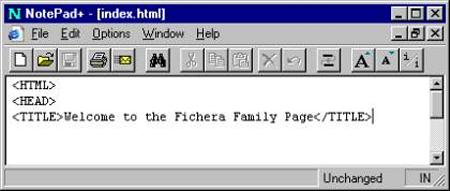
The tools are very basic and simple. In Windows 3.1, 95, and 98, under the Accessories menu there is a tool called NOTEPAD. This is all we need, although there are Software tools that you can buy from fairly inexpensive to quite expensive, Notepad is free!
On your keyboard there are three (3) keys, which we use to create the TAGS that the browsers read. These are the comma shifted [,], that’s the Less Than Symbol [<]; the period shifted [.], that’s the Greater Than Symbol [>]; and the forward leaning slash [/], it’s right next to the period and under the question mark. You’ll find another forward leaning slash on the Ten Key Number pad on the right side, just over the number 8. These special brackets alert your browser that a Web page is being written and to pay attention!
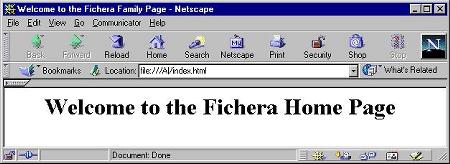
You do not need a connection to the Internet to BUILD and EDIT your Web page; all you need is a willing browser such as Netscape or Internet Explorer from Microsoft.
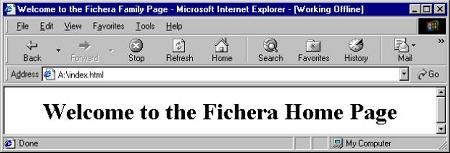
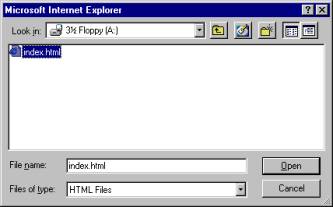
Before you will be able to see your first or home page, you’ll have to give it a name. It is important for you to remember that your very first page must be named index.html. (All in lower case text as well, named files on the Internet are case sensitive!)
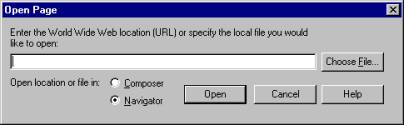
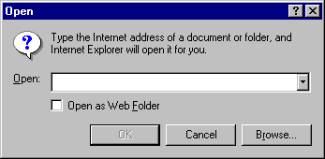
To VIEW your Web page as you build it, you’ll need to open a browser of your choice. Once you have, go to the File menu and choose Open Page... in Netscape, or Open... in Internet Explorer. In either browser you may also use the keyboard combination of [Ctrl]+[O] to do the same thing.
If you are using Netscape to view your Web page you will see the Netscape Open Page dialog box shown below, you will have to go to the 3 ½ Floppy [A:] drive to retrieve your saved Web page file called index.html.
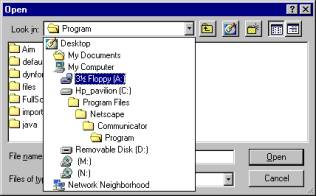
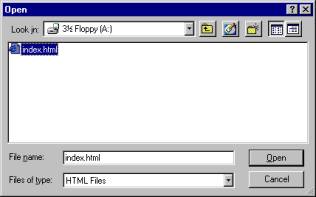
This is what the Open File dialog box looks like in Internet Explorer:
This is all you need to get started in this Fun and Addicting adventure!
In the next step will be learning the beginning codes; we call these TAGS, it makes it all work!
Page 1 Page 2 Page 3 Page 4 TOP