Getting the text and images on the page.
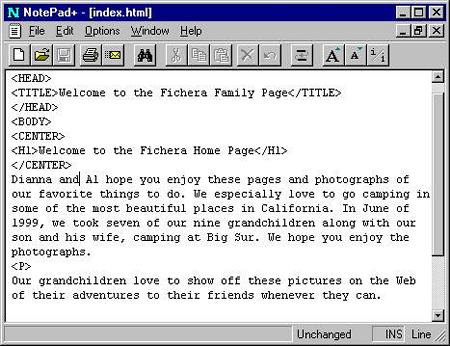
If you have a short message to write to the viewers of your Web page, now is a good time to start. If you need additional paragraphs we have a special tag for that. It's the < P > tag, short for paragraph; it adds additional space between the paragraphs and looks like any other typewritten page. Another tag we use is the BREAK < BR /> tag. It sends you to another line but offers no additional space between the lines.
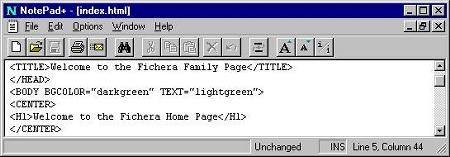
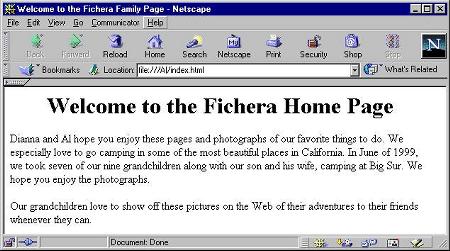
There will not be a need to start your typing with a < P > tag because the closing < /H1 > tag above created another line for us to use. If you don't like the spacing shown on the next page, then feel free to add a < P > tag first; it will add more space between the Welcome message and the first paragraph.
Now don't you think it would be a good time to learn how to add a picture to your page? It's not very hard, all you need is the picture saved in a format the Web understands. These formats are either called GIF or JPG. Most of your photographs will be saved as JPGs if they have lots of beautiful colors. To put a picture on the Web that you own, you'll need to use a scanner, not a problem at school because we all have them. If you need to do this at home, your friendly Print Shop such as Kinko's can help do this for you. Also, now you can have your pictures saved to CD-ROM disks by asking for that service. It's a very low cost add on in most stores. So let's learn the tags for this next.
To add a picture to a page you will need to use a tag called the Image Source, we have a short cut in writing this tag as well. We'll abbreviate Image to IMG and Source to SRC. Notice that I'm using an equals [=] sign and double quotes as well ["], plus the name of the image to go on the page.
Type the following: < IMG SRC="image.jpg" > This works but we can make it better.
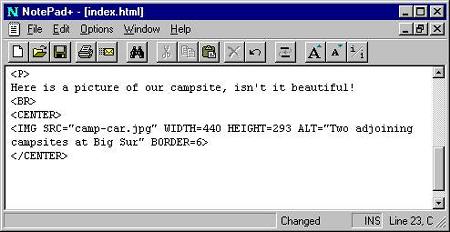
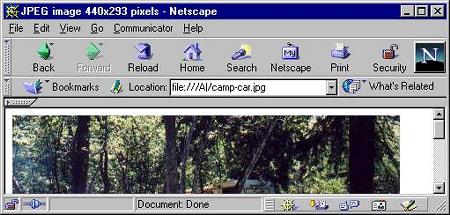
Really, that's all except for a few things. If we know how wide and tall the image is, we can make the image appear faster. The proper way to write this is WIDTH="n" and HEIGHT="n", (n equals number of pixels) in Netscape if we load the picture into the browser, the Title bar will tell us the size of the image. Also for those visitors that are unsighted, we can add a descriptive bit that tells their Braille readers what the picture is about. It's a good thing! It's called Netiquette.
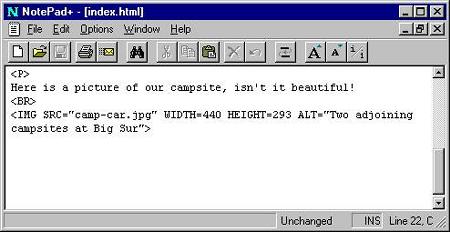
Use the File | Open Page... dialog box, but load the picture instead. Look to the top of the browser's Web page and you will see the size listed by WIDTH first and HEIGHT second. Notice below.

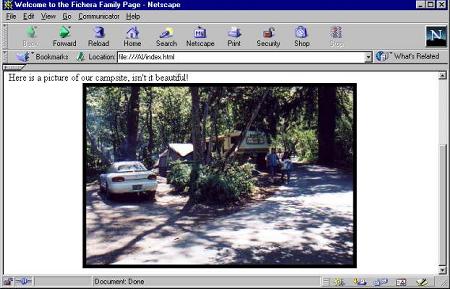
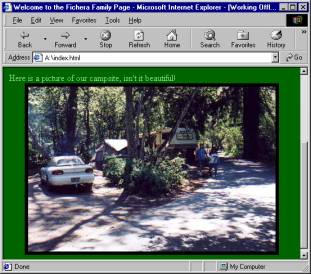
Now let see what your Web page could look like with an image on it.
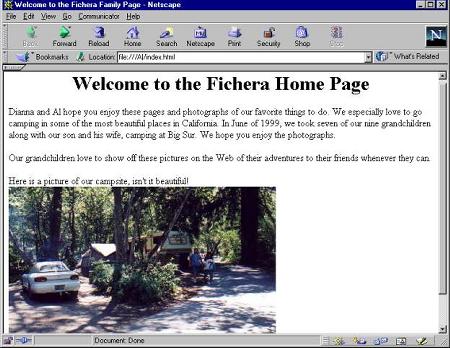
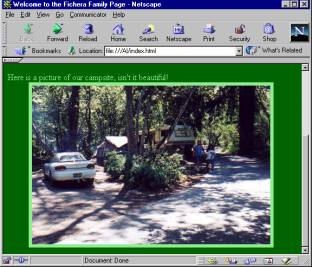
I know what you're thinking, wouldn't the picture look better if it was centered on the page, and what if it had a picture frame around it. Wouldn't that look nicer? Could be; let's see if it does.
Page 1 Page 2 Page 3 Page 4 TOP