Part of the fun of putting a Web page together is the part where you can put some of your favorite pictures on the page. Or, sometimes it's finding a special picture on the Internet that you would like to have on your page too. Others will want an animated picture; these are called GIFs. These requests are easy to fill, and it will be covered in this chapter.
Let's start with an explanation of the differing types of images used on computers and those that belong on the Internet. By choice, most Web designers have chosen GIFs and JPGs as the best to use. First of all they are the smallest in size, (and that is important). You wouldn't want your Web page to take all day to load, would you?
Some of you learning this today will be lucky enough to own or have access to a scanner. We use scanners to copy photographs we own, into a digital format that the Internet can recognize. Yet most scanners turn your images into a TIFF format, which is not a proper format for the Web. I'll discuss how to change this format for you in this chapter. Other images you may have encountered on your computer might be BMPs or WMFs; these are Windows Clipart and Microsoft Word Clipart formats that have to be changed too.
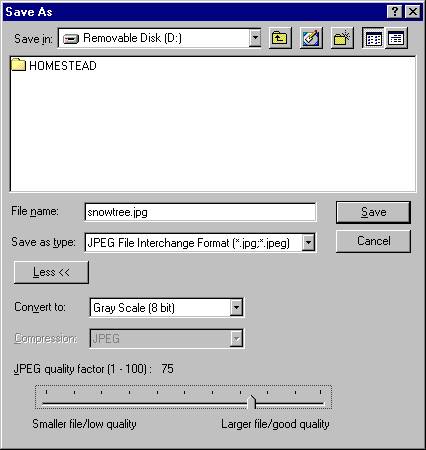
GIFs are used for Animations and pictures with a limited color schemes, although GIFs can use up to 256 colors. Probably more colors than you and I can name anyway! JPGs are used when you are using pictures with loads of pretty colors, it can handle up to 16,700,000 colors, certainly more than I can imagine! One of the nice things about using JPGs is its ability to compress the image into a smaller file size. I do not recommend more than a 25% reduction in image file weight though. This function is part of the Save As... dialog box and I will show you soon.
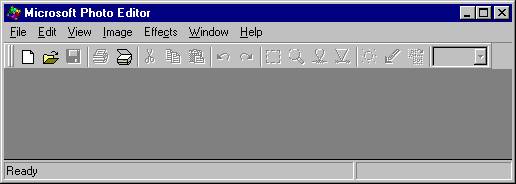
For those of you using Microsoft Office 97 or 2000, you will have a program that is on the CDROM and may not have been loaded onto your computer. It's called Microsoft Photo Editor. This is a perfectly good place to go to change your images into something the Internet can handle. You will usually find Photo Editor in your Microsoft Office folder. Here is a screen shot, notice the scanner icon; you can scan directly into this program if you wish.
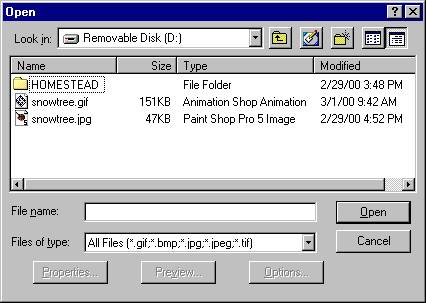
In the next screen shot I have loaded a black and white JPG photo, you are not limited to only using colors in JPGs. I'll change this image into a GIF and see what happens.
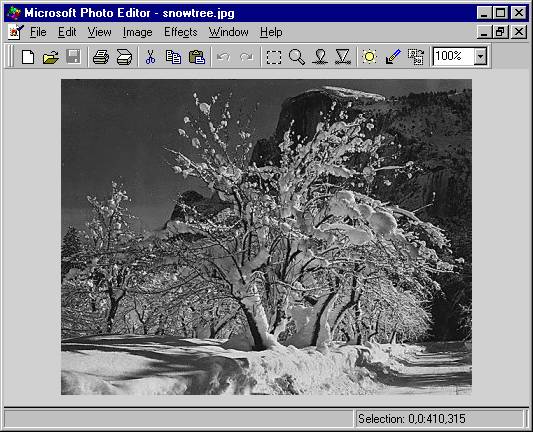
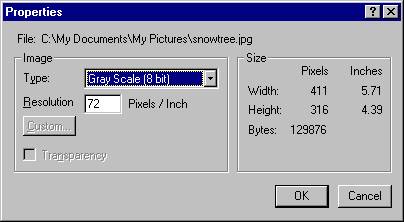
On the next page we'll take a look and see a bit about this photograph, for instance, how big it is and how much weight it will have if I decide to use it on a Web page. I will go to the File menu and check it's properties.
Page 1 Page 2 Page 3 Page 4 TOP