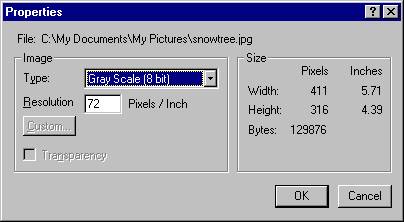
Viewing an Image's Properties
As you can see, the image is fairly large. Just less than 6 inches wide and over 4 inches tall, and its weight is not too bad but it can be lowered from the 129.9KB shown.
Next I'll show you the Save As dialog box and perhaps we can see what our choices will be from there.
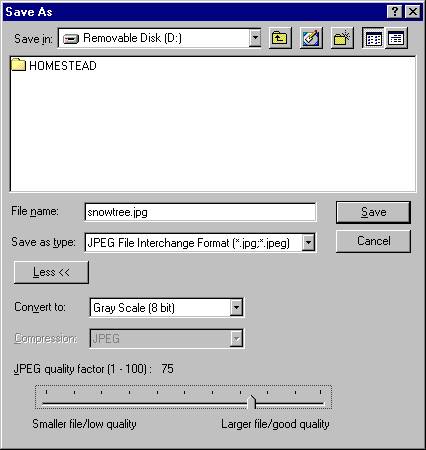
I'm showing you the options for saving JPGs here. I chose to reduce the file to 75% of the original. (Not shown is the same Save As… dialog box only I saved it as a GIF file).
Below, in the next screen shot, you can see the difference in KB for these types. The reduced JPG image is one-third the size of the GIF image. Certainly the proper choice for any Web page has to be, at least with this photo, the JPG version.
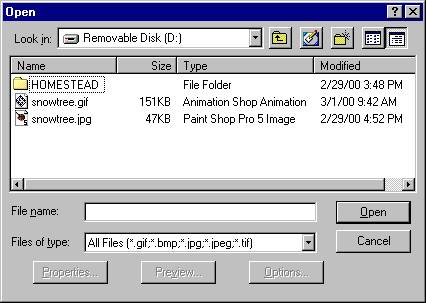
There will be times when a GIF will be best but not with this time!
I mentioned earlier in the chapter that you might be interested in using someone's photo or perhaps a bit of animation on your Web page. On the next page I'll give you a couple of ideas on how to find these on the Web.
You will have to open your Web browser and point it to a search tool; I've chosen google.com for you to try.
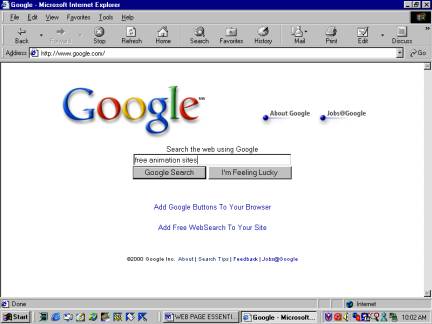
And, these are the results returned by Google.com, looks like I may have hit the jackpot here!
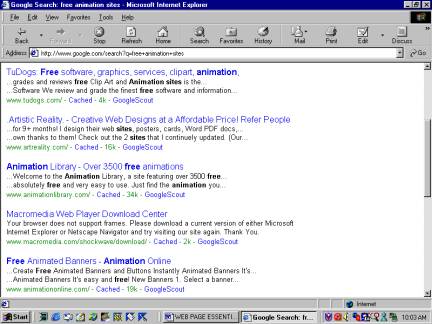
I chose the Animation Library, it was quite easy to follow and they have tons of interesting animation for you to use. And, they allow you to edit the animation, perhaps change a color or add text. I picked a small heart with sunrays. It's below. On a Web page the rays animate.
On the next page we'll learn how to save graphic files from the Web.
Page 1 Page 2 Page 3 Page 4 TOP